
This article explains how to transfer your domain from Crazy Domains to Trustname, highlighting common issues with Crazy Domains and the benefits of switching. It also provides clear guidance to help you prepare and complete the transfer smoothly.
Key Takeaways
- Fair Pricing – Clear, upfront domain pricing with no hidden or upsell fees.
- Expert Support – 24/7 access to knowledgeable, real-world domain experts.
- Strong Privacy – Free two-tier privacy protection for maximum data security.
- Transfer Readiness – Ensure eligibility, unlock the domain, and obtain the authcode.
- Smooth Process – Simple steps, discounted transfer fee, and added one-year renewal.
TABLE OF CONTENTS
- Key Takeaways
- Perks Of Using Trustname
- What To Know Before Initiating Domain Transfer
- Preparing For The Transfer
- Transferring To Trustname
- Troubleshooting Failed Domain Transfers
Are you tired of the unreliable customer support, shady extra fees, service delays, and downtime from Crazy Domains? Worry not, because a better alternative is here Trustname.
Other customers who've switched from Crazy Domains to Trustname experience more responsive customer support, secure privacy protection, and the best pricing available anywhere.
All you have to do to transfer your domain to Trustname is to get your authcode (transfer password), unlock your domain, disable domain privacy, and update and check your email for the authcode.
But, before getting started…
Perks Of Using Trustname
How do we compare to Crazy Domains?
- Standard Pricing, No Ripoffs
Crazy Domains has a practice of trying to upsell customers on different added products and services, raising their fees astronomically. You should have the right to choose, and that's what we offer at Trustname.
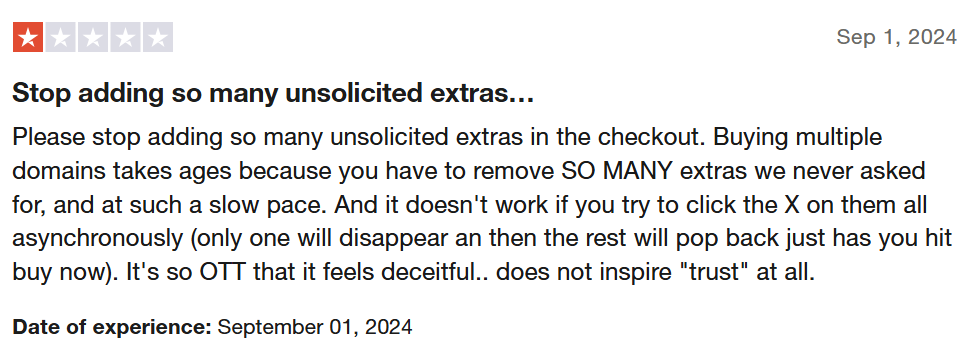
Regular domain prices start at $12.99 and renew for $14.99 per year for popular TLDs. There are no hidden fees, everything is bundled into a clear, upfront cost. On top of that, we offer multiple payment methods, including cryptocurrency, bank transfers, and credit cards, making your payments quick and easy.
- Expert, Round The Clock Customer Support
Customers of Crazy Domains experience subpar customer service and sometimes go days, weeks, or even months without solving their issues. It's frustrating being unable to move forward, and your business is in limbo because your chosen domain registrar won't and can't help you.
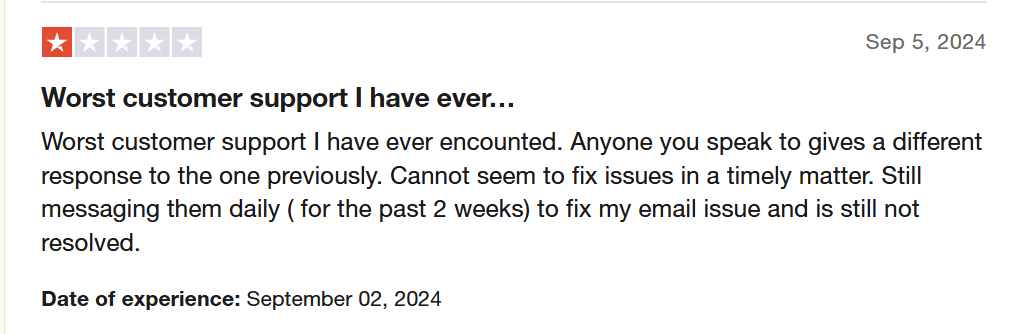
The Trustname difference is that we have domain expert customer service agents who run their own websites.
They don't just read off a script, they have real-life knowledge to help you 24/7. We also offer support through multiple channels, including live chat (recommended), email (recommended), and phone, giving you the flexibility to reach out in whichever way is most convenient.
- Unbeatable Two-Tier Privacy
Crazy Domains and many other registrars put a premium on domain privacy and protection. Aside from the basic Whois protection, they offer to mask your details on Whois lookup for $8/yr.
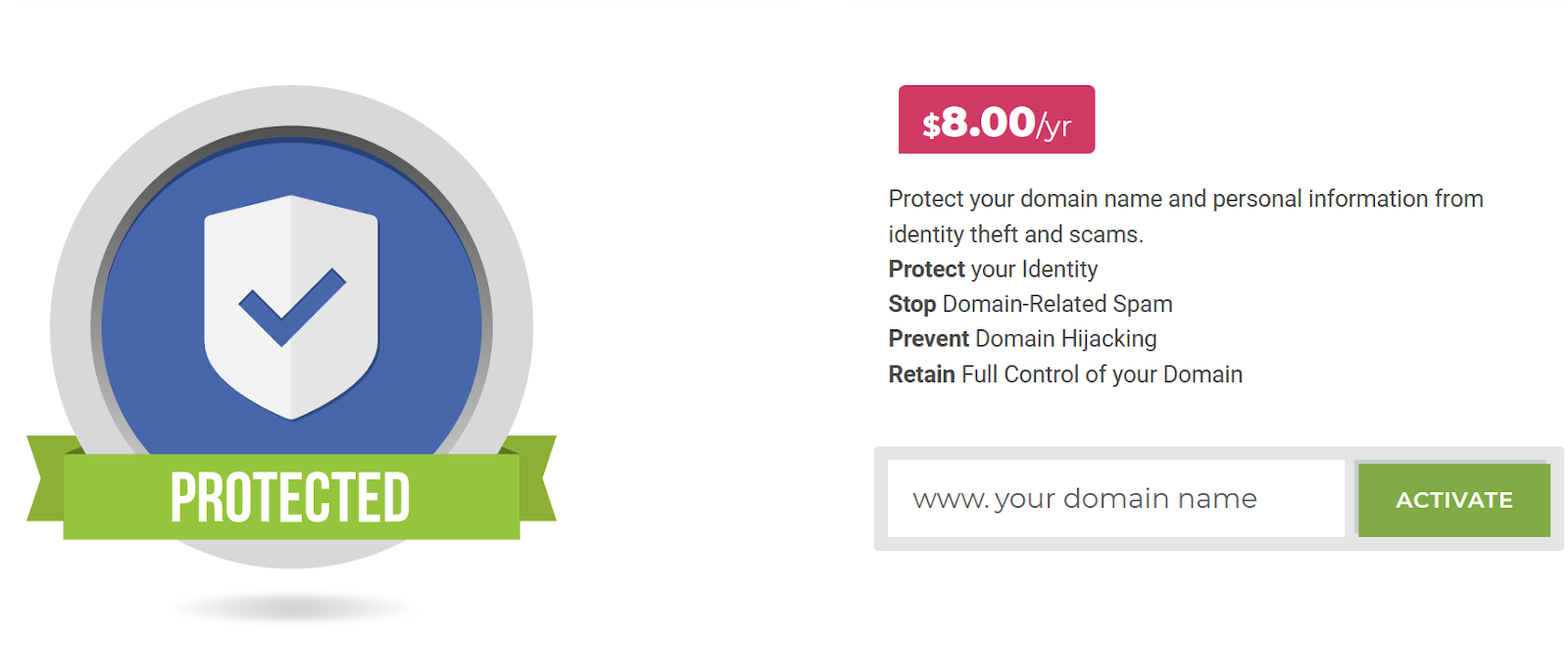
Again, Trustname does it better. Our Two-Tier Privacy Protection is designed to provide the highest level of privacy. Unlike standard Whois privacy or the paid extra protection Crazy Domain offers, it is double premium protection, all for FREE.
Here's how it works:
[+] [List] Green Ordered - In the first tier, you can register your domain under Perfect Privacy LLC, a proxy company. Instead of your personal or business details appearing in public domain records, Perfect Privacy LLC becomes the registered owner while you maintain full control over the domain.
You can change the domain contact to your details, but this feature ensures that your information is never directly linked with the domain from the start.
- In the second tier, we further mask your domain contact information (whether it's your own or Perfect Privacy LLC's) from the Whois database using Whois Privacy Protection Services. When someone does a Whois lookup, they won't even be able to see the proxy details!
- In the first tier, you can register your domain under Perfect Privacy LLC, a proxy company. Instead of your personal or business details appearing in public domain records, Perfect Privacy LLC becomes the registered owner while you maintain full control over the domain.
What To Know Before Initiating Domain Transfer
Before initiating a domain transfer to Trustname, there are a few key things to keep in mind:
- Nameserver Settings
You won't be able to modify your nameservers or DNS settings during the transfer. If your website is hosted with Crazy Domains, ensure you update the nameservers to Trustname before starting the transfer.
- Website Migration
Domain transfers don't include your website. To move your website, you'll need a hosting plan from Trustname. Our customer support team can guide you through the migration process, including backups and database transfers.
- Transfer Pricing
Trustname offers a discounted transfer fee of $7.77 with a promo code, which adds an extra year to your domain's expiration date, making it a great value compared to the usual $14.99 for a 1 year registration.
- Expired Domains
Transfers can only be done while the domain is active or in the grace period. If your domain is in the Redemption Period, you'll need to renew it first and wait for the 60 days ICANN lock to pass before transferring. It's best to transfer before your domain expires.
Preparing For The Transfer
- Domain Eligibility
Ensure your domain has been registered for at least 60 days and has not been transferred to another registrar within 60 days, per ICANN policy.
- Get Your Authcode Ready
Here's how to locate your authcode on Crazy Domain:
[+] [List] Green Ordered - Log in to your Account Manager.
- Navigate to your Dashboard and locate the domain for which you need the Registry Key. Click the Gear Icon (⚙️) next to it.
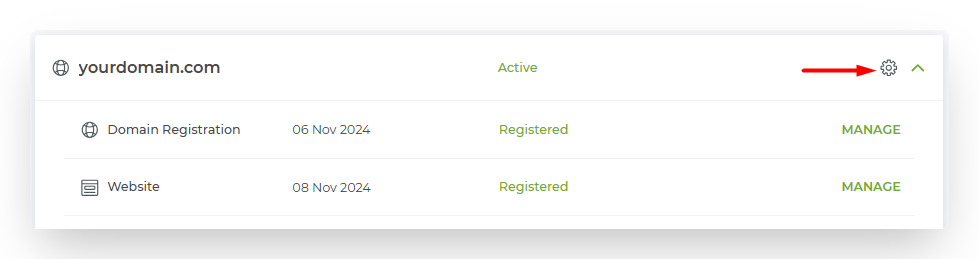
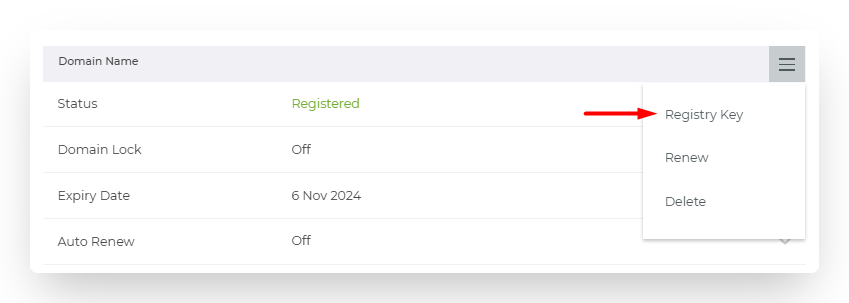
- On the Domain Name page, click the Menu Icon (☰) and choose "Registry Key" from the dropdown.
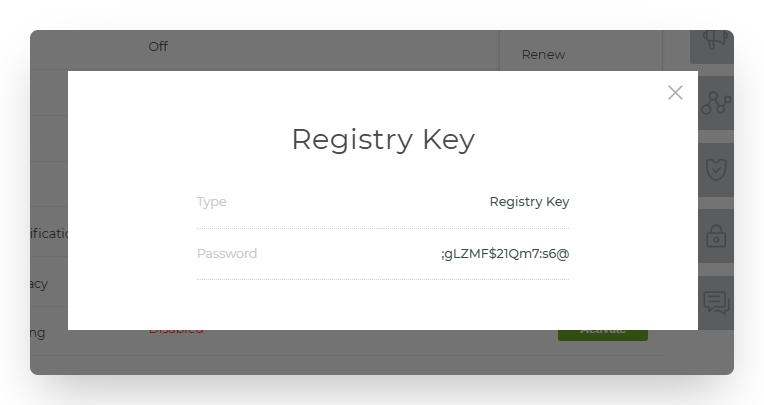
- A pop-up window will appear displaying your domain's Registry Key.
- Unlock Your Domain
Follow these steps:
[+] [List] Green Ordered - Click "Sign Up / Log In" at the top of the page.
- Make sure "Account Manager" is selected.
- Enter your username and password, then click "Log In".
- Click the "Visit My Account" button.
- In the top menu, click on "Domains".
- Select the domain name you want to manage.
- Under "Domain Lock", open the drop down menu and select "Off".
- Click "Update" to save your changes.
- Disable Domain Privacy
[+] [List] Green Ordered - Navigate to the top of the page and click "Sign Up / Log In".
- From the dropdown menu, choose "Account Manager".
- Input your username and password, then select "Log In".
- Click the "Visit My Account" button.
- In the top menu bar, select "Domain Tools".
You'll see a list of your registered Domains and their associated Addon services. - Find the Domain whose Privacy addon you want to cancel, and click its corresponding "Domain Privacy" link.
- On the right side of the Domain Addon bar, click the Hamburger Menu and select "Delete" from the dropdown options.
- To finalize, click the "Confirm Delete" button.
- Update Registration Information
To receive the authcode without issues, you must have a valid email address. If you've changed it recently, you'll need to update it.
Follow these:
[+] [List] Green Ordered - Click on "Sign Up / Log In" located at the top of this page.
- Ensure that the Account Manager option is selected.
- Input your username and password, then click "Log In".
- Select the Visit "My Account" button.
- Click the "Edit Profile" button located below your account details.
- Navigate to the Security Tab, where you can modify your email address in the designated fields.
- Finally, click the "Save" button at the bottom of the page.
Updates to registration information in the Whois database may require up to 24 hours for processing, and a Domain transfer typically takes up to 10 days to complete.
Transferring To Trustname
- Visit Trustname.com, log in to your account by clicking 'Log In'. Enter your username and password.
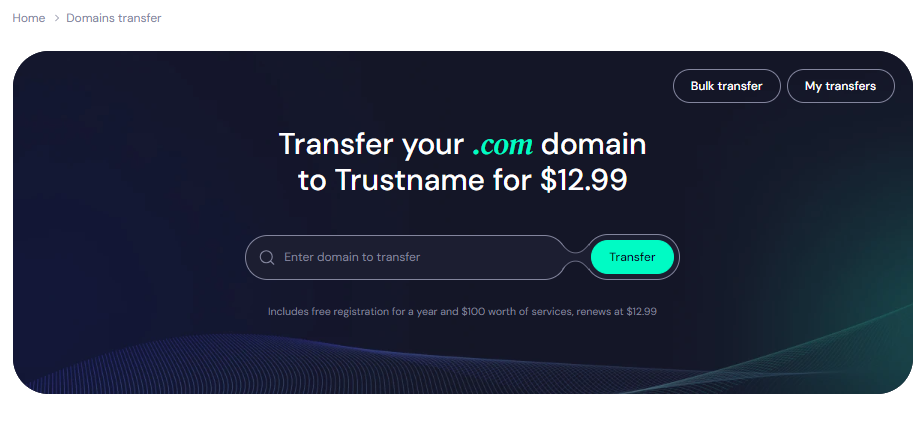
- In the 'Domains' dropdown, select 'Transfer' to open the domain transfer portal.
- Type in the full domain name (with the extension) from Crazy Domains and click 'Transfer'.
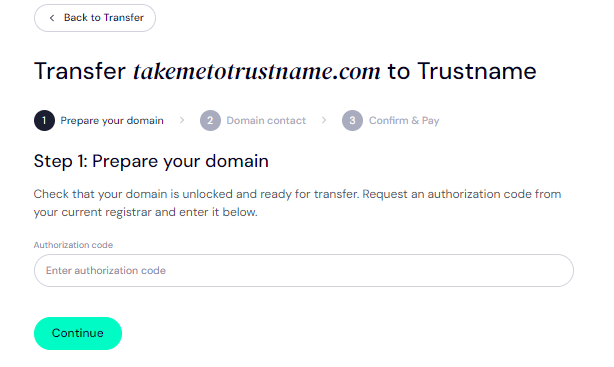
- Enter the authorization (EPP) code from Crazy Domain's email and click 'Continue'.
- Choose Domain Contact Information – Select either.
[+] [List] Green Unordered - 'Add new contact' – Use your own contact details.
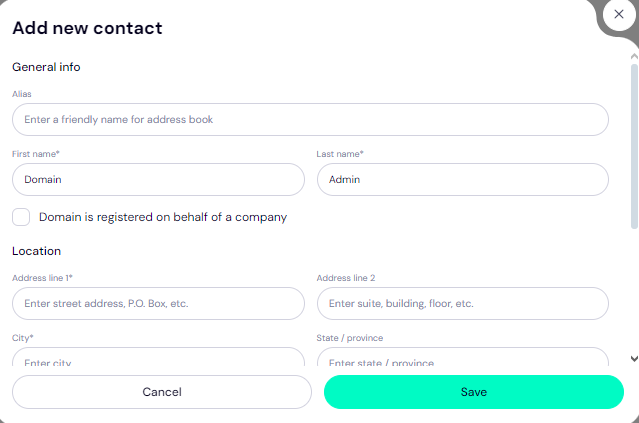
- 'Pre-defined contact' – Use Trustname's privacy service for added protection and speed.
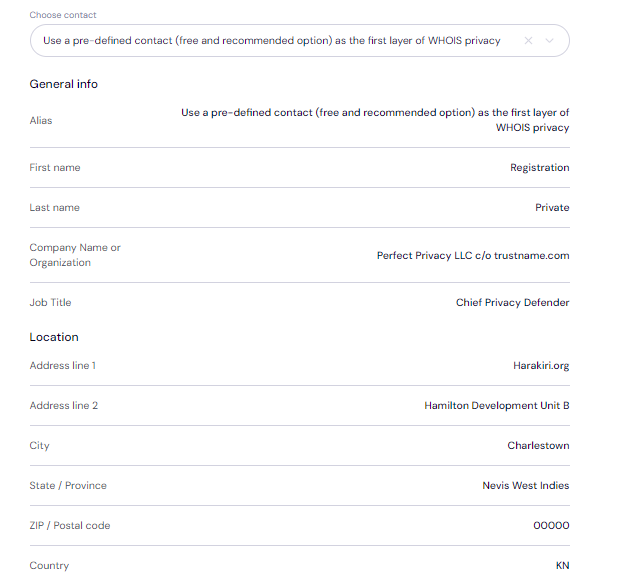
- 'Add new contact' – Use your own contact details.
- Payment For Transfer
[+] [List] Green Unordered - Enter your billing information (or use autofill with the contact address).
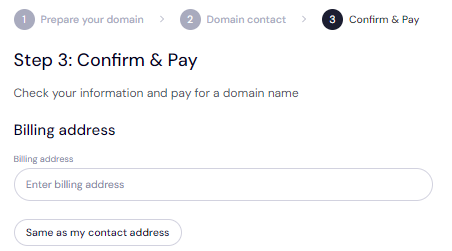
- Select a payment method (card, wallet funds, or cryptocurrency).
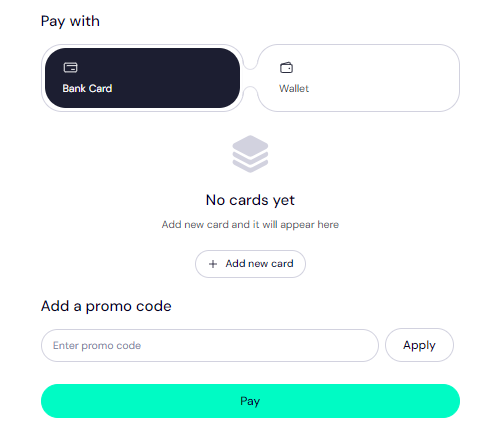
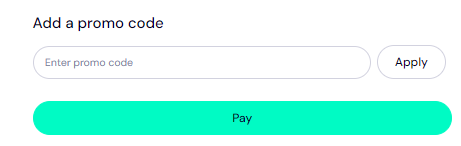
PROMO CODE!
Apply promo code WELCOME777 for a 50% discount, reducing the transfer fee from $14.99 to $7.77, with an extra year of registration.
- Enter your billing information (or use autofill with the contact address).
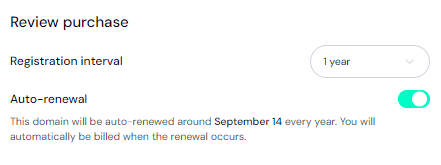
- Choose a duration from 1 to 10 years and enable auto-renewal if you want to Auto-renew.
- Complete payment by following the on-screen instructions to finalize the transfer from Crazy Domains to Trustname. That's it!
Troubleshooting Failed Domain Transfers
Congratulations! Now that you've completed these steps, your domain transfer from Crazy Domains to Trustname should proceed without any problems.
If you encounter any difficulties, it might be helpful to double check the Auth Code, confirm that your domain meets the eligibility requirements, ensure that your domain is unlocked, and turn off Whois privacy on Crazy Domains.
For additional assistance, please refer to the Troubleshooting Failed Domain Transfers to Trustname guide.