
Moving your domain to Trustname allows you to escape high renewal costs and hidden fees while benefiting from industry leading privacy protection. This guide provides a clear, step by step path to migrating your domain smoothly.
Key Takeaway
- Preparation Requirements – Unlock your domain and secure your Auth Code (EPP) from GoDaddy’s transfer settings.
- Cost Efficiency – Apply promo code WELCOME777 to pay only $7.77, which includes the transfer and a one year extension.
- Privacy Advantag – Select "Pre defined contact" during setup to enable Trustname's free, signature Two-Tier Privacy.
- Speed Optimization – Manually approve the transfer in GoDaddy's "Transfers Out" dashboard to finish in under 30 minutes.
- Lock Eligibility – Ensure your domain has not had contact changes or a new registration in the last 60 days to avoid ICANN blocks.
TABLE OF CONTENTS
- Key Takeaway
- What Perks Should You Expect With Trustname?
- Things To Note Before Transferring Your Domain Out
- Preparing For The Transfer To dos
- Transferring Your Domain From GoDaddy To Trustname
- How To Hasten Your Domain Transfer From GoDaddy
- Setting Up Your New Domain at Trustname
- Read How To Set Up Two-factor Authentication (2FA) On Trustname For More Details.
- Rounding Up
- Detailed Script: Preparing For The Transfer To Dos
- Transferring Your Domain to Trustname
Want to transfer your domain name from GoDaddy to Trustname? You're not alone. Chances are you're done with the extremely high pricing, suspicious domain boycotts, annoying upsells, and poor support the list of reasons why many of our current customers who were once at GoDaddy made the move is a long one.
To move your domain from GoDaddy to Trustname smoothly, you'd need to unlock your domain, obtain the Auth Code (EPP), disable their domain privacy and protection, and ensure that your domain name is eligible and out of the ICANN 60 days lock.
And what's even better? You can reduce the time to move your domain to under 30 minutes by approving the transfer request.
This comprehensive guide will show you step by step how to transfer your domain name from GoDaddy to Trustname, allowing you to enjoy the best pricing on the market, all domain basics for free, our signature Two-tier Domain Privacy, and a clean interface that makes managing your website essentials enjoyable. But first…
What Perks Should You Expect With Trustname?
We know you don't need further convincing on why you should move your domain from GoDaddy to Trustname, but to have you sold,
Here's our elevator pitch and the benefits you are about to enjoy:
- Transparent fees low renewal costs
A primary complaint from GoDaddy's customers is their deceptive fees and misleading prices. On the platform,
You get ridiculously low offers that are in fact 'too good to be true'.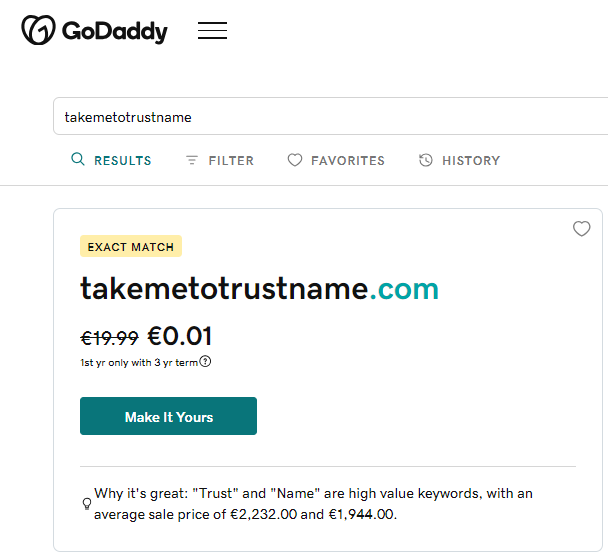
But your excitement is short lived.
When it's time to pay, the 'discount' price is multiplied hundreds of times over.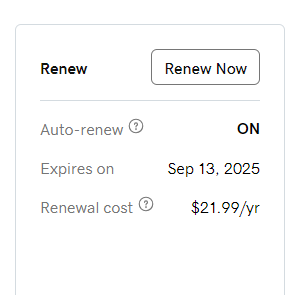
And this is even without adding the domain essentials like SSL certificate, email, DNS, and domain privacy.
- Trustname's unbeatable pricing
At Trustname, we pride ourselves on being one of the most affordable domain registrars in the world.
[+] [Callout] Info Insert title here [+] [Callout] Title/Title with Icon -> GoDaddy's first year discount only applies if you commit to a 3 year minimum subscription with their domains renewing at a rather high $21.99 per year. Add in the domain essentials and this price shoots up to $123.33 per year. On Trustname, a basic SSL certificate valued at $17.99 is free for the first year. On Godaddy, SSL certificates are overpriced at $69.99 per year.
On Trustname, you get a total, transparent fee that includes ICANN fees with our .com domain registrations starting at $12.99 per year and renewing at $14.99 per year with all your domain essentials included for free.

- No annoying upsells
At Trustname, we believe that privacy is a fundamental right and we don't charge for any domain extras like SSL certificates, Premium DNS, Domain Privacy, or email.
In sharp contrast, GoDaddy charges $12 for its Domain Protection package, $24 for the cheapest, basic email, $70 for a basic SSL certificate, and adds an extra $0.18 for ICANN fees.
Pay for all these addons on GoDaddy, and your cart will read a whopping $123 for just one year.
When you move your domain name to Trustname, you get all these features for free with your domain registration for a total sum of $14.59 per year a free SSL certificate to ensure secure communication with your visitors, a professional email that incorporates your domain to give you credibility, free Premium DNS, and our signature Two-Tier Whois Privacy Protection that provides unrivaled domain privacy.
Choose Trustname and you save $100 that you've been spending on these features on GoDaddy in a year. Over a 5 year period, you'd have saved $500!
- Clean, intuitive interface
Another perk you enjoy with Trustname is our intuitive, clutter free interface. From wherever you are on our website, you can access your domain list in 1 click under 'Domains'.
Click on the domain you want to manage, and all your core settings are right there after your second click. You can see your domain status and important dates, generate your Auth code, tweak your nameservers, set up auto renew, enable DNSSEC, and manage your transfer settings all on the same page.
On GoDaddy, you'd need to access your product list, choose domains, click on your domain, and can only access important settings in several clicks. Trustname simplifies managing your domains.
- Unrivaled support
Another popular complaint GoDaddy customers have is their poor support. From agents not understanding basic domain concepts to several days between replies, when you need help quickly, GoDaddy may disappoint.
At Trustname, you can reach out to our support agents 24/7 by submitting a ticket or chatting with us live. Our team is comprised of seasoned domain and web hosting experts (most of whom run their own websites) and are available to help in a heartbeat.
If anything, we emphasize to our customers to initiate a live chat with us whenever they can so they can get all the help they need quickly.
Things To Note Before Transferring Your Domain Out
Before initiating your domain transfer, there are some important considerations you'd have to make and points to note. Some of them include:
- A note on nameservers
Your domain's nameservers are responsible for pointing web browsers to the IP address of the web servers hosting your website. Basically, they tell the internet where to find your website content.
Once you have initiated a domain transfer, you won't be able to make changes to core domain settings like nameservers. If your domain is linked to a website, it may be a good idea to change your nameservers before you initiate the transfer.
If you don't, while the transfer is ongoing, your domain nameservers will still be set to GoDaddy's.
- You'd need to migrate your website separately
Domain registration and web hosting are two essential services to having an online presence but are very different. Moving your domain name to Trustname won’t automatically transfer your website.
If you want to also move your website to Trustname, you'd need to purchase a web hosting plan and ideally reach out to us, and we'll help you migrate your website conveniently.
- Transfer pricing and policy
On Trustname, we charge a base fee for transferring your domain name to us, and we will automatically add an extra year to your domain name's current expiration date. So say your domain’s current expiration date is 25th of September, 2099, after transferring it to Trustname, your domain's new expiry date will be 25th of September, 2100.
- Domain can only be transferred in the Grace Period
Domain names can only be transferred while they are active or in the Grace Period after expiry. If your domain has progressed into the Redemption Period, you'd have to renew it at GoDaddy first. And if it has entered the Pending Delete phase, you won’t be able to transfer it out chances are someone may snag it up.
Preparing For The Transfer To dos
Ready to come to Trustname?
Here’s your pre-transfer prep checklist:
Obtain Auth Code
The first step to take before initiating your domain transfer from GoDaddy is to obtain the Auth Code (EPP code). You will submit the Auth Code to Trustname when you initiate the transfer and GoDaddy will use it to verify that the legal owner of the domain (you) is the one transferring it out.
To obtain your Auth Code from GoDaddy,
Follow these steps:
- Log in to your GoDaddy account, head to your products, and scroll to your domain settings.
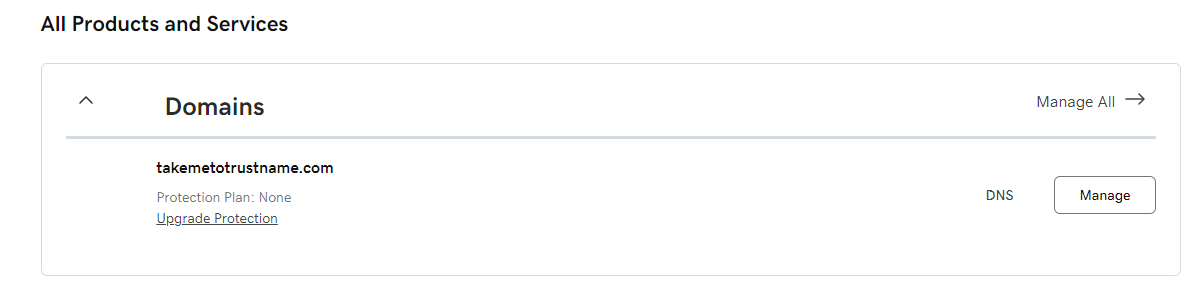
- Click on 'Manage All' under the 'Domains' to see your domain list and click on the domain you intend to transfer out.
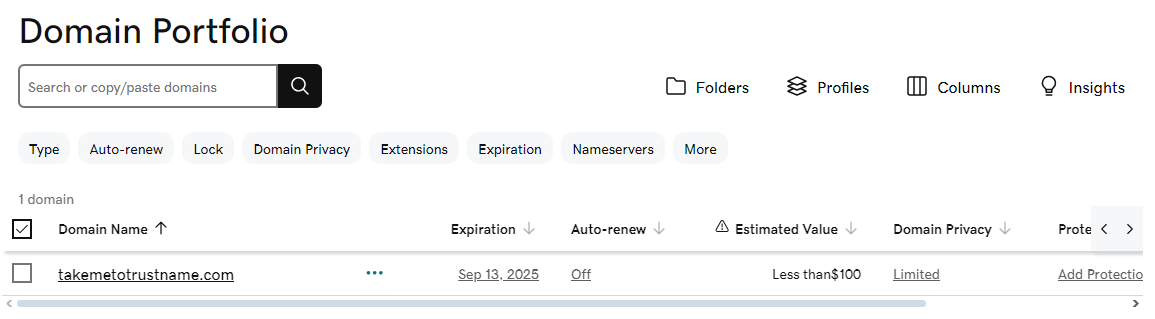
- On the domain's settings page, scroll down to the 'Transfer' section and select 'Transfer to another registrar'.
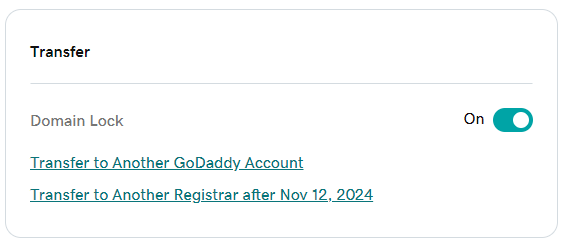
GoDaddy will show the transfer eligibility and if the domain can be moved yet.
Unlock Domain
The Domain Transfer Lock is another security feature provided by registrars to prevent unauthorized transfers. You'd need to disable the Domain Lock in your GoDaddy account to transfer your domain. Don't worry, we'll turn it back on automatically once your domain gets to us.
- To unlock your domain at GoDaddy, in your general domain settings,
Scroll down to the 'Transfer' section and look for the 'Domain Lock' button.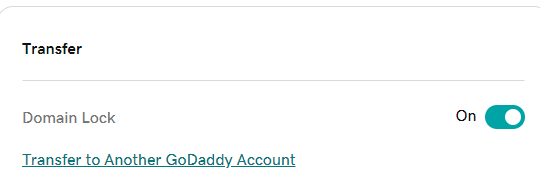
- Toggle the Domain Lock off to disable the domain lock and allow your domain name to be moved.
Click 'Continue' when the confirmation message comes up.
That's it!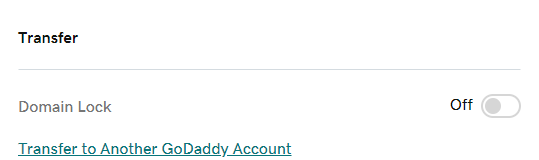
Disable Domain Privacy
The next thing you want to do is to disable 'Domain Privacy' for your domain on your GoDaddy account. Domain privacy is a service that shields your contact details from the public Whois database.
When you move your domain to Trustname, we'll give you this basic domain privacy as well as our full Two-Tier Whois Protection for free. To disable Domain Privacy,
Head to your domain settings:
- Head to your domain's settings and look for the 'Domain Privacy' tab.
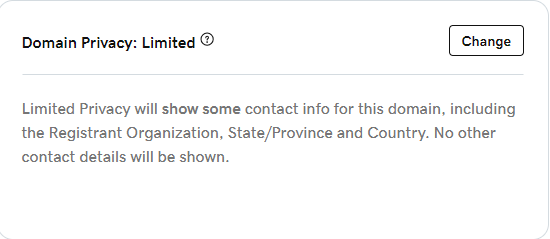
- Click on 'Change to start editing' the settings. Select 'Off' to disable Domain Privacy remember,
This is only temporary and we will automatically shield your domain once we receive it from GoDaddy.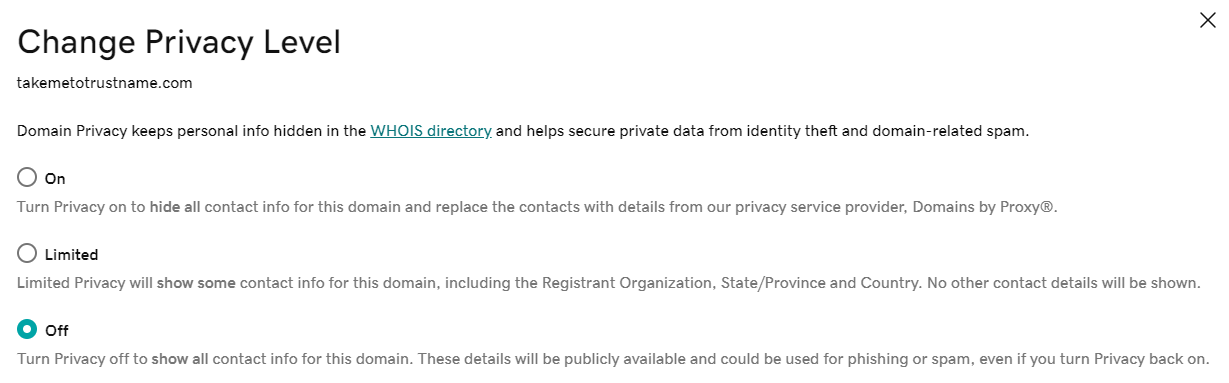
- Click on 'Save' to disable it and apply your changes.

That's it.
Downgrade Domain Protection To 'None'
To transfer your domain in fewer steps, you can choose to downgrade GoDaddy's Domain Protection to 'None' if you have it enabled. You, however, don't need to disable it to transfer your domain.
If you have it enabled, GoDaddy will verify your identity. If you have two-step verification (2SV) activated, you can choose to receive an SMS code or OTP generated by the Authenticator app. You can also choose to use a one time password sent to your email address.
To Downgrade Your Domain Protection:
- Select 'Protection Plans' in your domain settings menu, then select Downgrade Protection Plans.
- Review your protection plan options and select the 'No Protection' option to disable Domain Protection.
- Select 'Confirm Downgrade' and then select 'Continue & Verify'.
- Verify your request by entering the unique code we sent to you. With two-step verification (2SV) turned on, you'd need to enter the code sent via SMS, from your authenticator app, or email address.
- Select 'Verify' to finish downgrading your domain protection.
You'll See A Success Confirmation Message.
Ensure Domain Contact Email is Up to date
And the final check to make ensure that your registrant email address is up to date and accurate.
Your transfer should go smoothly, but in the case that any issues arise, GoDaddy will contact you via this email address on actions you should take, so keep an eye out for emails.
To Check Your Associated Domain Contacts:
- In your domain's settings, scroll down to the 'Contact Info' section and review the information currently there. Confirm that everything is in order.
- If you need to change your contact details (email), click on 'Edit' and make the necessary changes. However, note that this will re-enable the ICANN 60 days lock and you'd have to wait for 60 days to transfer it out.
Now, you're ready to initiate your domain's transfer to Trustname.
Transferring Your Domain From GoDaddy To Trustname
We can't wait to have you here! To start moving your domain,
Follow these steps:
Head To Our Domain Transfer Page
Trustname makes transferring your domains to us super easy. To initiate the transfer,
Follow these steps.
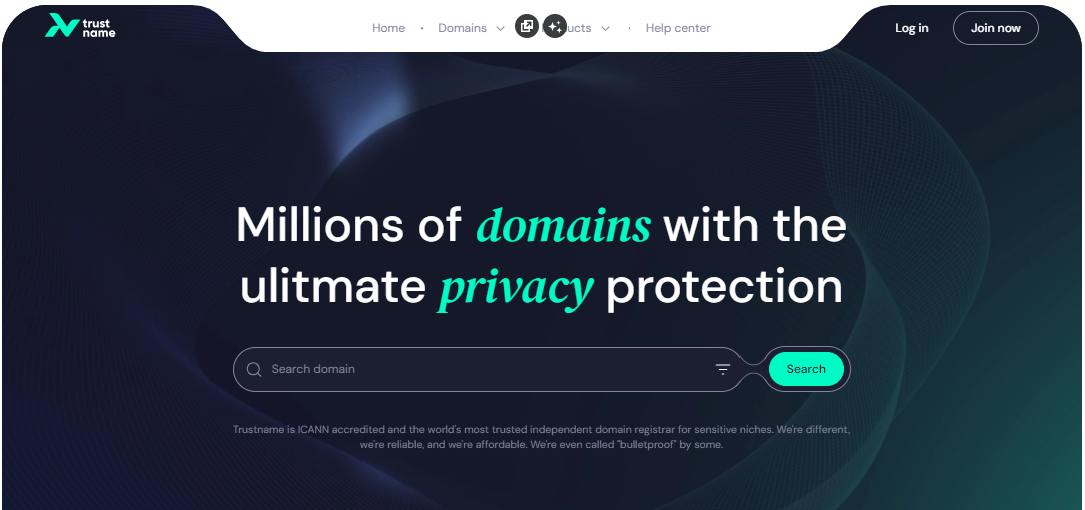
- Head to the Trustname.com website and click 'Log In' at the top right corner to access your Trustname account.
- Fill in your account username and password to gain access to your customer portal.
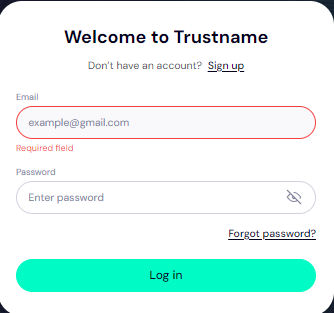
Click 'Log in'. - To access your domain transfer settings, under the 'Domains' dropdown in the header, click on 'Transfer'.
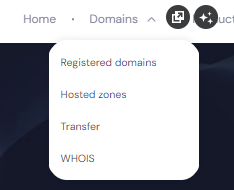
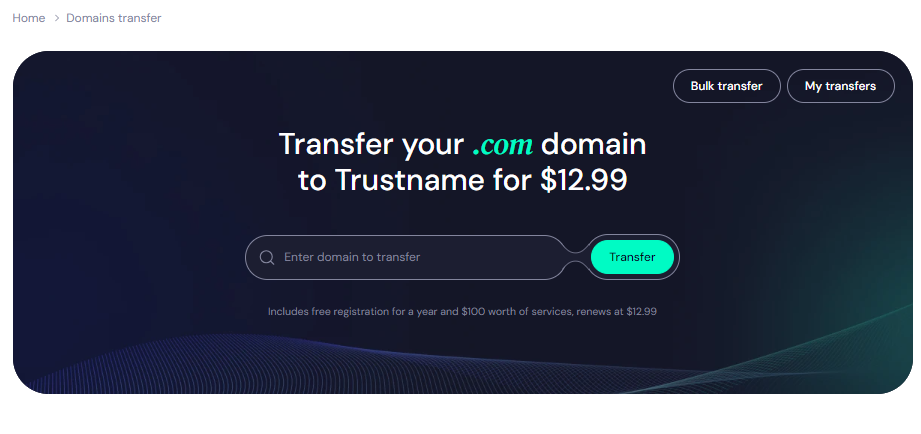
- On Trustname's domain transfer portal, type in your GoDaddy domain including the TLD into the required field and click on 'Transfer'.
Submit The Auth Code (EPP)
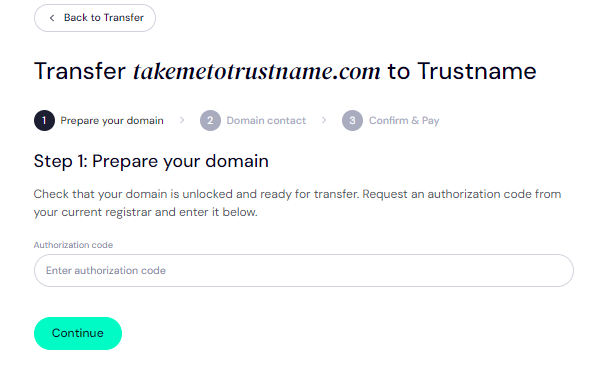
Next, enter the Auth Code (EPP code) generated by GoDaddy into the required field and click on 'Continue'.
Enter Domain Contact
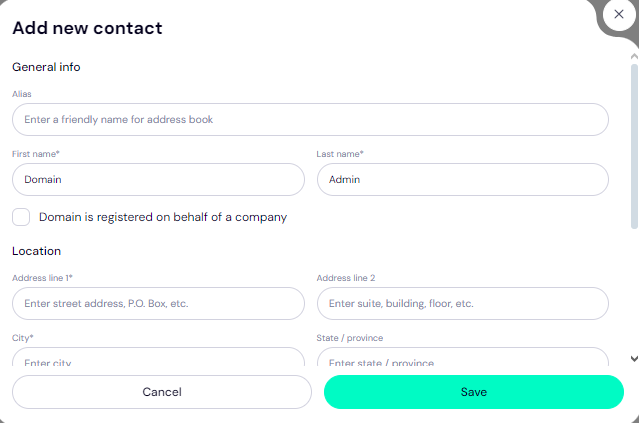
On the next page, you'll be required to fill in your domain contact details.
You can choose to use your own details by clicking on the 'Choose contact' dropdown and choosing 'Add new contact'.
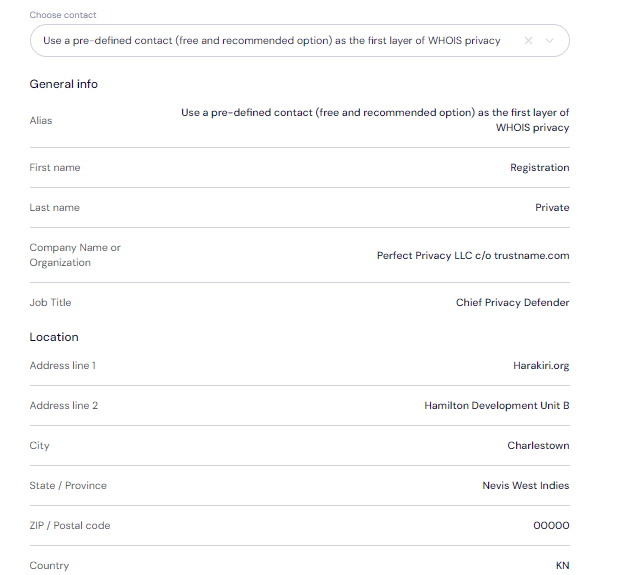
Alternatively (and we recommend this), you can enjoy the highest possible privacy by choosing 'Use a pre-defined contact'. What happens when you do this?
Trustname will register your domain on your behalf in the name of Perfect Privacy LLC., our partner proxy company, while you retain full ownership of the domain as usual.
This ensures that whenever anyone runs a Whois lookup on your domain name, even without Domain Privacy enabled, your contact details are never made public.
This is the first layer of our Two-Tier Privacy Protection and is a core reason why Trustname stands out from most other registrars on the market.
These will be your domain contact info if you go this route.
And the best part? You can always change your domain contact to your own details at any time, whenever you want.
On the second layer, we still give you the generic Domain Privacy offered by most registrars for free, shielding your domain contact info (yours or PP LLC.'s) from the Whois database. This service is offered by our second proxy partner, Whois Privacy Protection Services.
After filling in your domain contact details, click on 'Continue'.
Pay For An Extended Registration
On the next page, you pay for your domain transfer and get 1 extra year on your domain's current expiry date.
To Initiate Your Payment:
Step 1
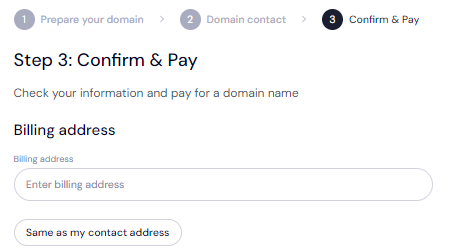
Enter your billing address. You can also select 'Same as my contact address' to hasten the process.
Step 2
Next, choose your payment method. You can use a bank card or existing funds in your Trustname wallet to make a payment.
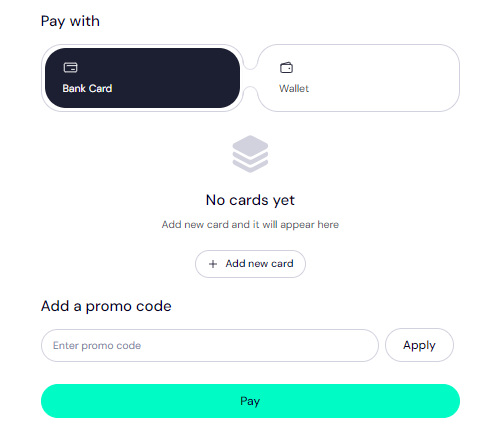
If you don’t have a bank card set up yet, click on 'Add new card' and fill in your card details to have it set up.
Trustname's Domain Transfer Promo Code - WELCOME777
- Trustname’s standard domain transfer fee is $14.99 per year, with $0 added for taxes and ICANN fees included.
- When you use the promo code WELCOME777, you receive a 50% discount and pay only $7.77 for the first year.
- The discounted transfer includes a +1 year subscription added to your domain’s current expiry date at no extra cost.
- After the first year, your domain renews at the standard rate of $14.99 per year for .com, .net, and .org TLDs—one of the most affordable options over a 5-year term compared to GoDaddy and other competitors.
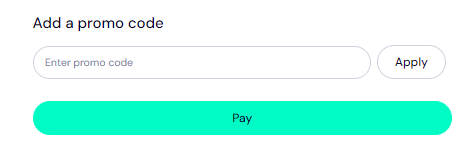
- To apply the discount, enter WELCOME777 in the “Add a promo code” field during checkout.
Select The Registration Duration
Next, select the number of years you want your domain to be subscribed for. You can choose a subscription period between 1-10 years.
Ideally, enable auto renewal so you never have to monitor your domain expiry dates manually.
Make Your Payment
Click 'Pay' and follow the on-screen prompts. That's it! Your domain name should be on its way.
How To Hasten Your Domain Transfer From GoDaddy
Transferring your domain out from GoDaddy to Trustname may take between 5-7 days if you just leave it to them. However, the registrar has a way to expedite this process.
You just have to 'Approve the transfer' and you can have your domain with us in 1 to a few hours.
To Approve Your Domain Transfer From GoDaddy To Trustname:
- Log back into your GoDaddy account and head to your domain portfolio page by clicking 'Manage All' in the 'Domains' tab under 'My products'.
- In the sidebar menu, click on 'Transfers'.
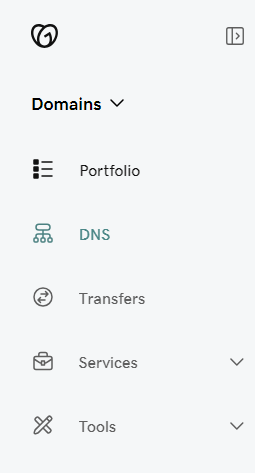
- Click on 'Transfers out' to see your pending outgoing transfer.
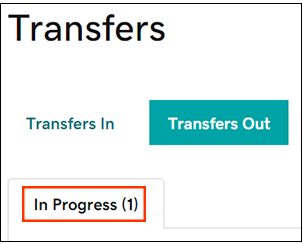
Select the checkbox next to your domain name heading out from GoDaddy and click on 'Approve Transfer'.
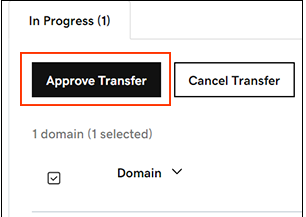
- You will get a confirmation message and your domain should now be reflected in your Trustname account in less than 1 hour.
Setting Up Your New Domain At Trustname
That should be it! Once your domain name is at Trustname, there are a few extra steps you can take to secure your domain names if you haven't done them already.
Let's see them:
- Enable Our Signature Two-Tier Privacy
By default, we will enable the second layer of our Two-Tier privacy on your domain name once you transfer it to us shielding your domain name’s contact details from the public.
When transferring your domain name, if you chose 'Use a pre-defined contact' for the domain contact details, you are now enjoying our Two-Tier Domain Privacy.
You can head to 'Domains >>> Registered Domains >>> Domain Contacts' to review your domain contact details at any time.
Read Why Trustname registers domains in the name of Perfect Privacy LLC. to learn more about our Two-Tier Whois Privacy.
- Check That Your Domain Is Locked
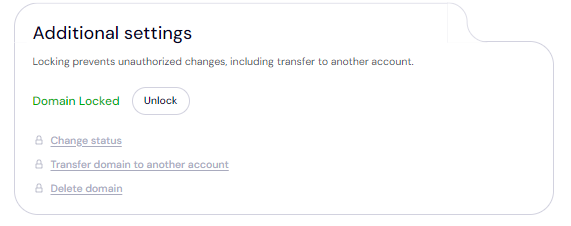
We will also automatically lock your domain once you transfer it to us. To view your Domain Lock settings, click on 'Domains >>> Registered domains >>> Select domain' and then scroll down to the Additional settings field.
- Verify The DNS Settings
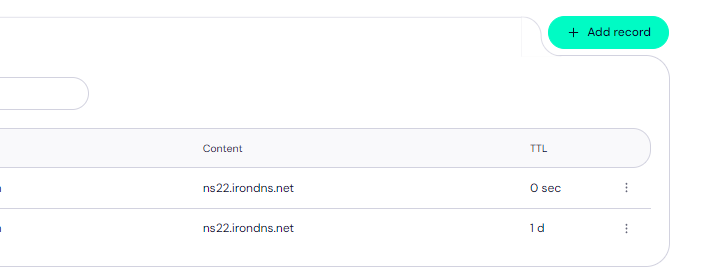
You can also make changes to your domain nameservers and view the DNS records associated with your domain on the same page.
To review your domain nameservers, head to the Domain Nameservers section.

And to check your DNS records, under General info, look for Hosted zone and click 'View':
From here, you can add and edit your existing DNS records, tweak your nameservers, and enable DNSSEC.
Set Up 2FA
Trustname allows you to add an extra layer of security to your account by enabling two-factor authentication (2FA). With 2FA enabled, whenever anyone tries to access your account, they'd need your credentials as well as a code generated by an authenticator app on your device.
To Set up 2FA On Your Trustname Account:
- Under 'My profile' click on ‘Account settings’ to manage your account's security settings.
- Under your account settings, scroll down to 'Two-factor authentication (2FA)' and toggle the button on.
Scan the QR code generated or add a secret key generated on our portal to the authenticator app and then enter the code generated by the app on our platform.
- Download the Google Authenticator app from your app store.
- Once the app is set up, it will generate a time based six digit verification code. Enter this code into your Trustname portal to complete the authentication setup process. Click on 'Enable'.
Save the backup codes provided by Google Authenticator during setup. These will help you regain access if you lose your device.
Read How To Set Up Two-factor Authentication (2FA) On Trustname For More Details.
With 2FA enabled, no one will be able to gain access to your account even if your password is compromised.
- Can You Get A Free Domain Transfer?
While we don't offer 'free' transfers, we give you a free 1 year domain subscription added to your domain's current expiry date. Most other registrars charge for this registration as well as the transfer.
If you use our domain transfer coupon code WELCOME777, the transfer price is $7.77. Also, on every web hosting package you buy from Trustname, you get a free domain added in.
- Troubleshooting Failed Domain Transfers
Ideally, your domain transfer should proceed smoothly but if you run into any issues, these are the common reasons why domain transfers fail and how to troubleshoot them:
- Wrong EPP Code
If you input a wrong Auth or EPP code, we won't be able to transfer the domain. We recommend copying it directly from GoDaddy and pasting it into our required field instead of trying to manually write it down.
- ICANN Lock
The Internet Corporation for Assigned Names and Numbers (ICANN), the regulatory body over domain names enforces a 60 days registrar lock on domains that were recently transferred or modified.
You won't be able to transfer a domain name within 60 days of the last registrar transfer, registrant change, or change to the domain's contact details. Confirm that your domain is eligible and out of the 60 days lock before proceeding with the transfer.
- Transfer Lock
If the Domain Lock is still turned on, GoDaddy won't release the domain name. Check your domain settings to ensure the Domain Lock is disabled as shown earlier.
- Check Your Emails For Approval Requests
If you have GoDaddy's Domain Protection enabled, you will have to verify your identity before you can transfer your domain. Check for SMS codes, emails, or the time-based code sent to your Authenticator app.
Alternatively, you can downgrade your Domain Protection to None to ensure the transfer goes smoothly.
Rounding Up
If you are looking for an alternative to GoDaddy, Trustname is the best option for you. We offer far more affordable rates, a cleaner user interface, and all the essential features to protect your domain for free, out of the box.
To transfer your domain from GoDaddy to Trustname, you'd need to obtain the Auth code, unlock your domain, disable Domain Privacy, disable Domain Prortection, and review your domain contact details.
Then, you head to Trustname's transfer portal, type in your domain name, submit the Auth code, specify your domain contact (ideally use our pre defined contact), and make a payment.
For our transfers, we charge a discounted fee and add 1 year to your domain's current expiry date to ensure you never lose it. We’re waiting for you!
Detailed Script: Preparing For The Transfer To Dos
Intro (≈8 sec)
Voiceover :
Ready to move your domain from GoDaddy to Trustname? Here's your full pre-transfer checklist.
Follow these steps to make sure your transfer goes smoothly.
- MENTION HERE REQUIREMENTS
On-screen text : Preparing for Transfer
? Unlock, ? Update Email, ? Get Auth Code
Visuals :
Trustname logo → quick checklist animation.
- Obtain Auth Code (EPP) (≈25 sec)
Voiceover:
"Step one: Obtain your Auth Code, also called the EPP code. This proves you're the legal domain owner."
On-screen text: Get Auth Code (EPP)
[+] [List] Green Unordered - Login GoDaddy
- Domain Settings → Transfer
- Copy Auth Code
Visuals:[+] [List] Green Unordered - Show login to GoDaddy.
- Navigate to Domains → Domain Settings → Transfer to another registrar.
- Highlight Auth Code field → Copy button.
- Unlock Your Domain (≈20 sec)
Voiceover:
"Step two: Disable Domain Lock. Without unlocking, your domain can't be moved."
On-screen text: Unlock Domain
[+] [List] Green Unordered - Go to Domain Settings
- Scroll to 'Transfer'
- Toggle Domain Lock → OFF
Visuals:[+] [List] Green Unordered - Show toggle switch turning OFF.
- Confirmation popup → click "Continue".
- Disable Domain Privacy (≈20 sec)
Voiceover:
"Step three: Turn off Domain Privacy at GoDaddy. Don't worry Trustname will automatically shield your data with stronger Two-Tier Privacy once your transfer completes."
On-screen text: Disable Privacy
[+] [List] Green Unordered - Domain Settings → Privacy
- Set to OFF
- Save changes
Visuals:[+] [List] Green Unordered - Show privacy section → change to "Off."
- Save → confirmation.
- Downgrade Domain Protection (Optional) (≈25 sec)
Voiceover:"Step four : If you have GoDaddy's Domain Protection, downgrade it to 'None.' This reduces extra verification steps, but it's optional."
On-screen text: Downgrade Protection (Optional)
[+] [List] Green Unordered - Go to Protection Plans
- Select 'No Protection'
- Confirm & Verify with code
Visuals:
[+] [List] Green Unordered - Menu: Protection Plans → downgrade.
- SMS/Authenticator/email code entry → success banner.
- Check Contact Email (≈15 sec)
Voiceover:
"Step five: Make sure your registrant email address is correct. GoDaddy uses it to contact you if there are transfer issues."
On-screen text: Confirm Contact Info
[+] [List] Green Unordered - Domain Settings → Contact Info
- Verify Email
⚠ Editing email = 60 days ICANN lock
Visuals: - Show Contact Info screen → highlight email field.
- Warning popup: "Editing email may lock domain for 60 days.
Transferring Your Domain to Trustname
- Start Transfer (≈20 sec)
Voiceover:
"Now you’re ready. Log in to Trustname.com and start your transfer."
On-screen text: Start Transfer
[+] [List] Green Unordered - Trustname.com → Log in
- Domains → Transfer
- Enter domain name
Visuals:[+] [List] Green Unordered - Trustname login page.
- Domain Transfer input form → enter domain → click "Transfer."
- Submit Auth Code (≈10 sec)
Voiceover:"Enter your Auth Code and click Continue."
On-screen text: Enter Auth Code → Continue
Visuals:
[+] [List] Green Unordered - Paste Auth Code → Continue button.
- Paste Auth Code → Continue button.
- Choose Domain Contact (≈20 sec)
Voiceover:
"Next, choose your contact details. For maximum privacy, Trustname offers pre-defined proxy contacts-this is part of our Two-Tier Privacy Protection."
On-screen text: Contact Options
[+] [List] Green Unordered - Add your own details
- Or use Trustname Proxy for full privacy
Visuals:[+] [List] Green Unordered - Dropdown: "Add new contact" vs. "Use Pre-defined contact."
- Show Whois masked example.
- Pay & Extend Registration (≈25 sec)
Voiceover:
"Finally, pay for the transfer. Each transfer adds one year to your domain's expiry date. Use promo code WELCOME777 to get 50% off just $7.77 for the first year."
On-screen text: Payment & Extra Year
[+] [List] Green Unordered - Enter billing info
- Add promo code: WELCOME777
- Select years & enable auto-renew
Visuals:[+] [List] Green Unordered - Billing form → apply promo code.
- Price drops to $7.77.
- Auto-renew toggle ON.
Closing (≈8 sec)
Voiceover:
"And that's it! Your domain is now on its way to Trustname, where it will be safer, private, and easier to manage."
On-screen text:
? Transfer Complete
Trustname = Security + Privacy + Simplicity
Visuals:
Celebration animation → Trustname logo.