
Relocating your domain from Name.com to Trustname is a strategic move to ensure your online brand benefits from superior privacy and transparent, all inclusive pricing.
This guide provides a comprehensive walkthrough of the migration process, designed to help you avoid common pitfalls like downtime or hidden renewal fees. By following these steps, you can transition your digital assets to a registrar that prioritizes human centric support and "bulletproof" security.
Key Takeaways
- Significant Savings – Reduce your annual costs by up to $76.90 by switching to Trustname's all inclusive model, which eliminates separate fees for privacy and security.
- Mandatory Prep – You must manually disable the Domain Lock and Whois Privacy at Name.com before the transfer can be authorized.
- Auth Code – The EPP/Auth Code is your "digital key" you must copy this from Name.com to initiate the move on Trustname.
- Exclusive Privacy – Trustname includes Two-Tier Privacy for free, providing a jurisdictional shield that far exceeds the basic masking offered by Name.com.
- Zero Downtime – Exporting your DNS records as a CSV from Name.com allows for a seamless transition of your website and email services.
TABLE OF CONTENTS
- Key Takeaways
- What Perks Should You Expect From Trustname
- To Knows Before Initiating Your Transfer
- To Dos (Name.com Side) Before Initiating The Transfer
- Transferring Your Domain From Name.com to Trustname
- Enter Domain Contact
- Safeguarding Your Domain at Trustname
- Troubleshooting Failed Domain Transfers
If you are looking to transfer your domain from Name.com to Trustname, you couldn't be making a better decision for your online brand. From terrible support to dubious registration practices and expensive fees, the list of reasons why you'd want to leave Name.com can be made into a book.
Our current customers who were formerly at Name.com now enjoy the most affordable pricing on the market, impenetrable security, on demand support from seasoned experts, fair domain registrations, and the most exclusive domain privacy on the planet.
To ensure your domain transfer from Name.com to Trustname goes buttery smooth, you'd need to unlock your domain at Name.com, disable Whois Privacy, obtain the Auth (EPP) code, copy or export your DNS records, and initiate the transfer at Trustname.
Even better you can hasten the transfer by approving it manually and have it with us in under 1 hour.
Ready to make the move? Let's dive in. But first…
What Perks Should You Expect From Trustname
If you are wondering why Trustname is the best alternative to Name.com, let's sell you sold.
So what can you expect from Trustname in contrast to Name.com's performance.
- Exceptional Support
If there was one ill that current Name.com customers complain about the most, it would be their extremely poor support.
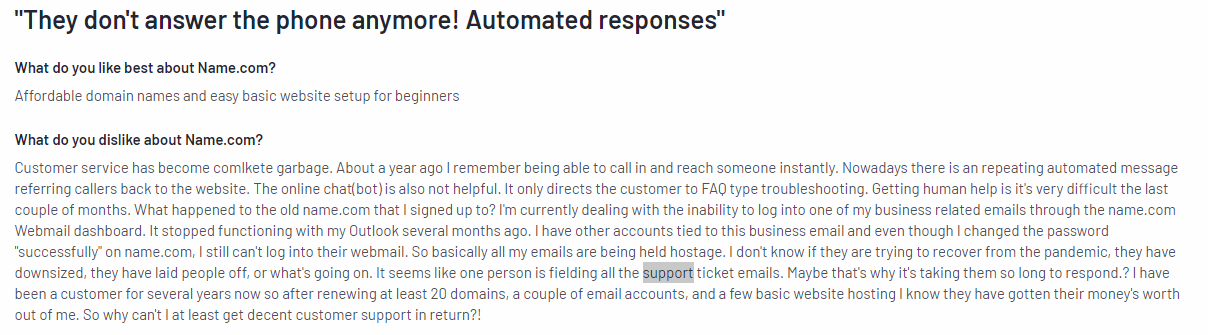
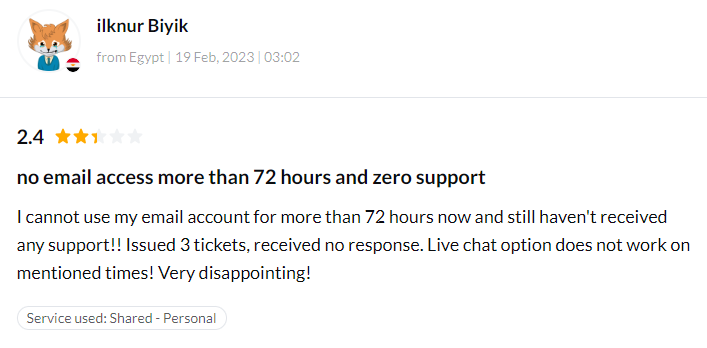
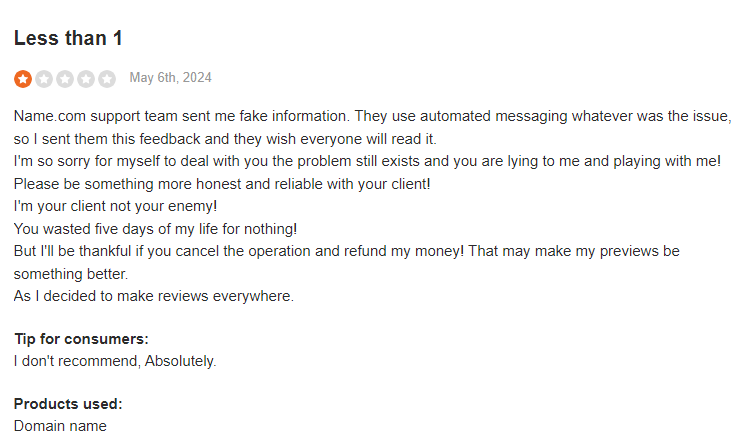
[+] [Callout] Warning Insert title here [+] [Callout] Title/Title with Icon -> From automated responses to long delays between replies, getting timely help from Name.com can be frustrating when you need urgent assistance with domain management.
[+] [Callout] Info Insert title here [+] [Callout] Title/Title with Icon -> At Trustname, we understand the value of real-time, on-demand support. That's why we offer direct access to experienced human agentsmany of whom actively manage their own websites ready to assist you when you need it.
We understand how important your domain is to your brand and how much customers dislike chatting with a bot. When you're freaking out on a domain issue, you want a human who's solved the same issue before and not static responses powered by 1 and 0s.
Come to Trustname and enjoy support like it's meant to be. We actually encourage our customers to reach out to us via live chat to ensure their inquiries are resolved quickly.
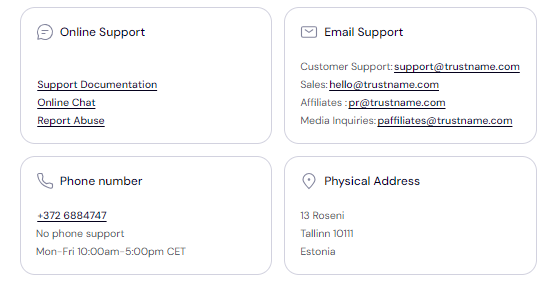
You can also reach out to us by submitting a ticket if you prefer email communication, but we don't force it on you. Love figuring out stuff yourself? Our robust knowledge base and support resources have the answers to all the questions you'll have.
- Affordable Pricing
Name.com is also not the most affordable option on the market.
Purchase your domain for the first year and you'd think you are getting an outstanding deal.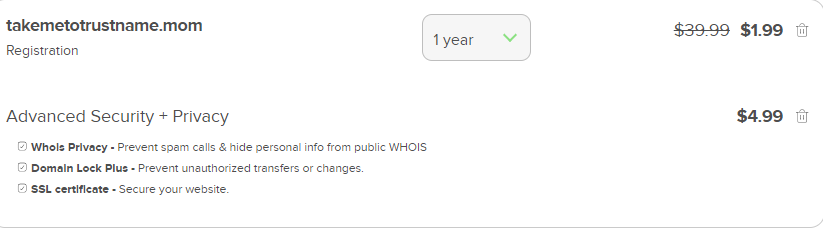
Select a 2 year term and you'll quickly realize how expensive their subsequent payments are.
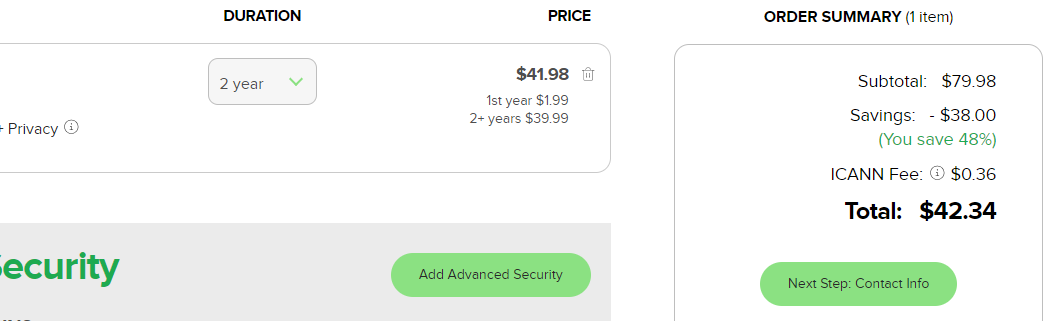
A whopping $40 for the second year, and that's even without all the domain essentials added in. What's more? Name.com charges for everything: Whois Privacy, SSL certificates, DNS, email ($36 per year via Google Workspace), you name it.
Their basic DV SSL certificates start at $9.99 per year.

While their Whois Privacy package is charged at $5.9 per year.
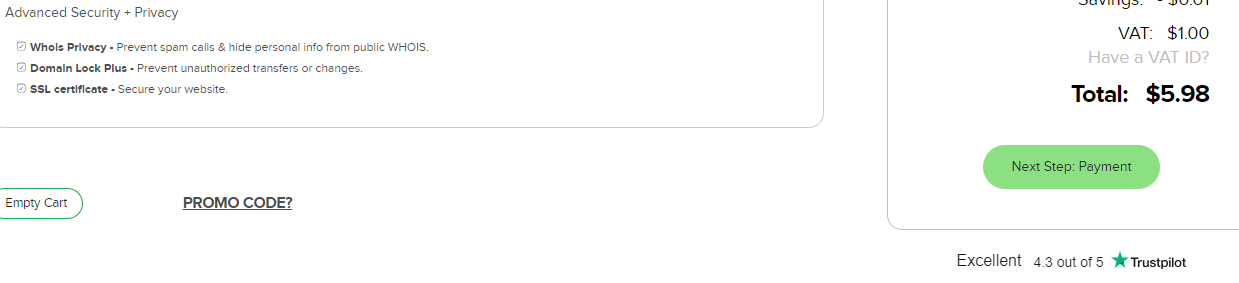
Add in all the domain essentials on Name.com, and you'll be spending a recurring $91.96 per year for just your domain alone.
At Trustname, we believe in giving you the best value for your money, and that's why you get all these features out of the box only our SSLs are free for the first year, while everything else is free forever!
We won't try to bait you in with ridiculously 'low' prices only to multiply your hundred times over in renewals. At Trustname, we charge $12.99 for the first year on most domain name extensions and a fixed $14.99 renewal fee.
With Trustname, you will be saving $76.9 per year, and over 5 years, you would have saved $384.
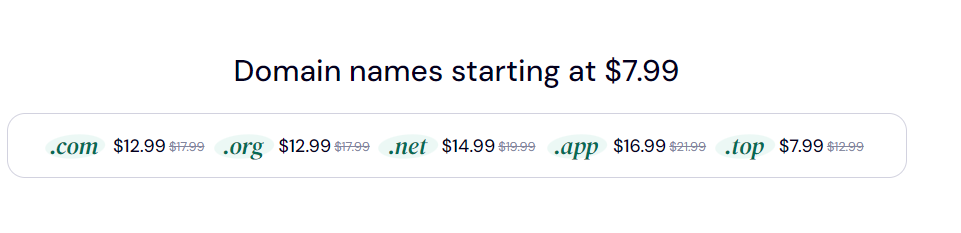
With this, you get your domain subscription, a free branded email, our Premium DNS, DNSSEC, a free SSL (for year 1), and our signature Two-Tier Whois Privacy Protection, all included.
- Impenetrable security
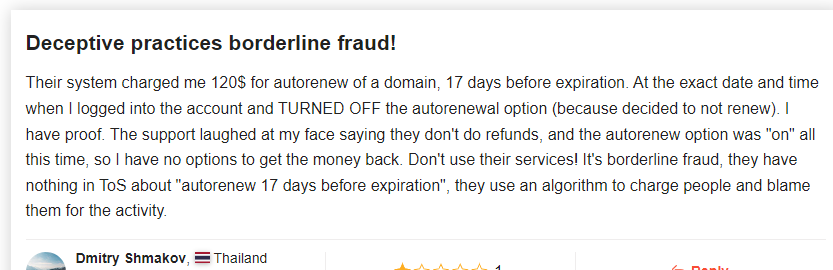
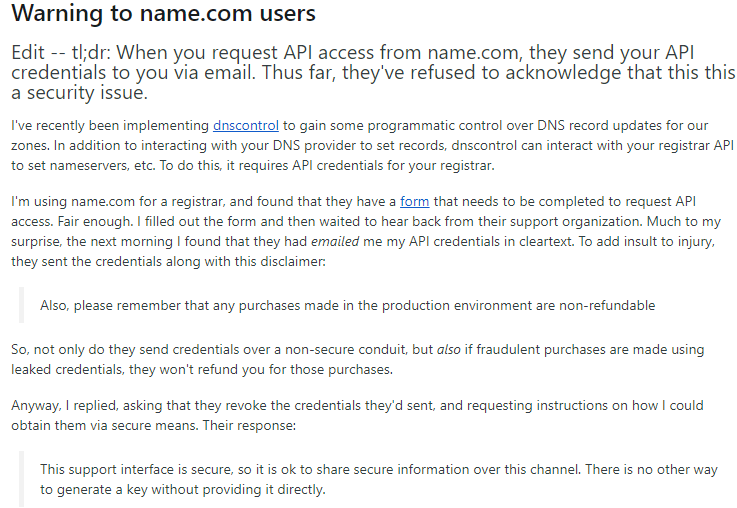
Name.com customers also complain about their poor security practices, from glitching support tickets to high risk protocols for handling sensitive customer information.
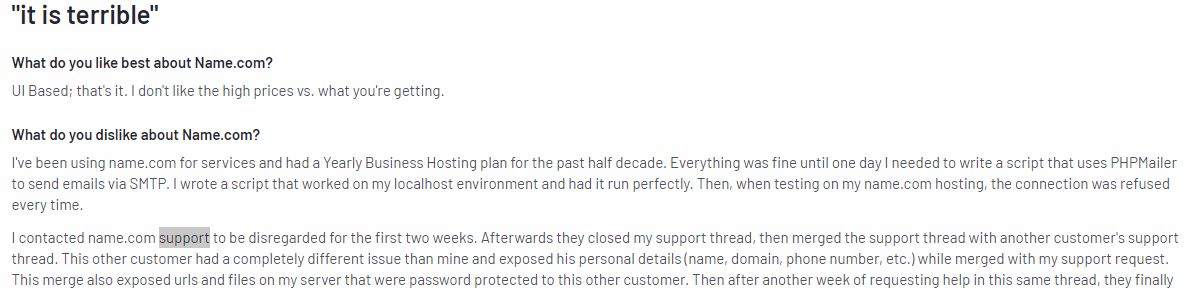
Another customer complained of having their support ticket with another customer's.
At Trustname, security is at the forefront of all we do. We have high level security measures to prevent unauthorized changes to your domain, illegal access to your account, and protect you from bad actors looking to damage or ride on your brand reputation.
We have also set up systems in place to ensure no authorized person can gain access to your account even if your password is compromised. A core part of Trustname's security is our Two-Tier Privacy that gives you the most shielding. How does it work?
- Unrivaled Domain Privacy
[+] [Callout] Info Insert title here [+] [Callout] Title/Title with Icon -> Registrars like Name.com offer basic Whois privacy, where your contact information is replaced with proxy details. However, a single court order is often enough for third parties to gain access to your domain information.
When you're transferring your domain to Trustname, you can choose to use your own details or click on 'Use a pre-defined contact' and specify our domain security partner, Perfect Privacy LLC., as the registrant you still retain full control of your domain. You can change the domain contacts to yours at any time.
This is the first layer or first tier of our Two-Tier privacy.
Tier 1 – Registrant Privacy
[+] [List] Green Unordered - Your domain can be registered under Perfect Privacy LLC.
- Your personal information is never linked to the domain at registration.
- You maintain full administrative control of the domain.
This is the first layer of Trustname's Two-Tier Privacy.
Tier 2 – Whois Masking[+] [List] Green Unordered - Your domain's contact details (yours or Perfect Privacy LLC.'s) are masked in the Whois database.
- Proxy details are provided by our second partner, Whois Privacy Protection LLC.
- This layer is similar to the privacy protection offered by most registrars, including Name.com.
This is the second layer of protection.
How Two-Tier Privacy Protects You[+] [List] Green Unordered - Maximum Privacy
Your contact information is never directly associated with your domain.
- Legal Shielding
Perfect Privacy LLC. is the first point of contact for any legal inquiries.
[+] [Notice] Warning Insert title here [+] [Notice] Title -> And finally, we will require three simultaneous court orders from the U.S., St. Kitts and Nevis, and Estonia (where these companies and Trustname are headquartered) to compel us to take action against your domain.
And the best part? Our Two-Tier privacy is for free forever! Name.com charges $6 for its Whois Privacy.
- Fair Domain Registrations
And finally, every domain name registration should be served on a first come first serve basis. Some customers complain about dubious registration practices carried out by Name.com,
Where they search for a high quality domain name and find it's available for a low price say $10-20. When the said customer is about to check out, they suddenly run into a glitch.
After refreshing their pages to repurchase the domain name, many customers find that the domain is suddenly listed as premium and Name.com is now charging above $1000-2000 for the same domain that was a hundredth of that price minutes ago.
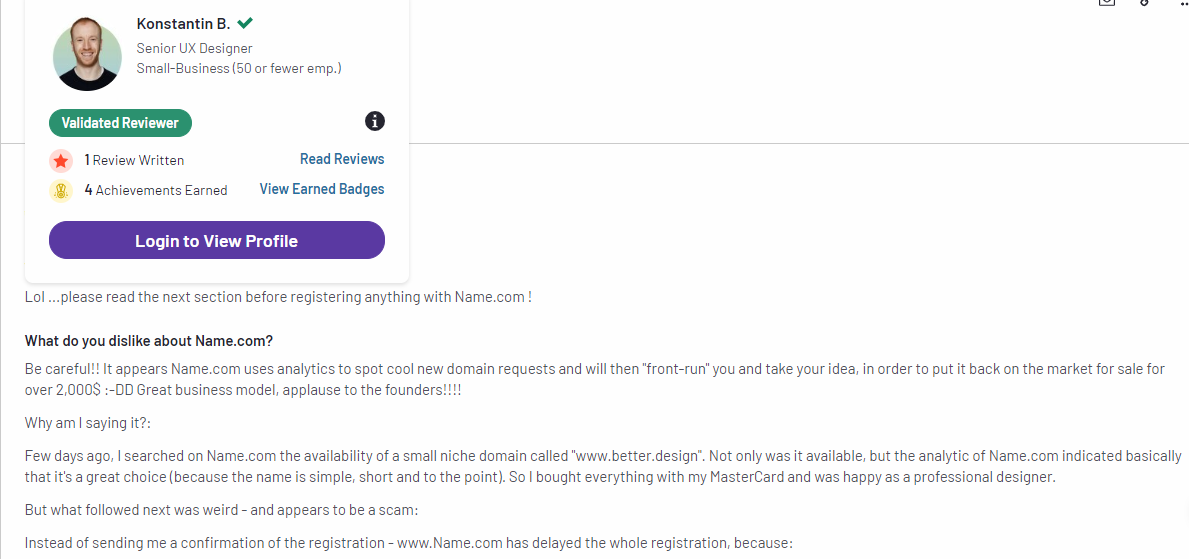
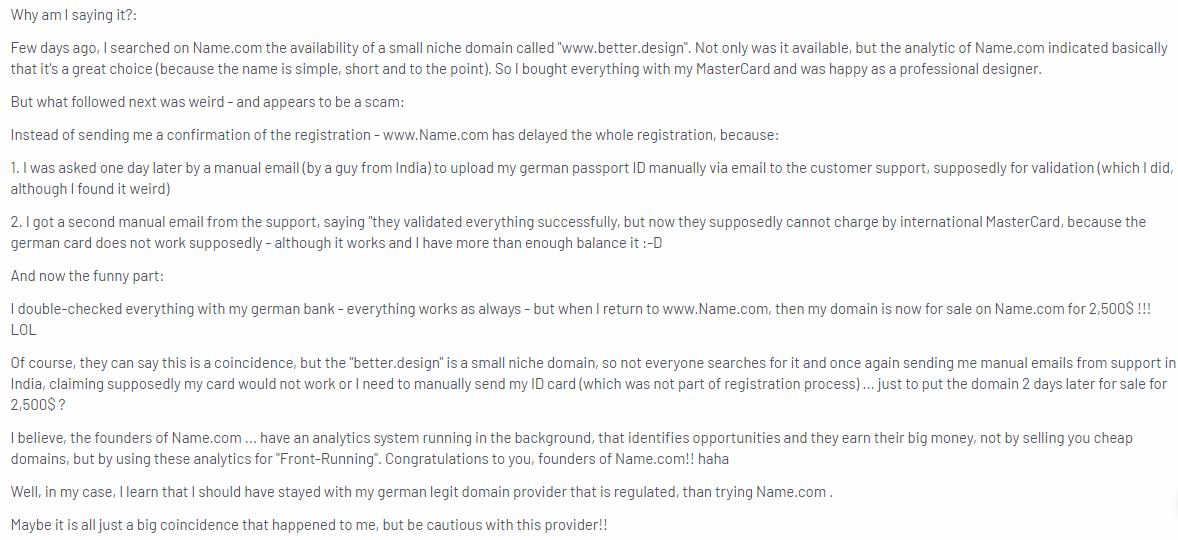
As the customer stated, these trends could all be a coincidence, but no one wants to risk their valuable domains getting snatched. Have a great idea for a domain name that'll serve your brand well?
Run it through Trustname's domain search engine to check its availability and proceed to checkout in a few clicks.
With Trustname, you never have to take a chance. Once your domain name is available, it's as good as yours. What's more? We'll ensure you never run into a 'bank issue'.
We accept payment via credit/debit cards, Stripe, and other payment solutions, and best of all, crypto ensuring your payment goes smoothly and you get your domain before someone else even has the chance to get their eyes on it.
To Knows Before Initiating Your Transfer
There are some important mentions you should know while transferring your domain from Name.com to Trustname.
Let's see them:
- Review Your Domain Nameservers
In your Name.com dashboard, you can configure your domain nameservers (and if you don't, they are assigned automatically to Name.com's).
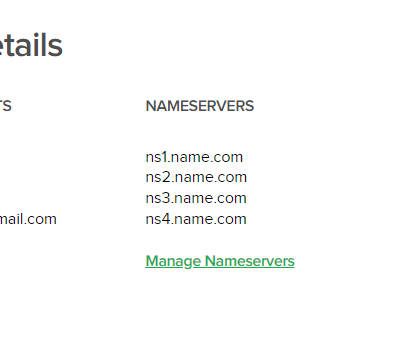
If you were using a different web host from Name.com, you'd have had to update your nameservers. Your domain nameservers are responsible for directing web browsers to the IP address of the web servers where your website is hosted.
While your domain transfer is still ongoing, you won't be able to edit your domain nameservers or any other DNS settings. If your domain is linked to a website hosted by Name.com, it's a good idea to point your nameservers to your new web host (Trustname or any other host you're using) before you initiate the transfer.
- Transferring Your Domain Doesn't Take Your Website Along
Moving your domain name to Trustname won't automatically transfer your website. If you want to also move your website to Trustname or another web hosting provider, you would need to purchase a web hosting plan from the new host and ideally reach out to us, and we'll help you migrate your website conveniently.
We will guide you through creating backups of your website and exporting them, downloading database files, and moving them.
- Transfer Pricing And Policy
Trustname charges a base fee of $7.77 (with our promo code) to transfer your domain name to us, but this adds an extra year to your domain name's current expiration date.
Given that regular 1 year registrations cost $14.99, our transfer fee is actually a front to giving you an extremely affordable domain subscription!
- Transferring Expired Domains
On most registrars, including Name.com, you can only transfer a domain when it is active or during the grace period after it expires.
If you didn't renew your domain during the Grace Period and it's now in the Redemption Period, you are going to have to renew it first for an extra fee and wait for the ICANN 60 days lock to elapse.
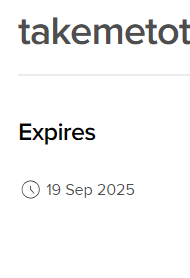
We recommend initiating your transfer before it expires or at least two weeks before the end of the Grace Period. Transferring it to Trustname automatically adds a 1 year minimum subscription to it.
To Dos (Name.com Side) Before Initiating The Transfer
To ensure your transfer to Trustname goes through smoothly,
These are the steps you'll need to take to prepare your domain at your current registrar (Name.com):
- Confirm The Domain's Transfer Eligibility
The Internet Corporation for Assigned Names and Numbers (ICANN), the regulatory body over domain names, enforces a 60 days registrar or transfer lock on domains that were recently transferred or modified.
You won't be able to transfer a domain name until 60 days have passed since the last registrar transfer, registrant change, or change to the domain's contact details. Confirm that your domain is eligible and out of the 60-day lock before proceeding with the transfer.
To confirm your domain's transfer validity, log in to your Name.com account with your username and password, and
Click on 'My Domains' in the top right corner of the header to see your list of domains.

Click directly on your domain name in the list to see the domain details. Review the expiry date and compare this with when you registered the domain to confirm that it has had the same settings for at least 60 days.
If your domain is not yet eligible,
You will see the 'TRANSFER LOCKED' status.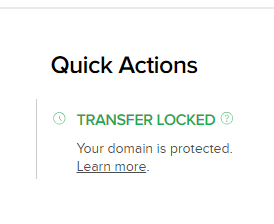
On Name.com, you can also opt out of the transfer lock whenever you change your domain's contact details
- Disable The Domain Lock.
After confirming that you are eligible for transfer and it's been at least 60 days since the last change, the next step is to disable the domain lock.
The Domain Lock is a basic feature offered by most registrars that prevents unauthorized transfers of domain names.
To disable the domain lock on your Name.com domain, head to your domain list by clicking on 'My Domains'.
Next to the domain, click on the 'padlock' icon to turn the domain lock off.
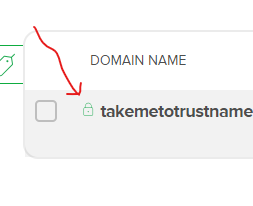
[+] [Notice] Info Insert title here [+] [Notice] Title -> That if your domain is still under the ICANN 60 days lock, Name.com doesn't allow you to unlock it, and you'll get this error code.

Alternatively, click on the domain name itself and under the 'Quick Actions' tab,
Toggle the Domain Lock button off.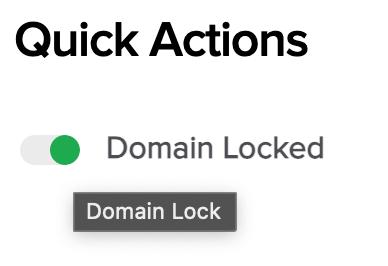
That's it.
- Obtain The Auth (EPP) Code
Next, you need to obtain the Auth or EPP code from Name.com. This is a unique verification code for your domain that Name.com will generate. You will need to submit the Auth code to Trustname, and we will use it to prove to Name.com that you initiated the transfer.
To view your Auth code for your Name.com domain, click on 'My Domains' from your main dashboard.
Click on your domain name in the list and scroll down to the 'Domain Details' tab.
Under 'TRANSFER AUTH CODE', click on 'Show Auth Code'.
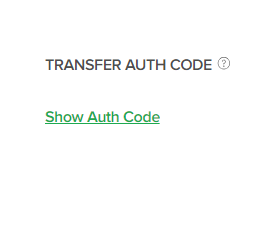
Copy the generated Auth Code shown in the Name.com portal and paste it somewhere safe for when you'll need it at Trustname.
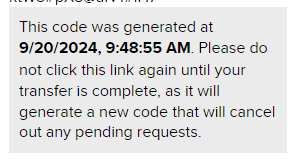
- Disable Whois Privacy
If you purchased Domain Privacy from Name.com (likely, this was added automatically to your cart), you may need to disable it for your domain to be transferred to Trustname smoothly.
To turn off Domain Privacy on Name.com, log in to your Name.com account by entering your User ID and Password. Click on 'My Domains' to see your domain name and click on it.
Under the 'Quick Actions' tab, look for 'Whois PRIVACY'.

Toggle the 'Whois PRIVACY' button off, and that's it!
- Confirm Domain Contact
Before initiating your domain transfer, confirm that your domain contact details are current and that you have your notifications turned on for your domain's email address.
When transferring your domain to Trustname, if you choose to use your own contact details, Trustname will send you an email to confirm the transfer request, and this message will be sent to the associated domain email address.
However, if you used Trustname's pre defined contact, we won't need to verify this information as it's already verified.
To confirm your domain contact details,
Click on 'My Domains' in the header and click on your domain name in the list.
Scroll down to the 'Domain Details' field and look for the 'REGISTRANT CONTACTS' field.
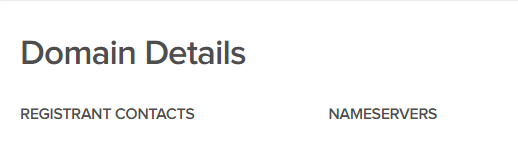
Click on 'Manage Contacts' to see the associated details 'Registrant', 'Admin', 'Technical', and 'Billing' contacts for your domain.
[+] [Notice] Info Insert title here [+] [Notice] Title -> That if you modify the registrant details (email address), you can opt out of the 60 days lock.

Review your contact details to make sure they're up to date.
- Export Your Domain's DNS Records.
Have DNS settings that you'd like to follow your domain from Name.com to Trustname? In that case, you'll need to export your domain's DNS records from Name.com and then upload them to Trustname.
If you are transferring multiple domains from Name.com and have set up CNAME records pointing several domains to a single one, or if you use branded nameservers, exporting your DNS records ensures these configurations are preserved during the transfer.
[+] [List] Green Ordered - Log in to your Name.com account and navigate to My Domains.
- Click on the domain name you want to export DNS records from.
- Scroll down to the Domain Details section and locate DNS.
- Click the button below to open the DNS management screen.
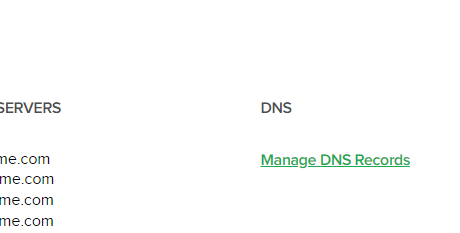
At the top right corner, click on 'EXPORT DNS RECORDS (CSV)'. Your file should download automatically. Save it somewhere safe to be used soon on Trustname.
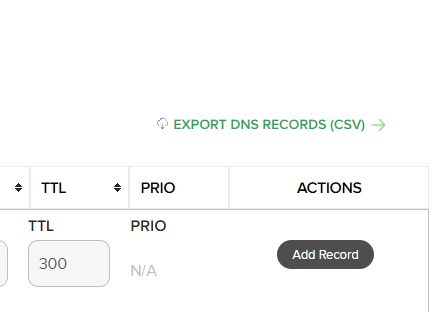
Now, you're all set to initiate your transfer at Trustname!
Transferring Your Domain From Name.com To Trustname
We are so excited to have you; we can't wait. To send your Name.com domain on its way to Trustname,
Follow these steps:
Head To Our Domain Transfer Page
- Head to the Trustname.com website and click 'Log In' at the top right corner to access your Trustname account.
- Fill in your account username and password to gain access to your customer portal.
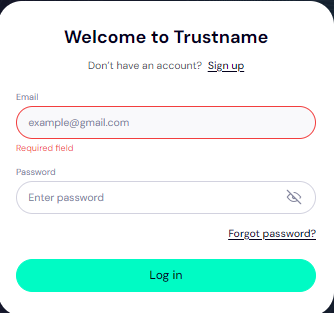
Click 'Log in'.
- To access your domain transfer settings, under the 'Domains' dropdown in the header, click on 'Transfer'.
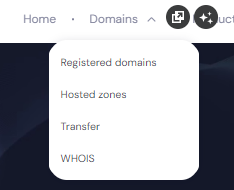
- In the Trustname domain transfer portal, type in your domain on Name.com, including the top level domain (domain extension),
Click on the 'Transfer' button.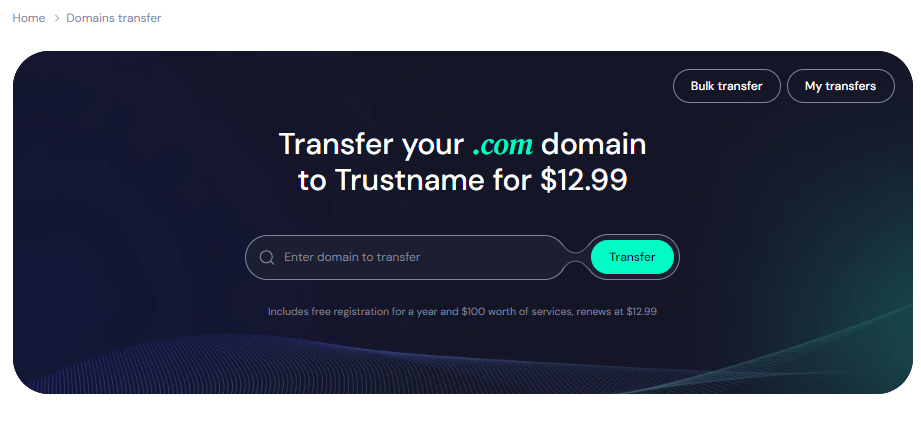
Give Us The Auth Code (EPP)
Next, copy and paste the Auth Code (EPP code) you copied from the Name.com portal earlier and click on 'Continue'.
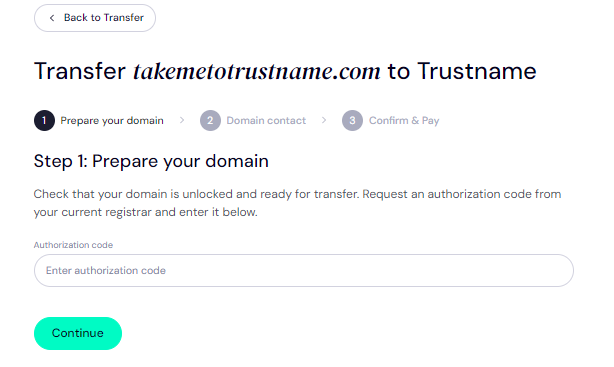
Enter Domain Contact
On the next page, specify your domain contact details. You can choose to use your own details by clicking on the 'Choose contact' dropdown and selecting 'Add new contact'.
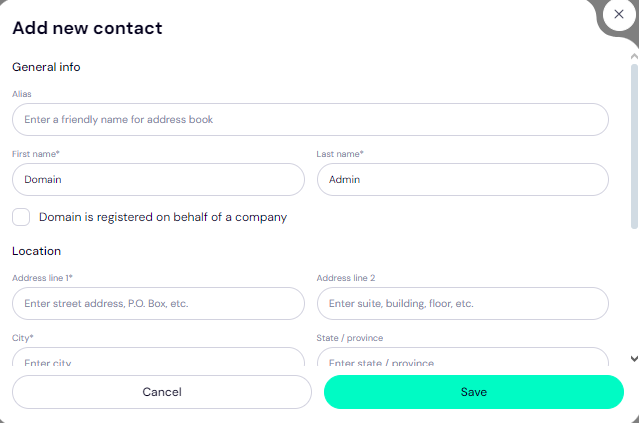
Or you can enjoy the highest possible privacy by choosing 'Use a pre-defined contact' to enable Trustname's Two-Tier Privacy Protection.
With the second option, your domain contact info will be.
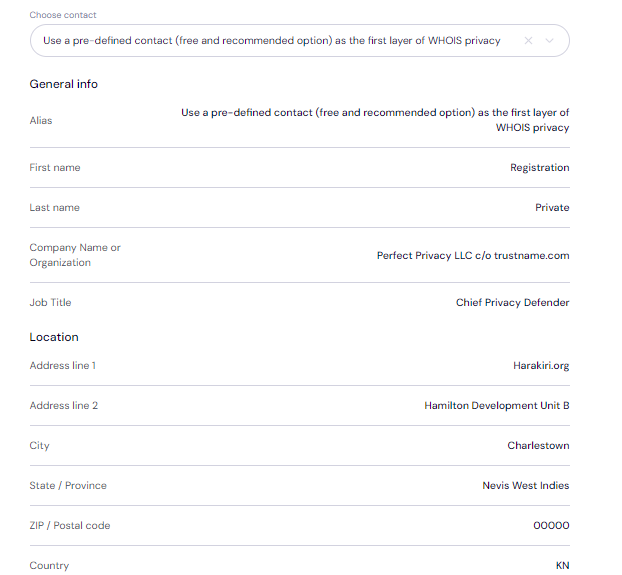
Remember, if you choose our pre defined contact, you won't need to verify any details since this information is verified, and your domain can move more quickly.
You retain full control of your domain with our Two-Tier Privacy enabled we only offer this service to give you the most privacy and minimize your digital footprint.
After filling in your domain contact details, click on 'Continue'.
Pay For An Extended Registration.
On the next page, pay for your domain transfer and get 1 extra year on your domain's current expiry date.
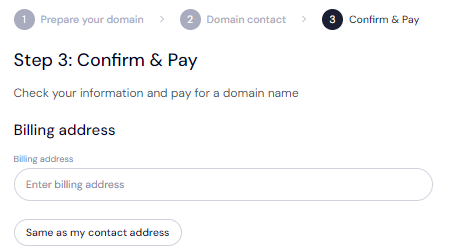
- Enter your billing address.
You can also select 'Same as my contact address,' so you don’t need to fill it in manually again.
- Choose your payment method.
You can use a bank card or existing funds in your Trustname wallet to make a payment.
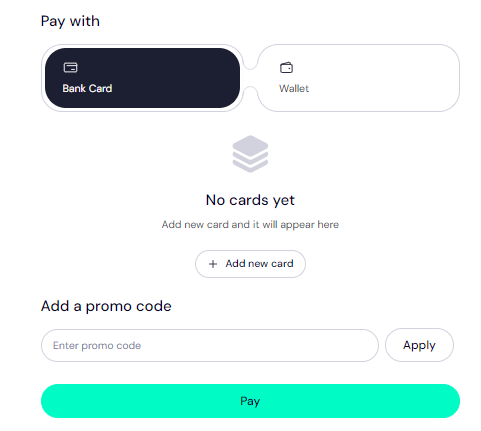
If you don't have a bank card set up yet, click on 'Add new card' and fill in your card details to have it set up.
Trustname also accepts cryptocurrencies for payment!
Trustname's Domain Transfer Promo Code - WELCOME777
- Trustname's standard domain transfer fee is $14.99 per year, with $0 added for taxes and ICANN fees included.
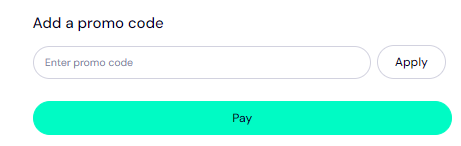
- When you use our promo code WELCOME777, you receive a 50% discount and pay only $7.77 to transfer your domain from Name.com.
This also includes a free 1-year extension added to your domain's current expiry date. - After the first year, your domain will renew at the standard price of $14.99 per year for .com, .net, and .org TLDs making it one of the most affordable options over a 5-year term compared to Name.com and other competitors.
- By switching to Trustname, you can save up to $384 over 5 years compared to Name.com for the same services.
- To apply the discount, enter WELCOME777 in the "Add a promo code" field during checkout.
Specify The Tegistration Duration.
Select the number of years you want your domain registration to last. You can choose a subscription period between 1 and 10 years at a time.
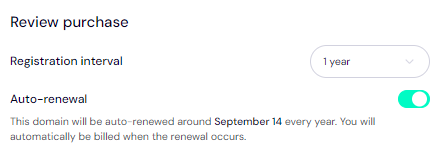
We also advise that you leave the auto renewal button so we can renew your domain name long before it expires for you.
Make Your Payment
Click on the 'Pay' button and follow the on screen prompts. That's it! Your domain name should be on its way from Name.com to Trustname.
Setting Up Your DNS Records
Not sure if this is a feature we'd ever have. If we won't, kindly let me know so I can delete it!
Now that your domain name is at Trustname, you can import the DNS records you exported at Name.com. To import your DNS records to Trustname, log in to your account on the Trustname.com website and fill in your username and password.
Navigate to the 'Domains' dropdown and click on 'Registered domains' to see your domain list.
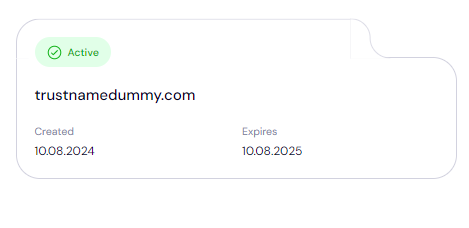
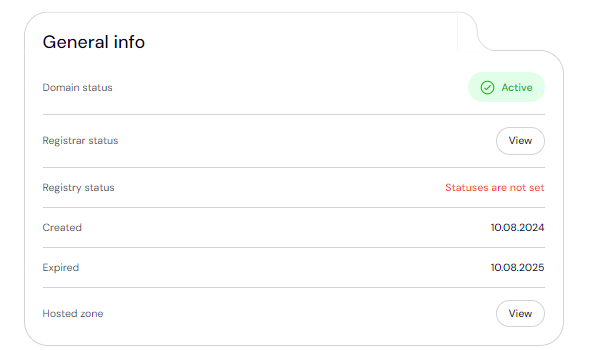
Click on your domain name and under the 'General info' section, look for 'Hosted zone' and click 'View'.
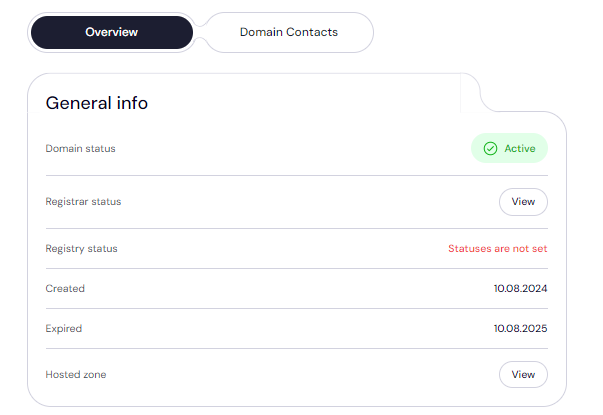
At the top right, click on 'Import DNS records' and upload the CSV files you saved one after the other. The installation wizard on Trustname will automatically configure them. Click 'save' to apply your changes.
Safeguarding Your Domain At Trustname
Once your domain name is at Trustname, you can take these extra steps to secure your account and domain(s):
- Review Our Two-Tier Privacy
When transferring your domain name, if you choose 'Use a pre-defined contact' for the domain contact details, you will now enjoy our Two-Tier Domain Privacy.
You can head to 'Domains >>> Registered Domains >>> Domain Contacts' to change your domain contact details at any time to your own details and enable/disable our Two-Tier Privacy at any time.
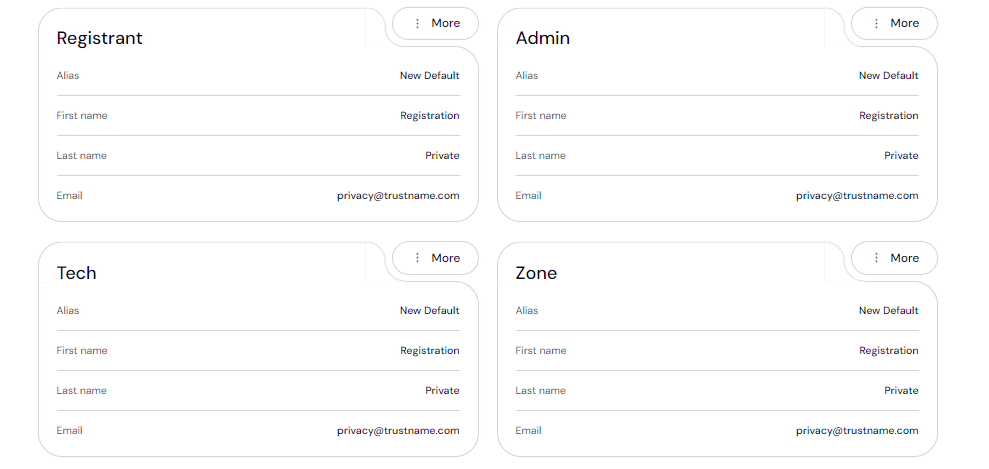
Read Why Trustname registers domains in the name of Perfect Privacy LLC. to learn more about our Two-Tier Whois Privacy.
- Review The Domain Lock
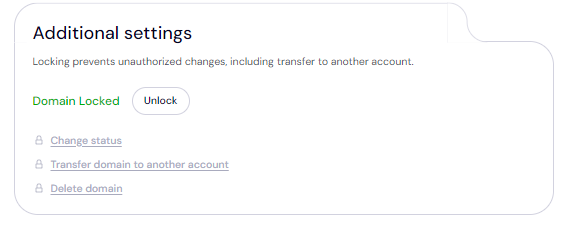
Your domain transfer lock is automatically enabled once you transfer it to us. To view your Domain Lock settings, click on 'Domains >>> Registered domains >>> Select domain', and then scroll down to the Additional settings field.
- Verify The DNS Settings.
You can also review your domain nameservers and DNS records.
To review your domain nameservers, head to the Domain Nameservers section.

And to check your DNS records, under General info, look for Hosted zone and click 'View'.
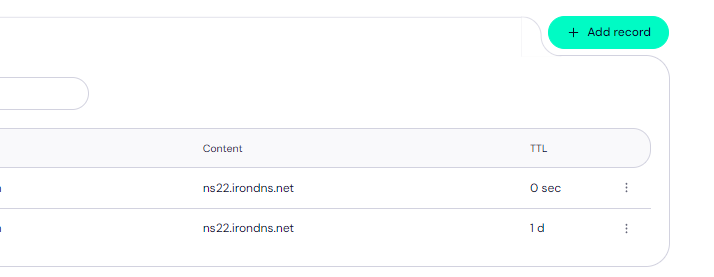
From here, you can add and edit your existing DNS records, tweak your nameservers, and enable DNSSEC.
Set Up 2FA
With Two-factor authentication (2FA) enabled, whenever anyone tries to access your account, they'd need your login credentials as well as a code generated by an authenticator app on your mobile device.
To Set Up 2FA On Your Trustname Account:
- Go to My Profile, click Account Settings, scroll down to Two-Factor Authentication (2FA), and toggle the switch ON.
- Scan the QR code displayed on the screen or manually add the secret key from the Trustname portal to your authenticator app.
- Download the Google Authenticator app from your app store, then enter the six-digit verification code generated by the app into your Trustname portal.
- Click Enable to complete the Two-factor authentication setup process.
Save the backup codes provided by Google Authenticator during setup. These will help you regain access if you lose your device.
Read how to set up Two-factor authentication (2FA on Trustname for more details.
Troubleshooting Failed Domain Transfers
If you run into any issues while transferring your domain from Name.com to Trustname,
These are the common reasons why domain transfers fail and how to troubleshoot them:
- Wrong EPP Code
We recommend copying your Auth Code directly from the Name.com portal and pasting it into our required field instead of manually typing it out.
- Not confirming Domain Eligibility.
Confirm that your domain is eligible and out of the 60-day lock in your Name.com account before proceeding with the transfer.
- Transfer Lock
If the Domain Lock is still turned on, Name.com won't release the domain name. Check your domain settings to ensure the Domain Lock is disabled, as shown earlier.
- Check Your Emails For Approval Requests.
If you used your own details on the Trustname side while transferring it, you would need to verify them as your domain is transferred. Look out for emails from us!