
Transferring your domain from Google Domains (now Squarespace) to Trustname can help you avoid rising costs while providing enhanced security and 24/7 expert support. This guide simplifies the migration process to ensure your digital assets remain safe and affordable.
Key Takeaways
- Cost Savings – Trustname offers competitive pricing, including a special $7.77 transfer fee with the promo code WELCOME777.
- Enhanced Security – Migrating provides access to "bulletproof" features like two-tier Whois privacy, DDoS protection, and SSL certificates.
- Preparation Steps – You must unlock your domain, disable Whois privacy, and obtain an EPP/Auth code from your current registrar before starting.
- Transfer Eligibility – Ensure your domain is at least 60 days old and currently in its "active" or "grace" period to qualify for a move.
- Process Duration – While the setup is quick, the complete transition from Google Domains to Trustname typically takes up to 15 working days.
TABLE OF CONTENTS
- Key Takeaways
- What Perks Should You Expect With Trustname?
- Things To Know Before Initiating Your Transfer
- Prepare Your Domain At Google Domains For The Transfer
- Initiate the Transfer at Trustname
- Safeguard your Domain using Trustname Security Features
- Troubleshoot A Failed Domain Transfer
When it comes to domain registrars, you expect the utmost reliability and security for your domain names. However, this is not always the case, even with global tech giants like Google. In 2015, Google forgot to renew its own domain (Google.com), and a former employee nabbed it for $12 on the Google Domains registration service website.
For a company that's supposed to protect your domain, the fact that they failed to manage theirs feels like a red flag. If you're considering a more secure, user focused alternative, transferring your domain name to Trustname is a smarter move.
To move your domain from Fast Domains to Trustname, you need to unlock your domain, obtain an EPP (or auth code) from your Fast Domains account, and initiate a transfer to Trustname. Ready? Let's start! But before we dive into the details.
What Perks Should You Expect With Trustname?
1. Affordable Pricing Plans
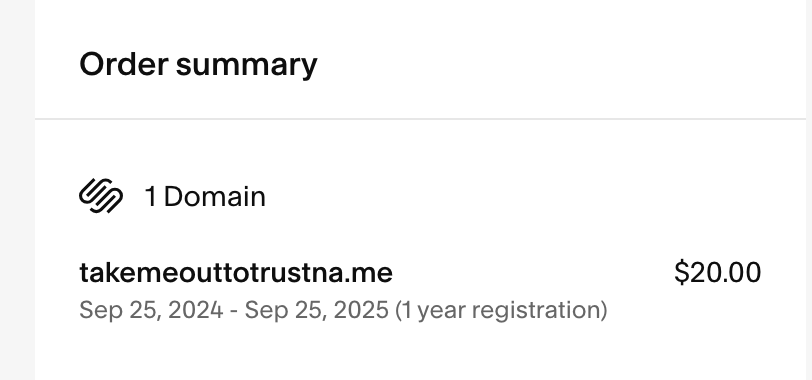
Before Squarespace acquired Google Domains, users enjoyed an affordable, secure and user-centric platform. After the transfer, the costs of registering and renewing a domain name skyrocketed to $20, compared to Google's $12.
Complaint from another customer.

At Trustname, you'll get all the features included in Squarespace's pricing package for $12.99. Some of our domains are even listed for $7.99. This payment covers taxes, ICANN fees, and all costs associated with processing and domain management essentials. We charge a flat fee of $14.99 for domain renewals, too.
2. Reliable, Expert Support
Previous Google domain customers also complain about the subpar support service since Squarespace took over.
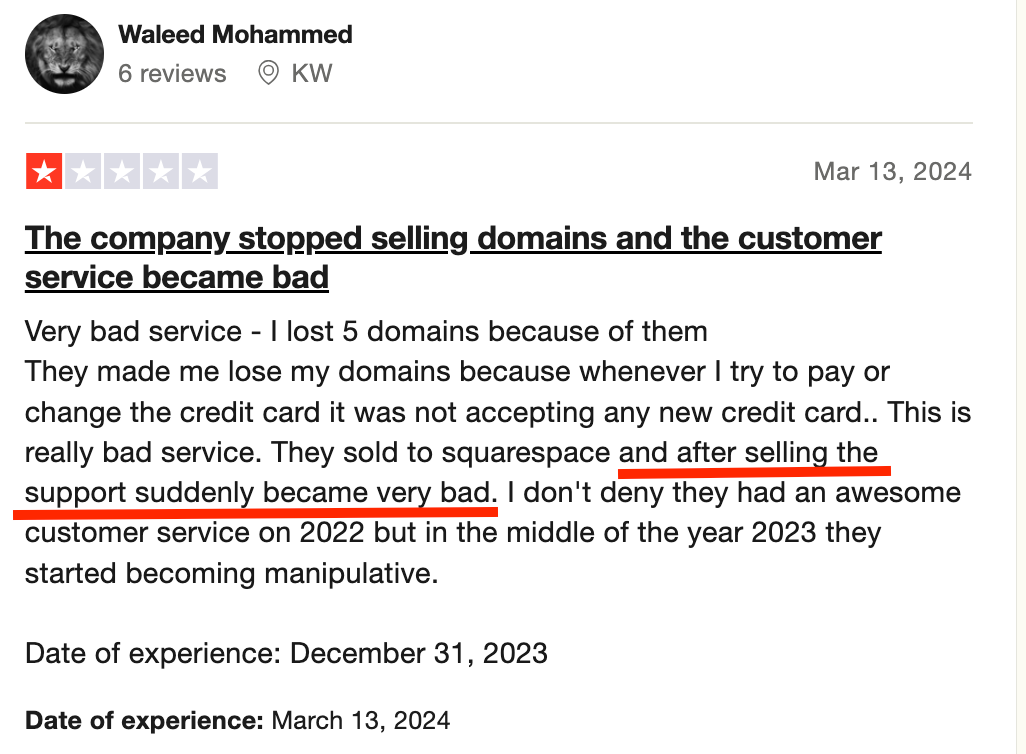
What happens when you need help and there's no support agent to respond to your queries?


This is why you need an alternative, like Trustname.
We understand that your domain is an important business asset. That's why we've built a customer centric platform to help you manage your domain without hitches.
Our customer support team is experts in domain management and web hosting and is actively available to respond to your queries 24/7/365. For a swifter response, use our live chat and online ticketing options.
3. Robust Security
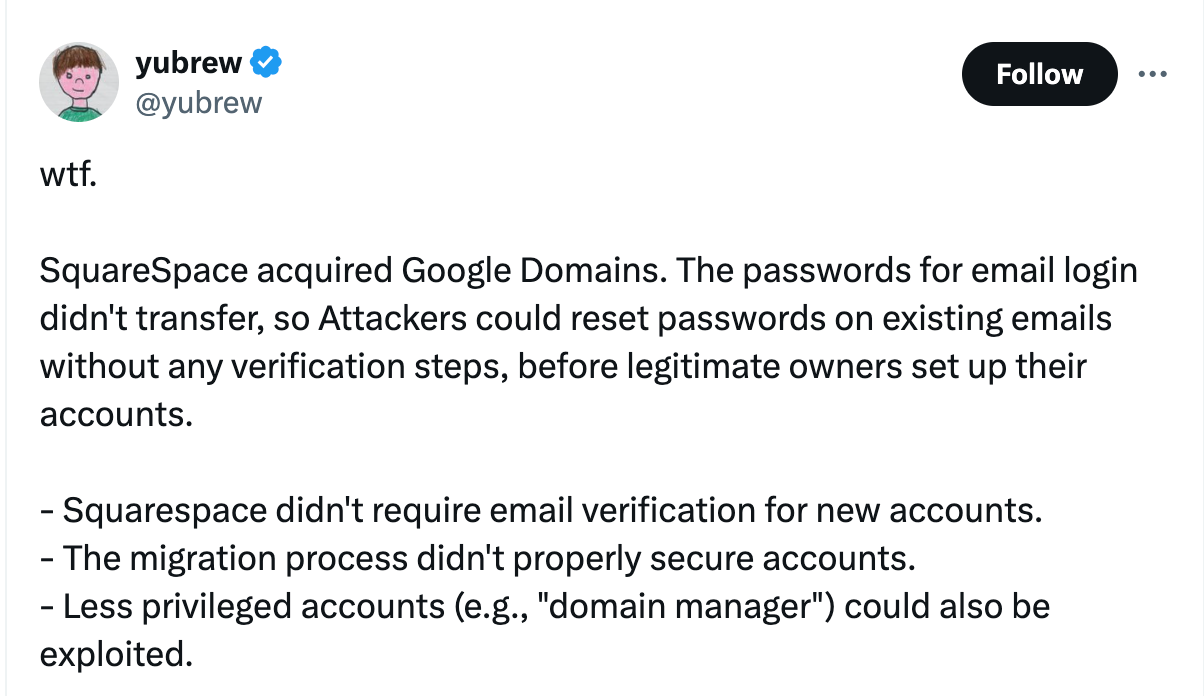
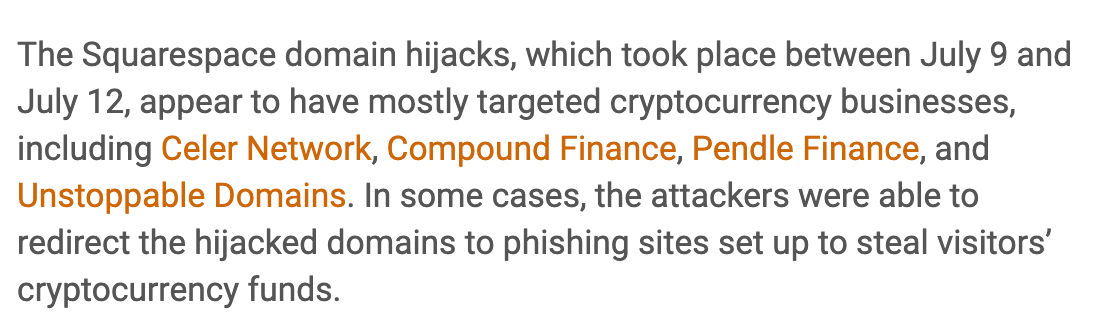
When Google sold off to Squarespace, several websites (domain names) got hijacked the following week. This is because the transferred domain owners had yet to set up a new account with Squarespace, and hackers saw this as an opportunity to steal the domain(s).
The hackers reportedly rerouted the hijacked domains to phishing sites to steal cryptocurrency funds from the web visitors.
This is very risky, and the affected business may face legal implications, which cost a (whopping) lot of money.
At Trustname, your domain and domain account are our topmost priority. In fact, we were tagged as a 'Bulletproof' registrar because of our commitment to providing secure and reliable domain management services.
Some of the security features you'll enjoy after transferring your domain name are an SSL certificate, DDoS protection, two-factor authentication, two-tier Whois privacy protection and many more.
Things To Know Before Initiating Your Transfer
- A Note On Domain Nameservers
Before initiating a transfer to Trustname, review the domain nameservers on your Google Domains account. Usually, your website is pointed to Google Domains nameservers by default, except you're using a third-party web host.
If it's pointing to Google Domains nameservers, you'll need to reconfigure them to point to Trustname or a third-party provider before transferring your domain name. This will help minimize downtime and keep your website functional during and after the transfer.
- Domain Transfer And Website Transfer Are Separate Services
Whenever you initiate a domain transfer, it doesn't automatically take your website along. This means if you want to change your web hosting service, you'll have to buy a separate hosting plan from a new provider. Then, reach out to us to help you migrate your website seamlessly.
- Trustname's Transfer Fees And Policies
Our transfer fee costs $ 7.77 (after using our promo code) for all domains. This covers ICANN fees, taxes, and all domain management add-ons. We also add an extra year to your domain's current expiry date.
- Domain Eligibility
You can only transfer your domain in the 'active' or 'grace' period after it expires. If you fail to renew your domain during the grace period, it goes to the 'Redemption' phase, and you'll have to renew it with your current registrar before initiating a transfer to Trustname.
Some registrars charge an extra fee to renew your domain once it enters the redemption phase. Also, your domain will be placed on the ICANN lock, and you have to wait until the 60 days lock expires before transferring your domain to Trustname.
Prepare Your Domain At Google Domains For The Transfer
- Confirm If You're Eligible For A Transfer
According to ICANN transfer policies, you can't transfer your domain name until 60 days have passed since your last registrar transfer, registrant change, or alterations to your domain's contact details. So, confirm if your domain is at least 60 days old and if you've recently initiated any of these changes.
- Remove All Domain Locks
Since Google Domains was sold to Squarespace, you'll need to access your account via the Squarespace website.
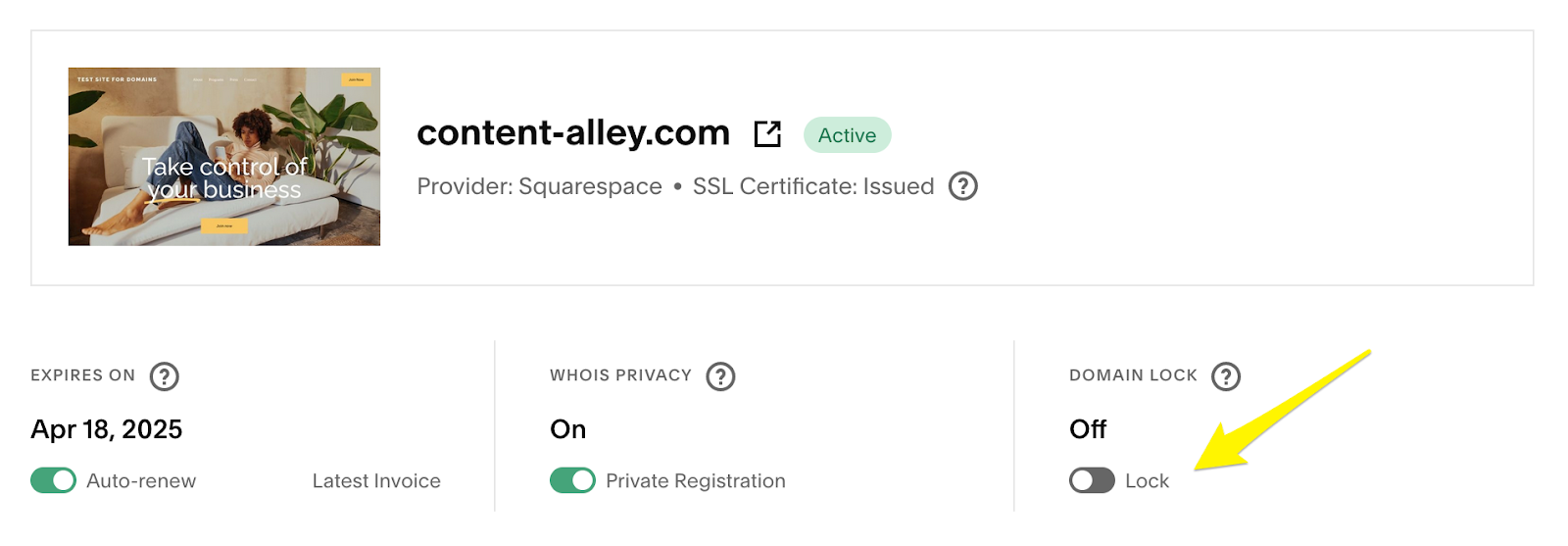
To remove the lock on your domain, log in to your Google Domains account. On the domain dashboard, click on the domain you want to transfer. You'll be redirected to the domain management page. Navigate to the Domain 'Lock' section and click the 'Toggle Off'.
- Remove The Domain Privacy
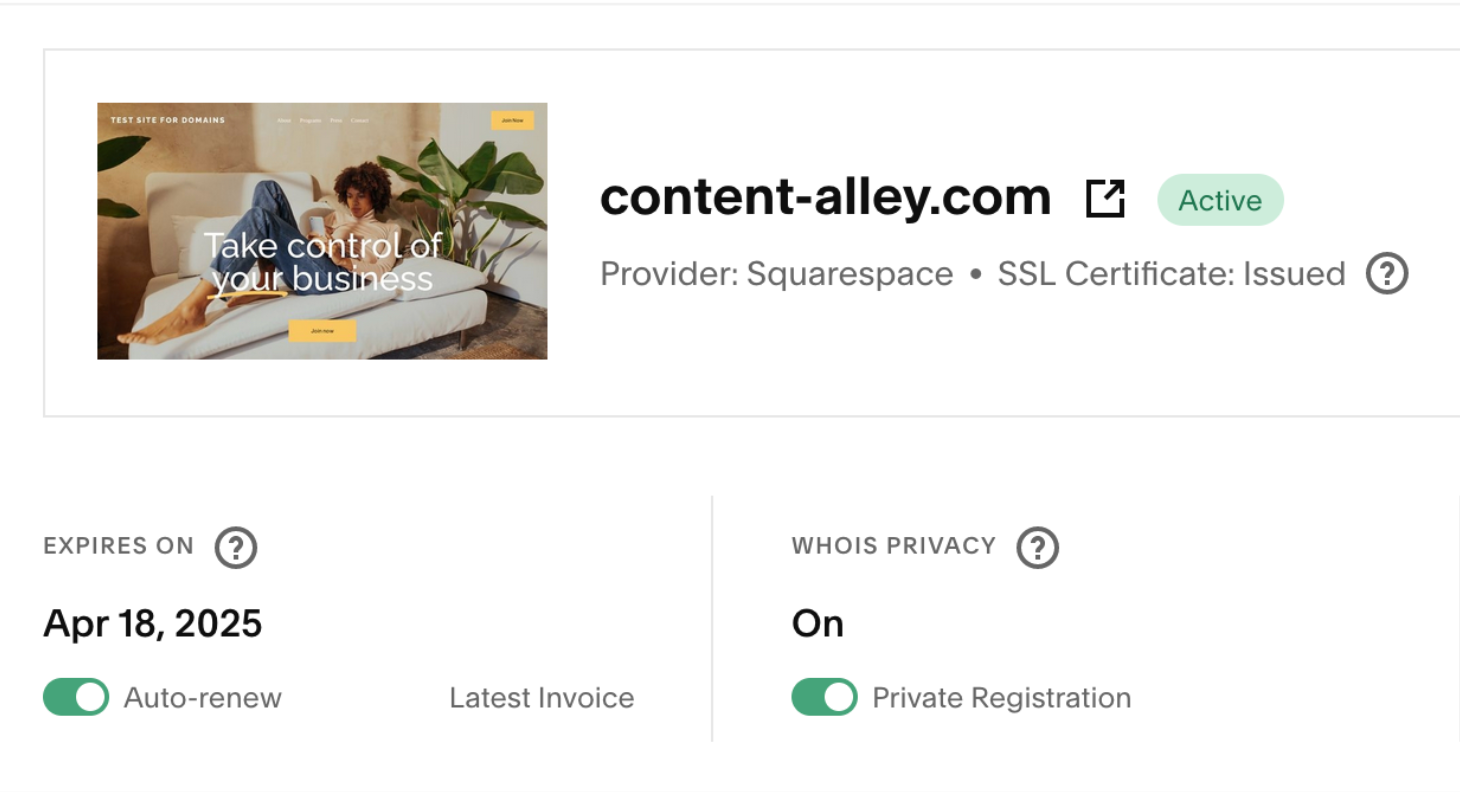
You can turn the domain privacy on or off for your account on the dashboard.
To do this, click on the 'Domain' you want to transfer. You'll be redirected to the domain management page. Navigate to the Whois privacy and click the 'Toggle Off'.
- Change The MX Records
If Google Workplace is linked to your domain, adjust the MX records to Trustname before transferring it. This will ensure that your email service remains functional during and after the transfer.
- Obtain The Auth code
Before transferring your domain, obtain a transfer code (also called Auth or EPP code) to validate your domain transfer from Google Domains to Trustname.
To do this, click on the 'Domain' you want to transfer from the domains dashboard. Next, scroll down and click 'Request Transfer Code >>>OK'. Squarespace will email your authentication code to your inbox within 24 hours. Always ensure the domain contact details are correct.
Initiate The Transfer At Trustname
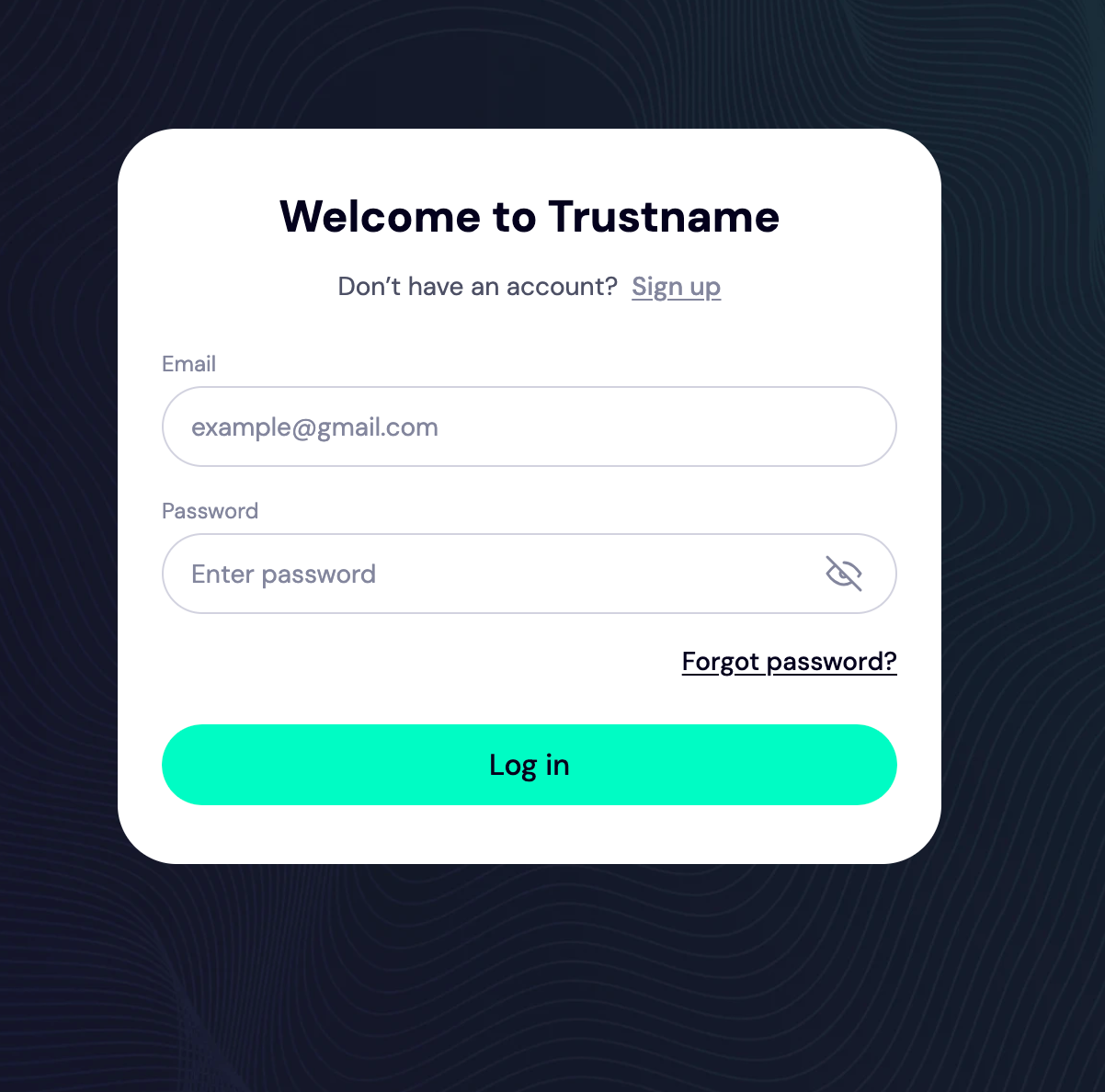
- Go to the Trustname.com website and click 'Login' on the top right corner of the page.
- On the login page, enter your account credentials and click 'Login'.
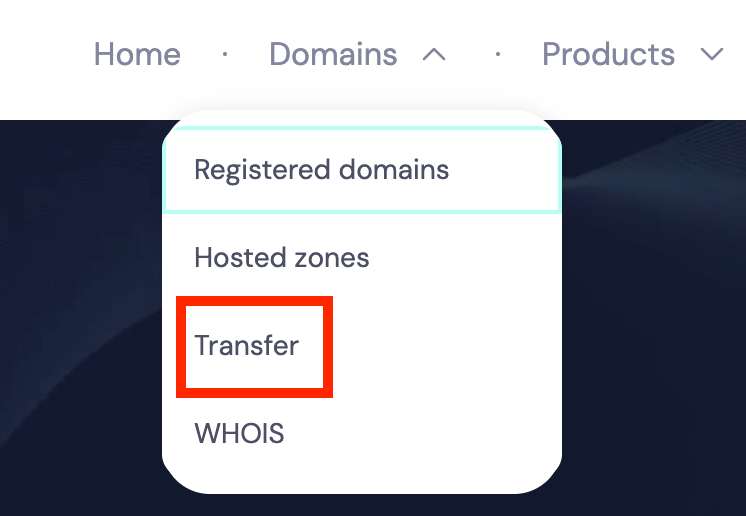
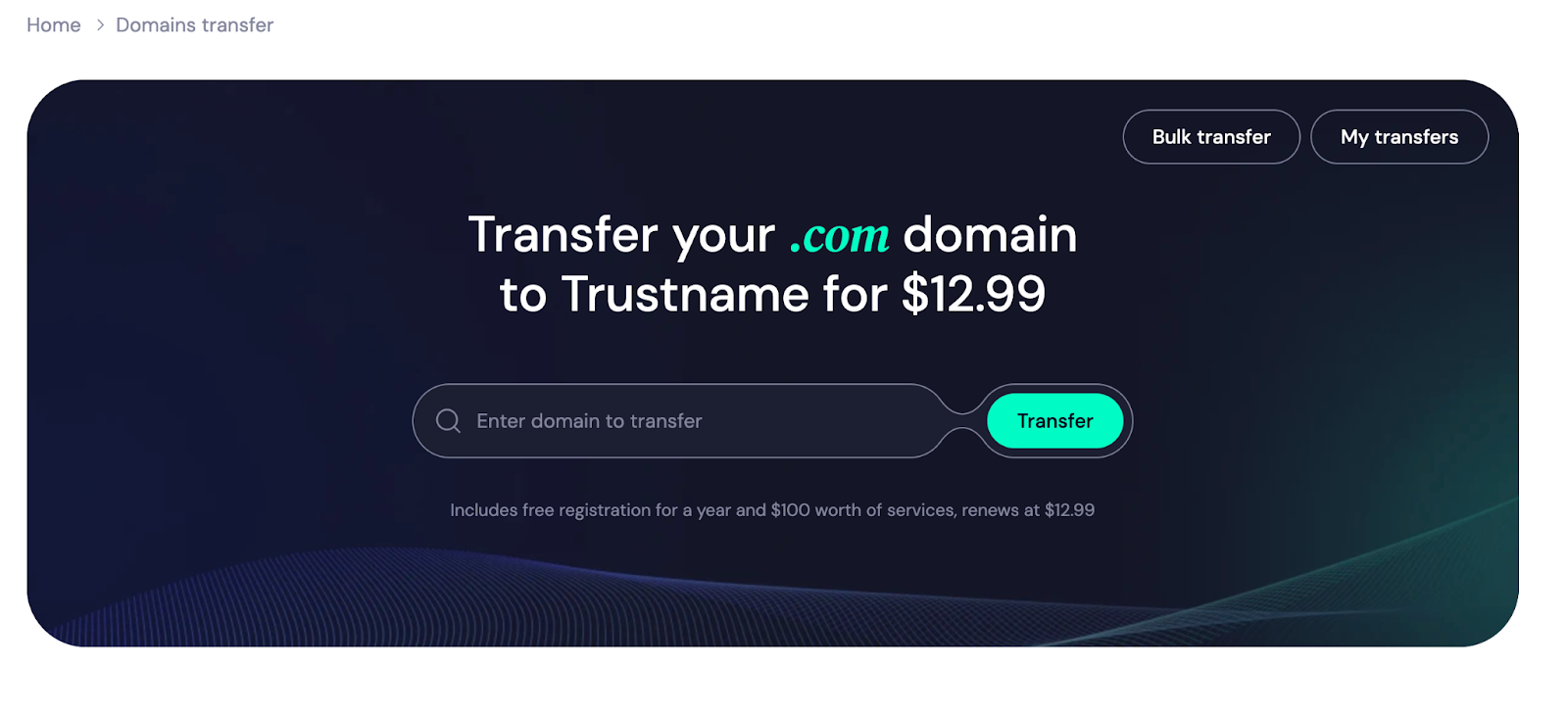
- Once logged in, click 'Domains' on the navigation bar and then 'Transfer' You’ll be redirected to the transfer portal.
- On the transfer portal, type the domain you wish to transfer into the search box and click 'Transfer'.
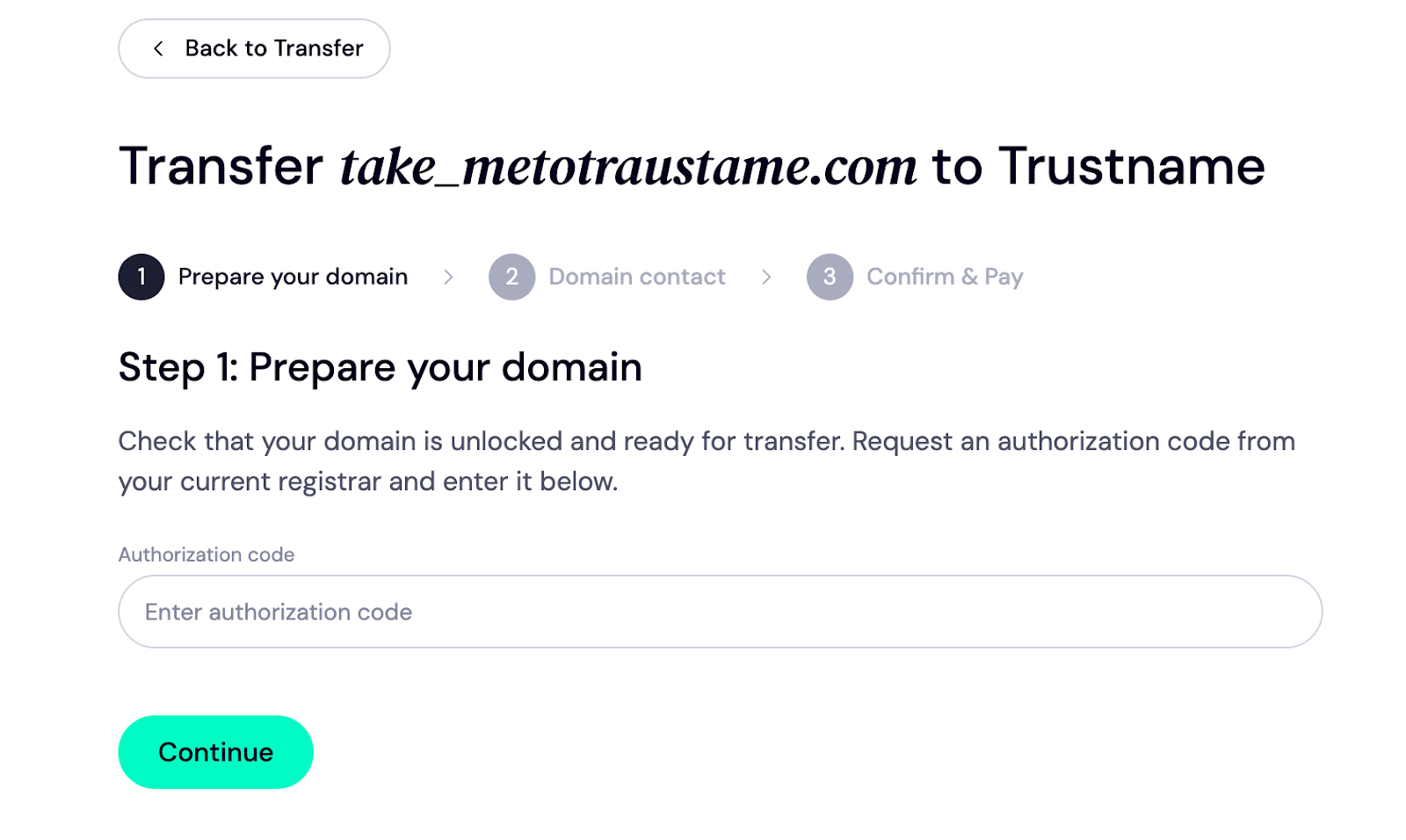
- Enter the auth code into the box below and click 'Continue'.
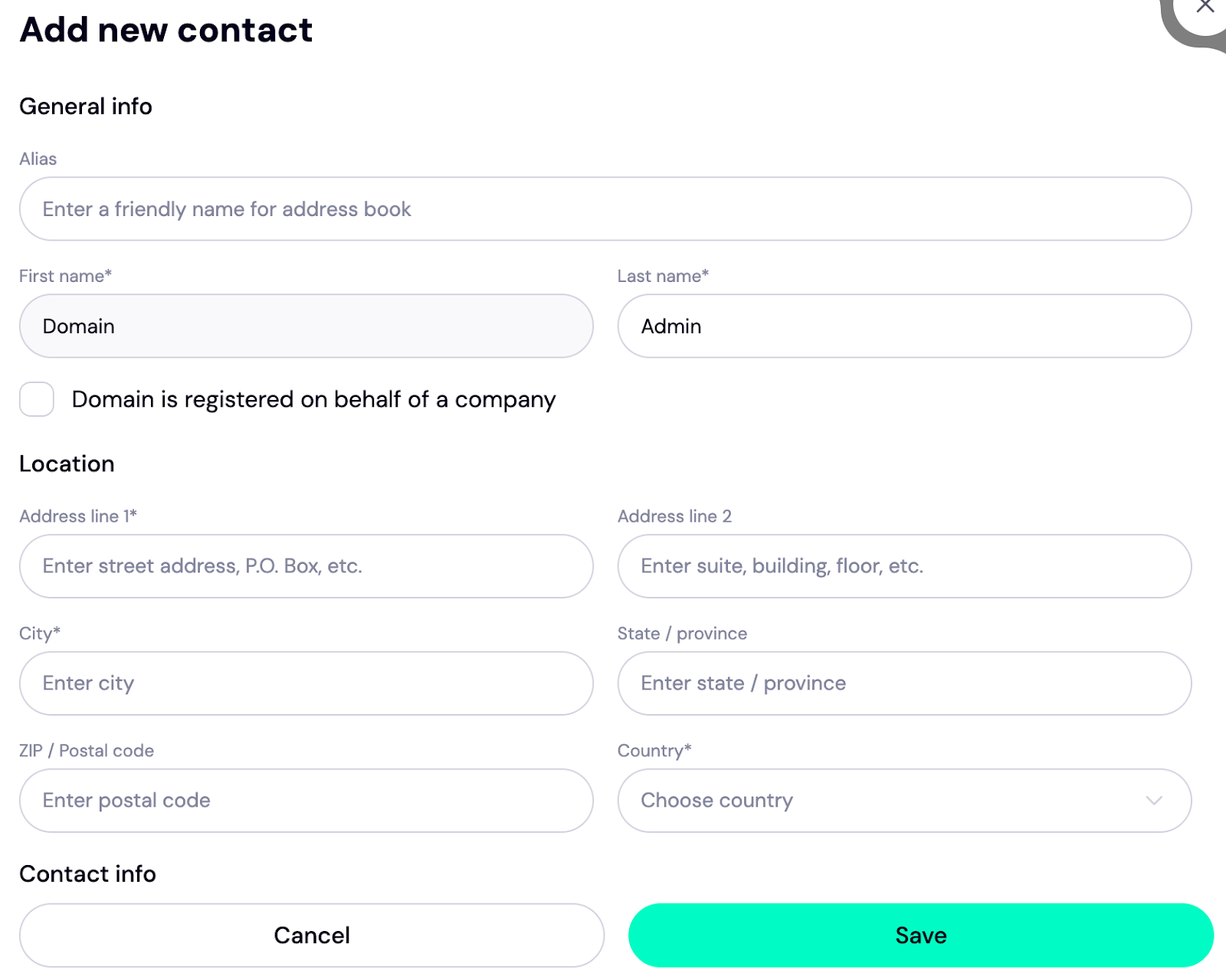
- Next, fill in the contact details. You can add your personal details or click 'Choose a predefined contact' to enable Trustname's Two Tier privacy protection. To use your details, click 'Choose Contact' and select 'Add new contact' from the drop-down.
If you'd rather use our Two-Tier privacy protection, click 'Use a predefined contact' and your contact details appear like this: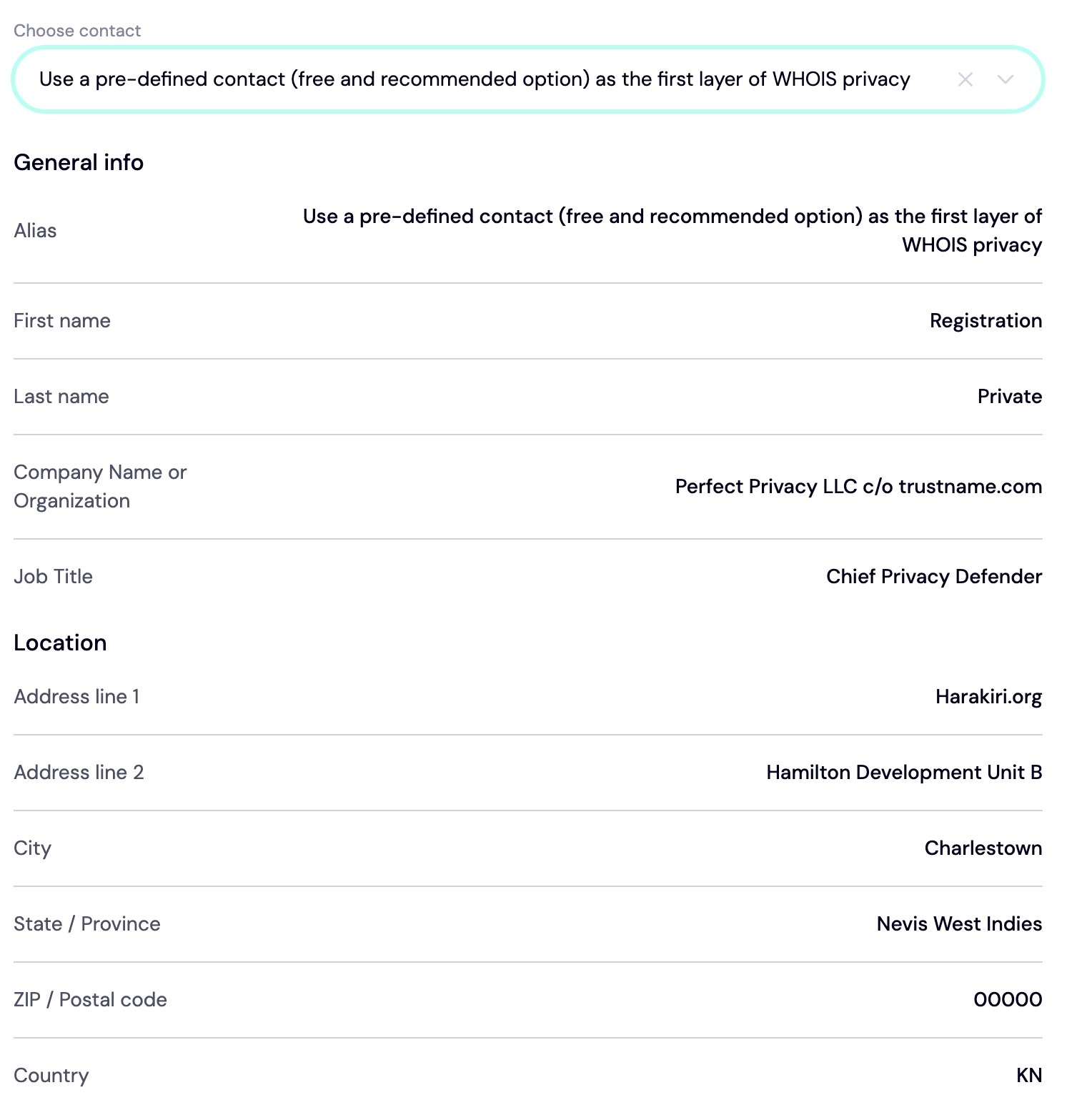
[+] [Notice] Info Insert title here [+] [Notice] Title -> Using the predefined contact option is only for privacy purposes, and you will still retain full access to your account. You can always revert to using your personal data at any time.
Next, click 'Continue'.
- Here, you're required to pay for your domain. Once you do this, we'll add an extra year to your domain's expiry date.
First, enter your billing address. If it's your contact address, just hit the 'Same as my contact address' to expedite the process.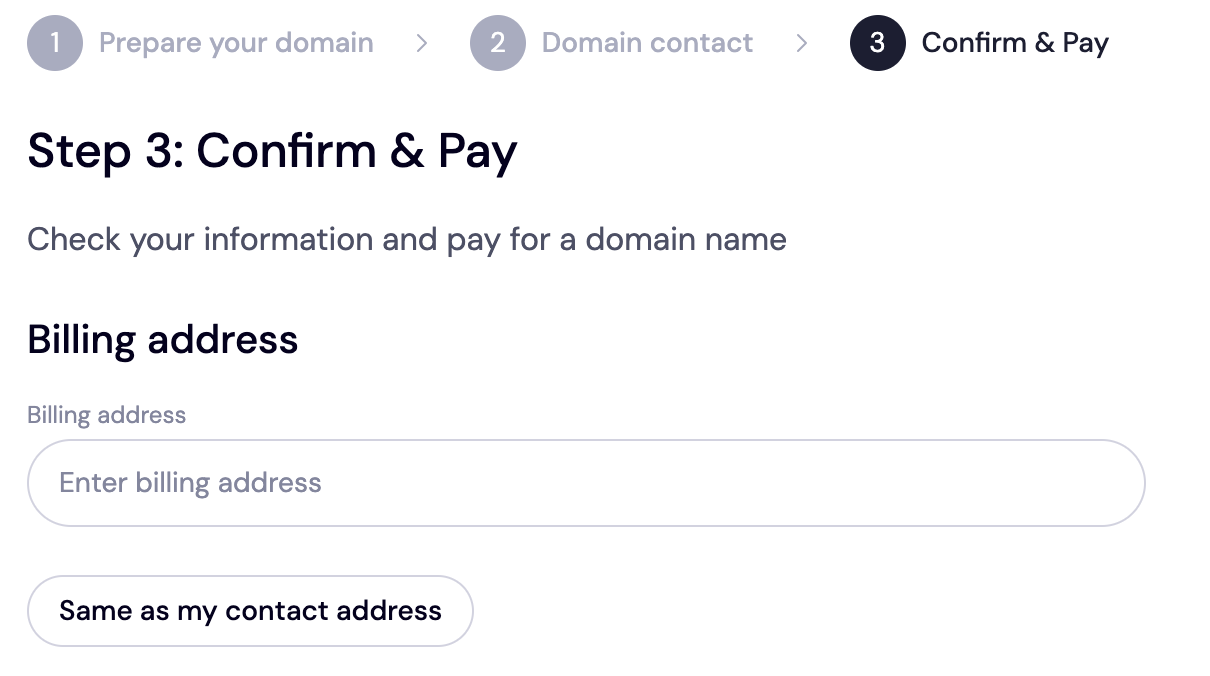
- Next, choose your payment method. You can use your bank card or the funds in your Trustname wallet. If your bank card isn't set up, click 'Add a New Card' to add one.
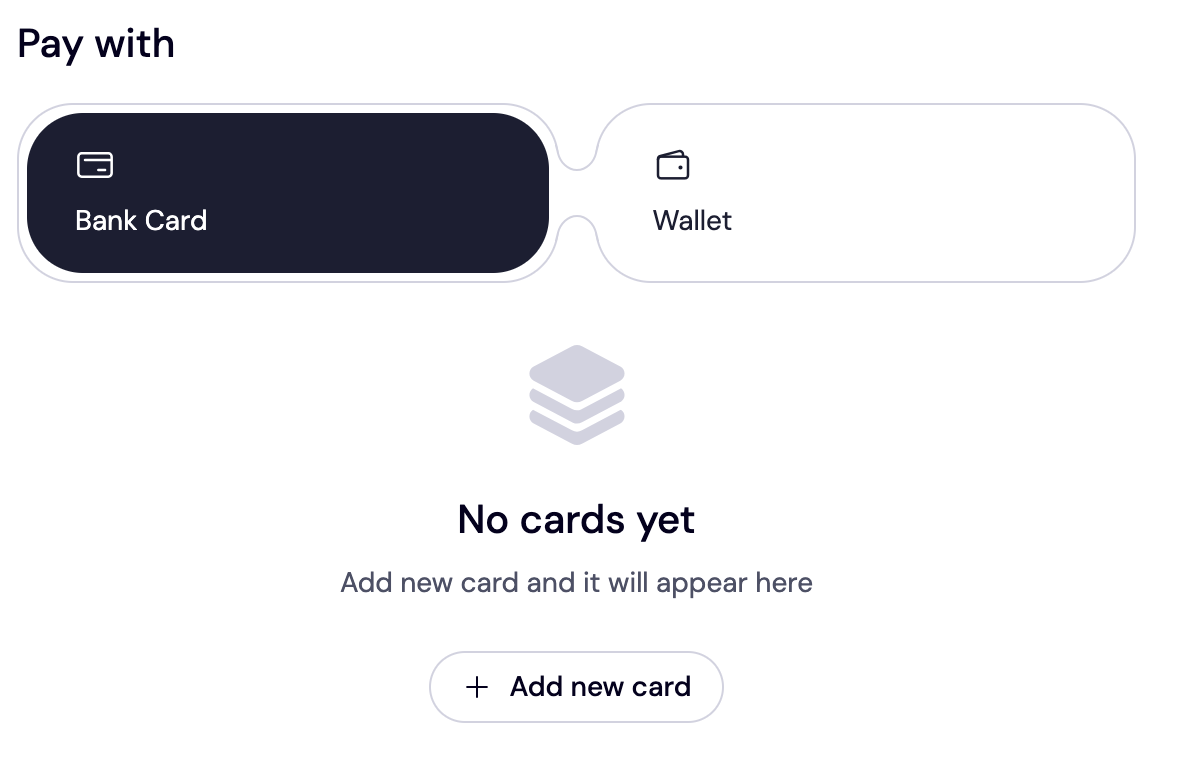
We also accept cryptocurrencies for payment!Trustname's Domain Transfer Promo Code - WELCOME777
[+] [List] Green Ordered - By using the promo code WELCOME777, you receive a 50% discount on the standard $14.99 domain transfer fee.
- After completing the payment, one extra year is added to your domain's expiry date at no additional cost.
To enjoy this discount, type in WELCOME777 into the box as shown below: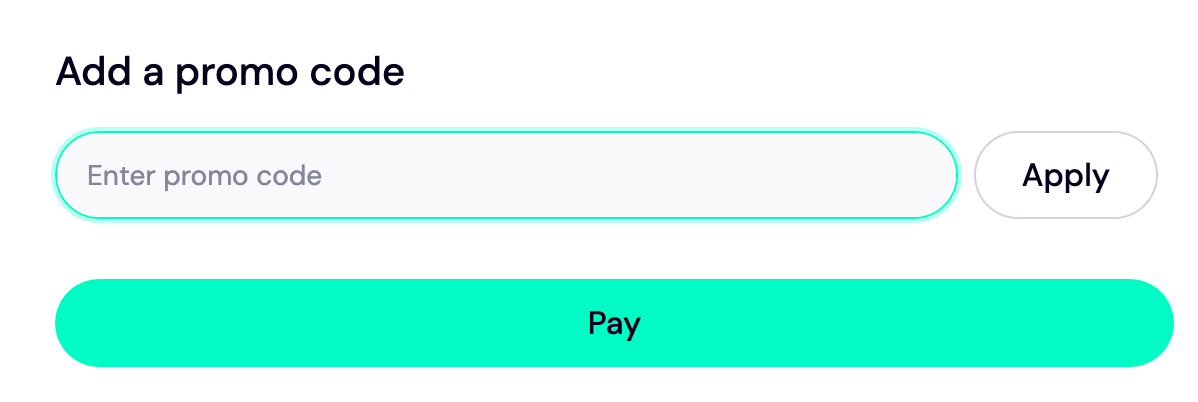
- Click the 'Pay' button and follow the prompts to finalize your payment. That's all! It'll take 15 working days for your domain to be transferred completely from Google Domains (Squarespace) to Trustname.
Safeguard Your Domain Using Trustname Security Features
Once your domain is transferred successfully, turn on domain lock, review your domain nameservers, enable two-factor authentication, and check out the Whois info if you used our Two-tier privacy protection.
Troubleshoot A Failed Domain Transfer
If you couldn't transfer your domain after following these steps, then you may need to verify:
- If your domain isn't under a transfer lock.
- The auth code you pasted into the Trustname transfer portal is correct.
- Your domain is not expired and is eligible for transfer.
- The Whois privacy protection is disabled.
If you didn't get an auth code from Squarespace, check the spam folder in your email or contact their support.
Read more – How to troubleshoot failed domain transfer on Trustname.