
Looking to move your domain from Domain.com to a registrar that truly values transparency, privacy, and customer care? Trustname makes the transfer process simple, secure, and affordable. With no hidden charges, free Two-Tier Privacy Protection, and world-class human support, you get everything you need to protect your domain and business.
This guide walks you through each step to seamlessly transfer your domain from Domain.com to Trustname, ensuring zero hassles and full peace of mind.
Key Takeaways
- Preparation – Turn off Domain Privacy, unlock your domain, verify Whois details, and get your Auth Code before transfer.
- Pricing – Trustname offers affordable rates with no hidden charges or upsells, just one flat, transparent fee.
- Privacy – Enjoy free Two-Tier Privacy Protection that shields your personal data without extra cost.
- Support – Access responsive, human based customer service through chat, email, and a detailed help center.
- Security – Benefit from robust domain protection, DNS management, and optional 2FA for extra security.
TABLE OF CONTENTS
- Key Takeaways
- Perks Of Using Trustname As Your Registrar
- What To Know Before Transferring Your Domain Out
- Domain.com's Transfer Precheck List
- Transferring From Domain.com To Trustname
- How To Secure Your Domain At Trustname
- Troubleshooting Failed Domain Transfers
- Final Note
Are you looking for an alternative to Domain.com with actual helpful support, a less confusing interface, and a policy against ripping you off with annoying upsells and dodgy domain renewal prices? Then you should switch to Trustname.com.
Here's what you can expect from us unbeatable two-tier privacy that we don't charge you extra for, and affordable pricing for a premium package that you can't find anywhere else!
All you need to successfully transfer your domain name from domain.com to Trustname is to ensure that. The Domain Privacy service is turned off, the Registrar Lock is disabled, and your domain should be at least 60 days old.
Your Whois contact details, including your name, email, and address, are accurate and up-to-date your domain's nameservers are correctly set, you secure the Auth Code (EPP code) for your domain from Domain.com.
Once all these conditions are met, you'll be ready to transfer to Trustname smoothly.
In the rest of this article, we will show you how to start and finish the transfer to a bulletproof registrar like Trustname, which puts your privacy first.
But first, why should you join Trustname?
Perks Of Using Trustname As Your Registrar
Domain registrars, especially better-known ones like domain.com, employ salesy language to convince people to sign up for more than they bargained for. Making sales shouldn't come at the expense of your domain protection and business. What makes us different? Trustname doesn't do empty sales pitches; you get exactly what you see.
Take a look:
1. Affordable Pricing With No Dodgy Upselling
There are several complaints where Domain.com users have reported being charged for services that were advertised to be free. It could've been an error, right? But Domain.com offered users NO refunds when they brought attention to it.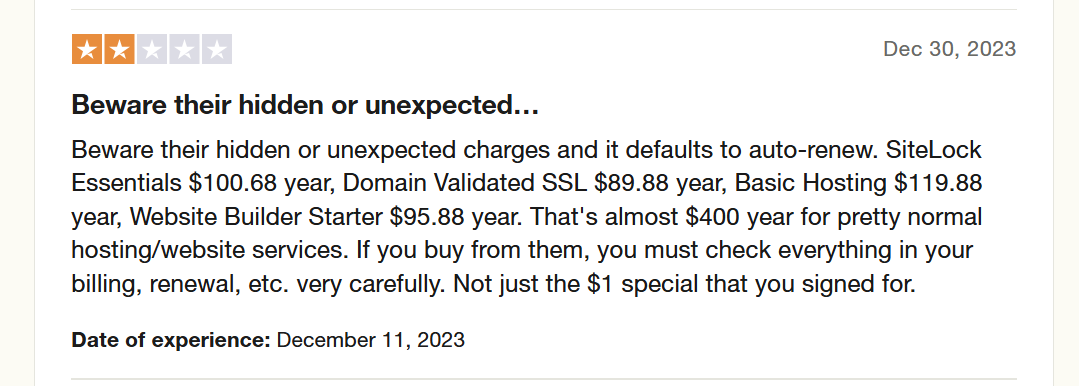
With Trustname, that is never an issue. When we say it's free, it is free. To illustrate, all you'll ever need to pay in your first year for a .com TLD with Trustname is $12.99, which renews at $14.99 yearly.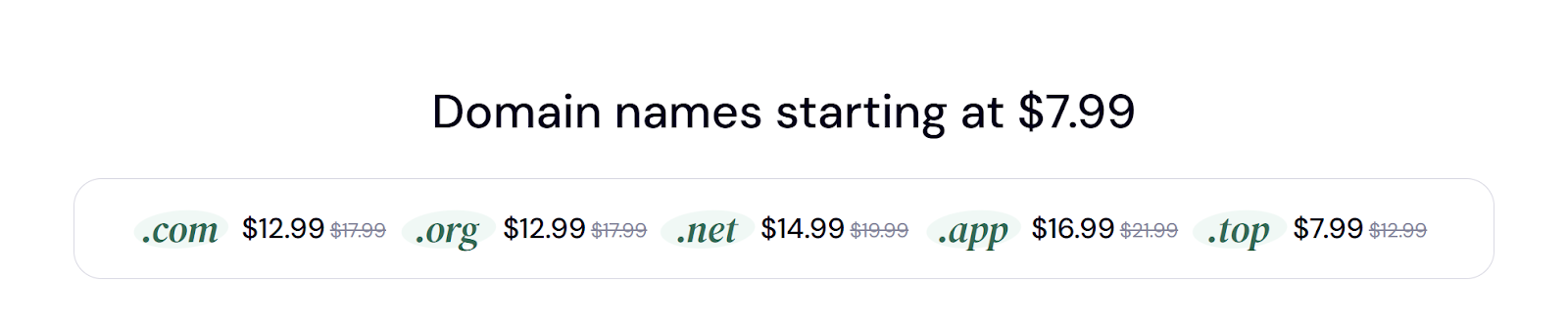
With domain.com, this starts at $11.99. From a distance, it looks like you just shaved a dollar off, but how about the other essentials?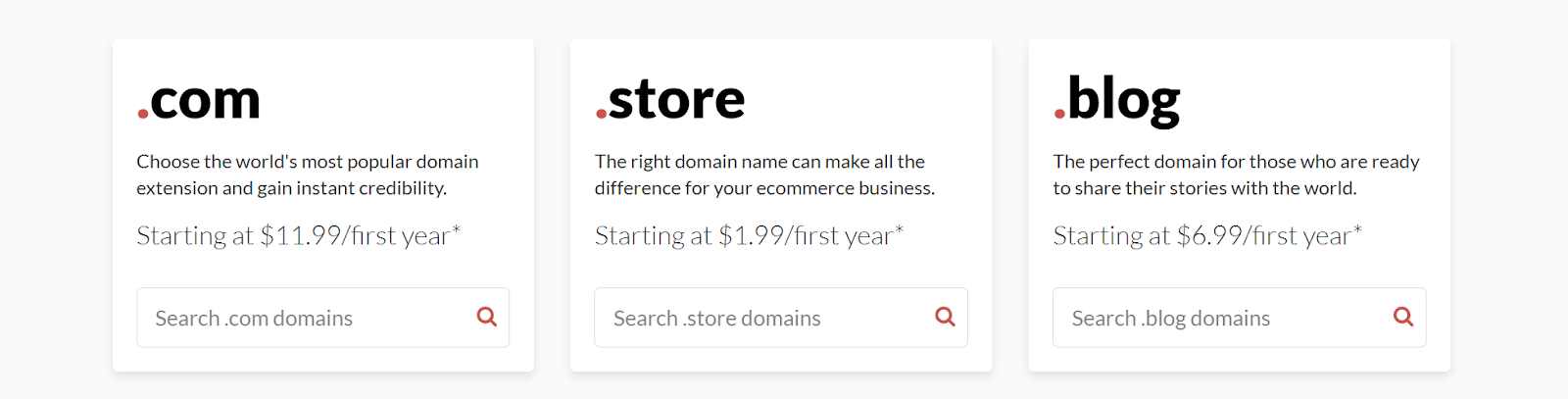
You will have to purchase an SSL certificate and a business email separately from Domain.com. Depending on the type of SSL certificate you need, you spend an additional $2.75 to $14.99 monthly.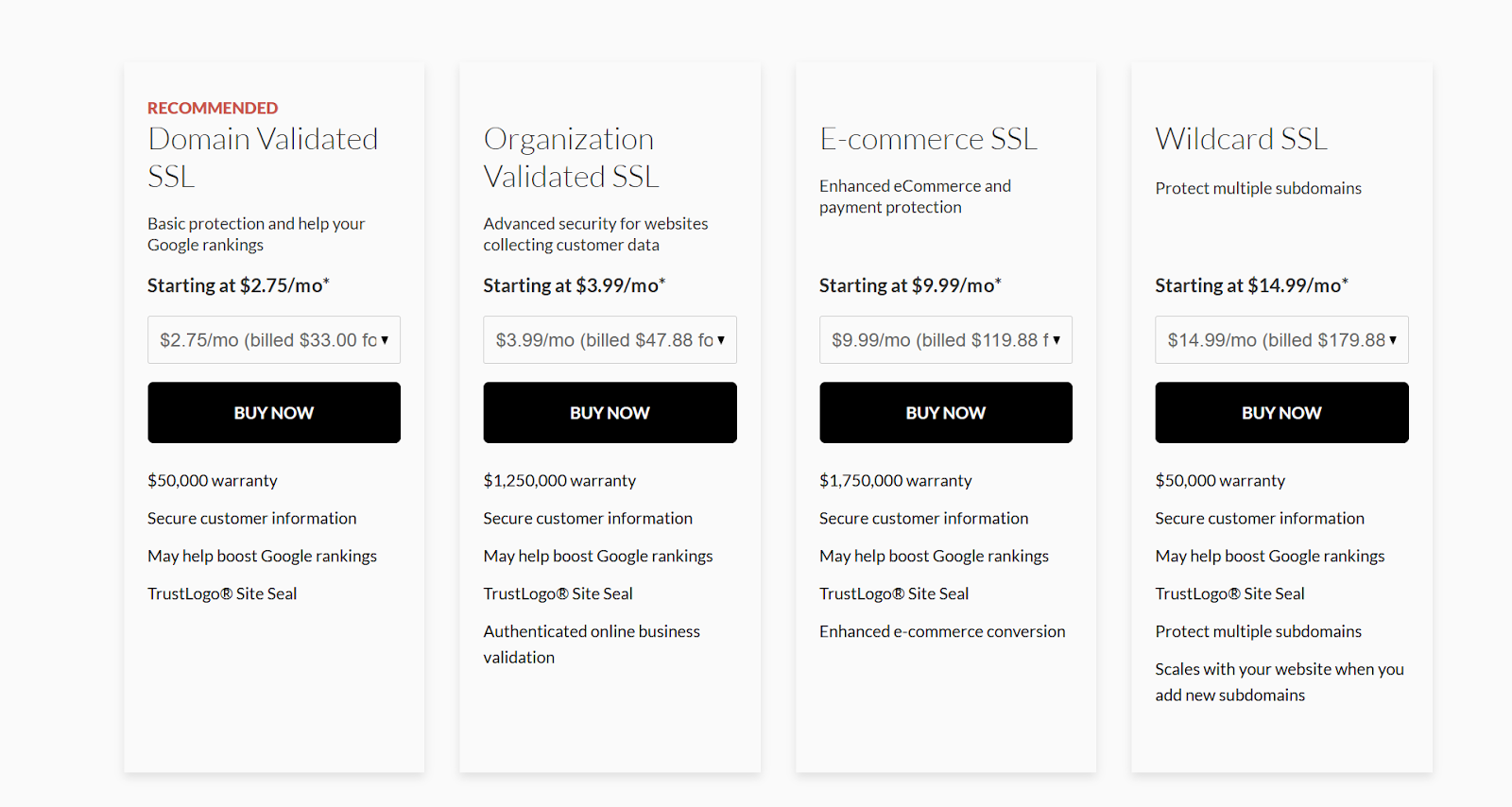
Also, Domain.com partners with Google Workspace to offer their users a business email service, costing another $72 to $216 per year.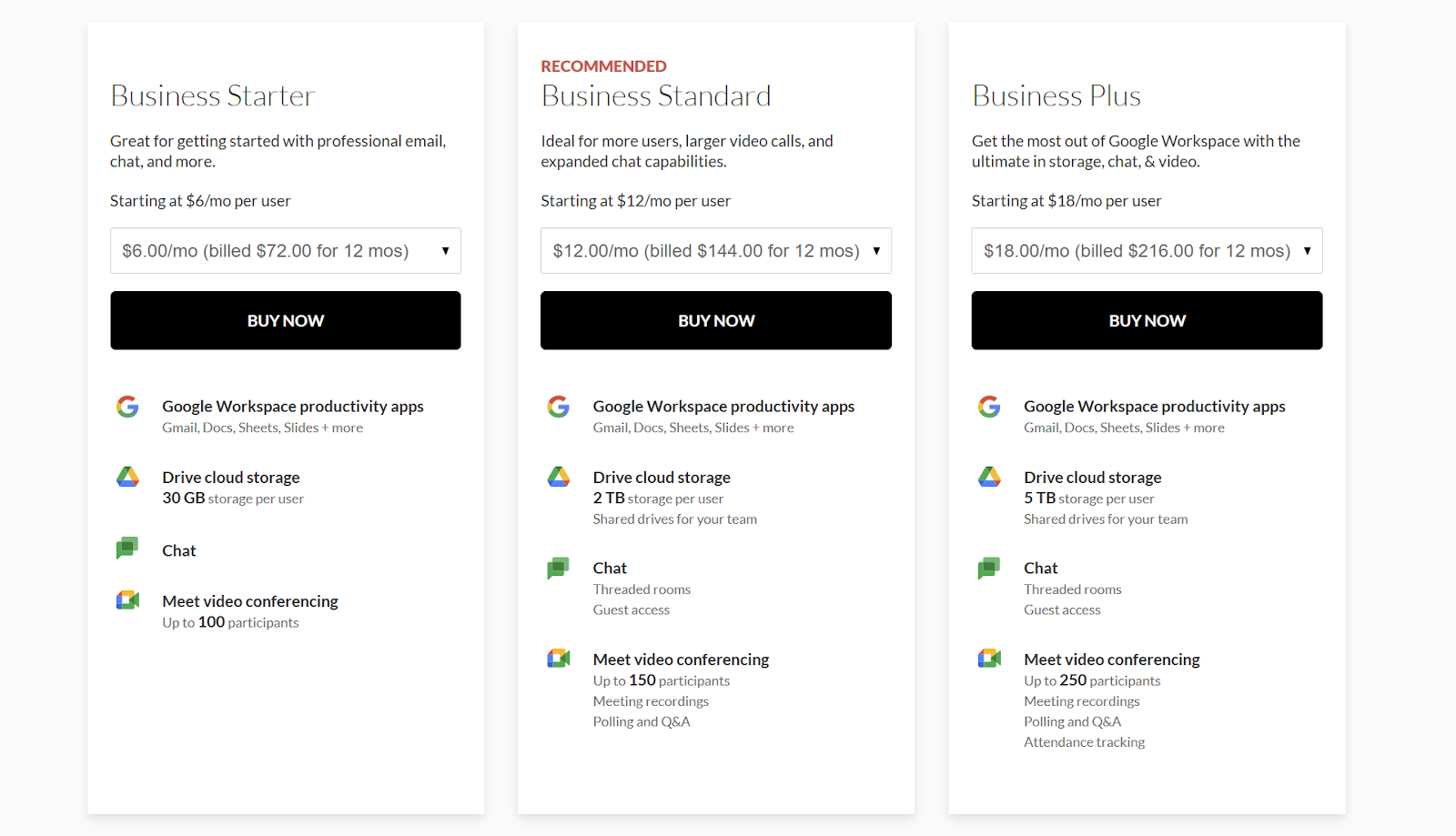
How about domain security?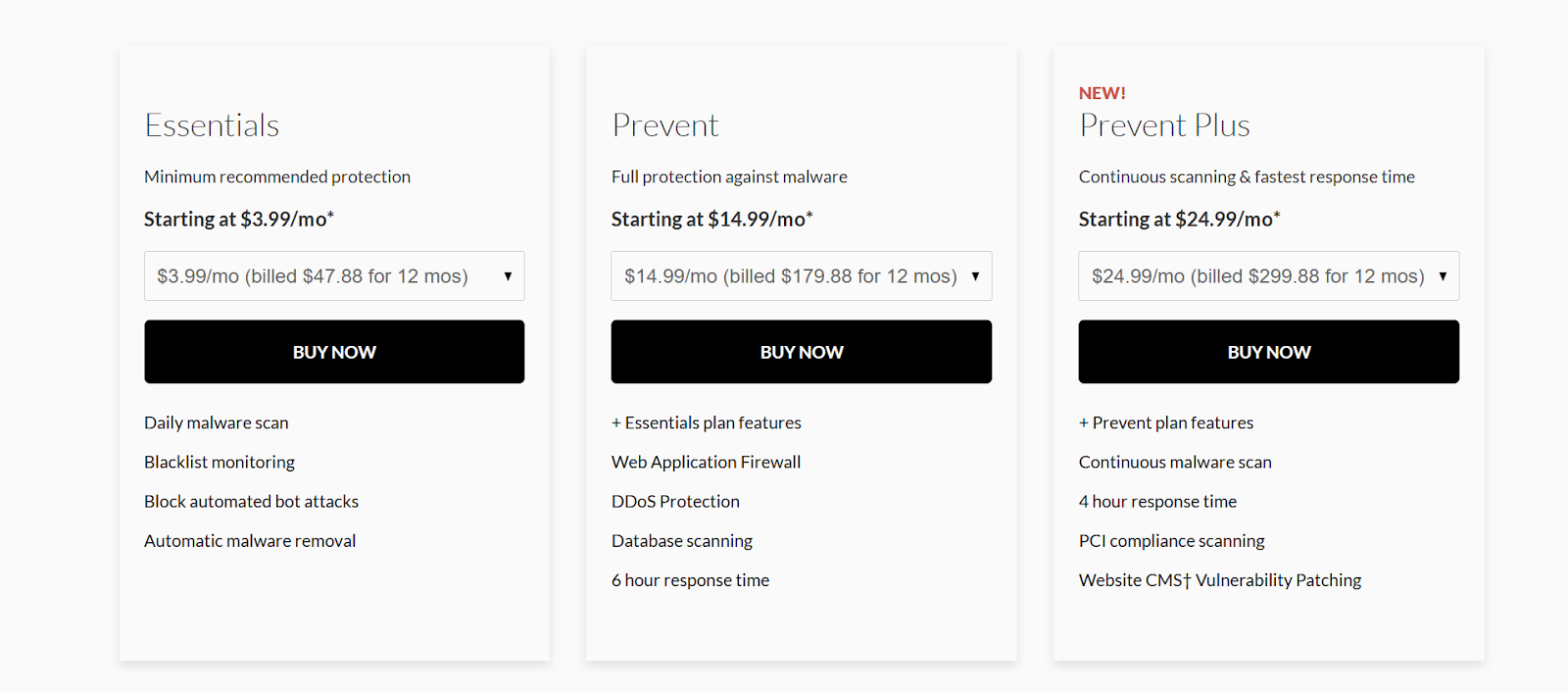
Domain.com charges $47.88 to $299.88 yearly to protect your domain from malicious attackers. Are you adding the $$ up yet? Let us help.
This is what your least expensive package looks like so far for the first year:
- .com domain name = $11.99.
- SSL certificate (recommended) = $33.
- Business email service (starter) = $72.
- Domain security (essentials) = $47.88.
Your total is now $164.87 for one year. How does Trustname measure up? Hold your breath.
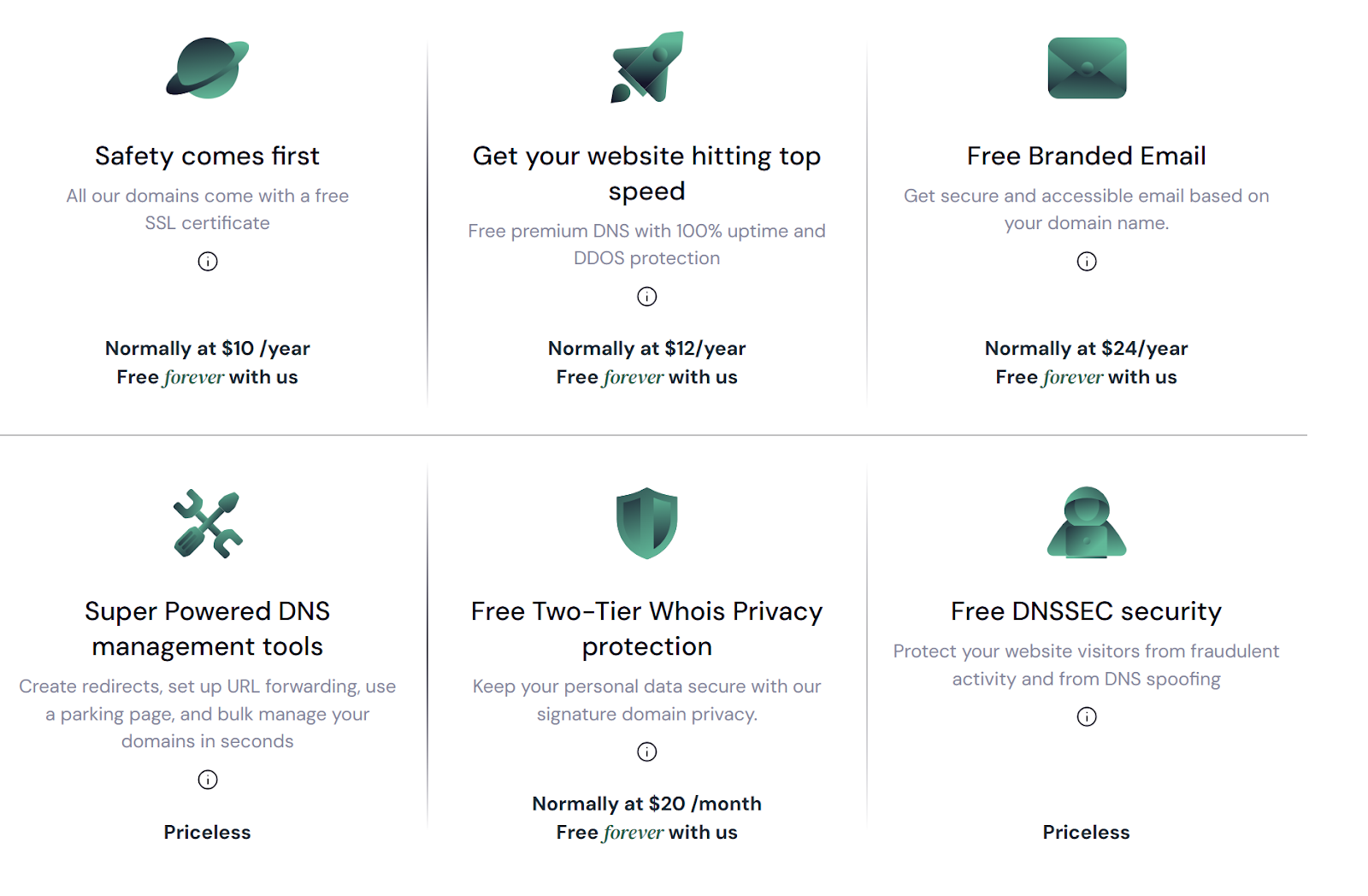
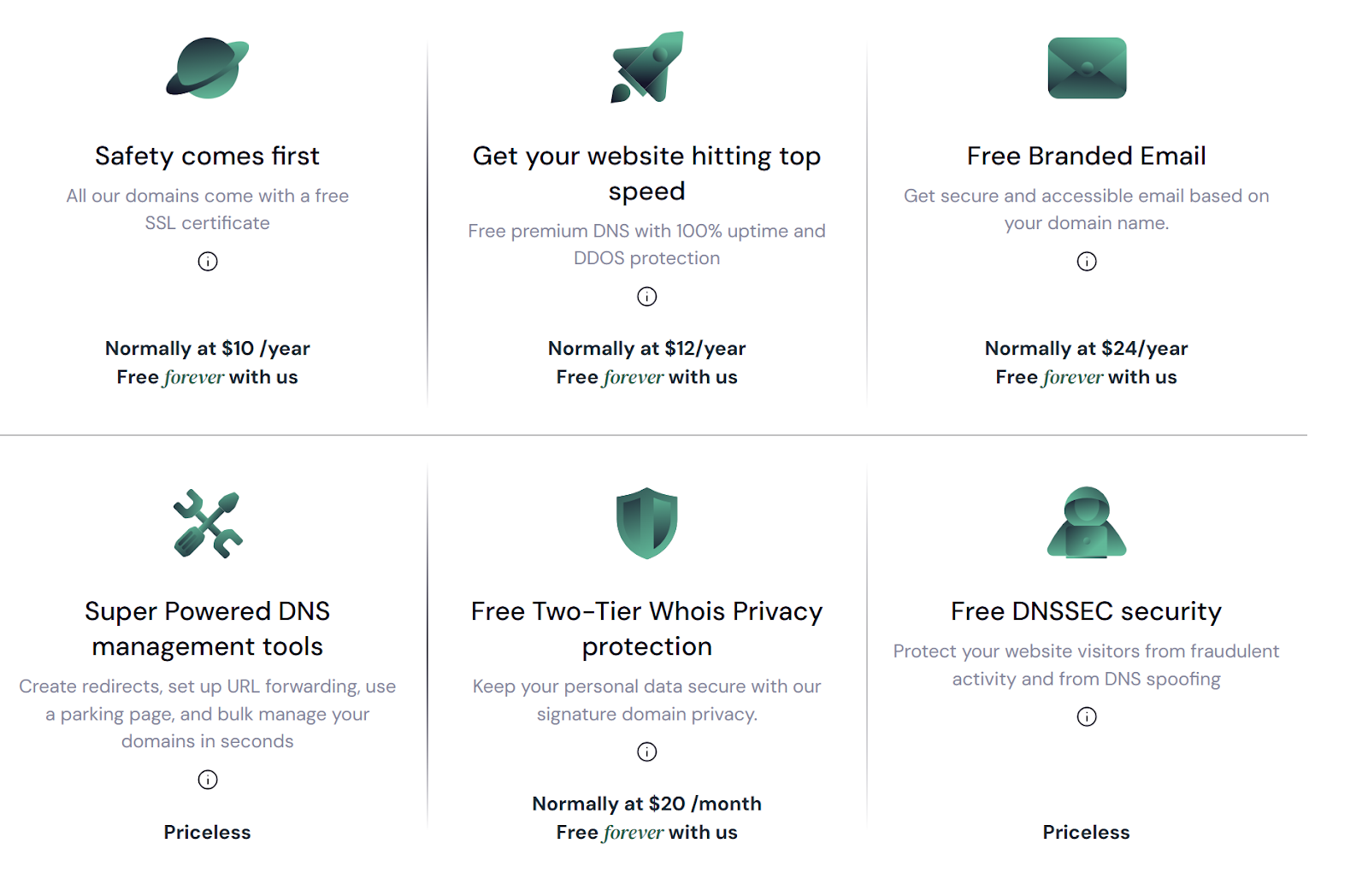
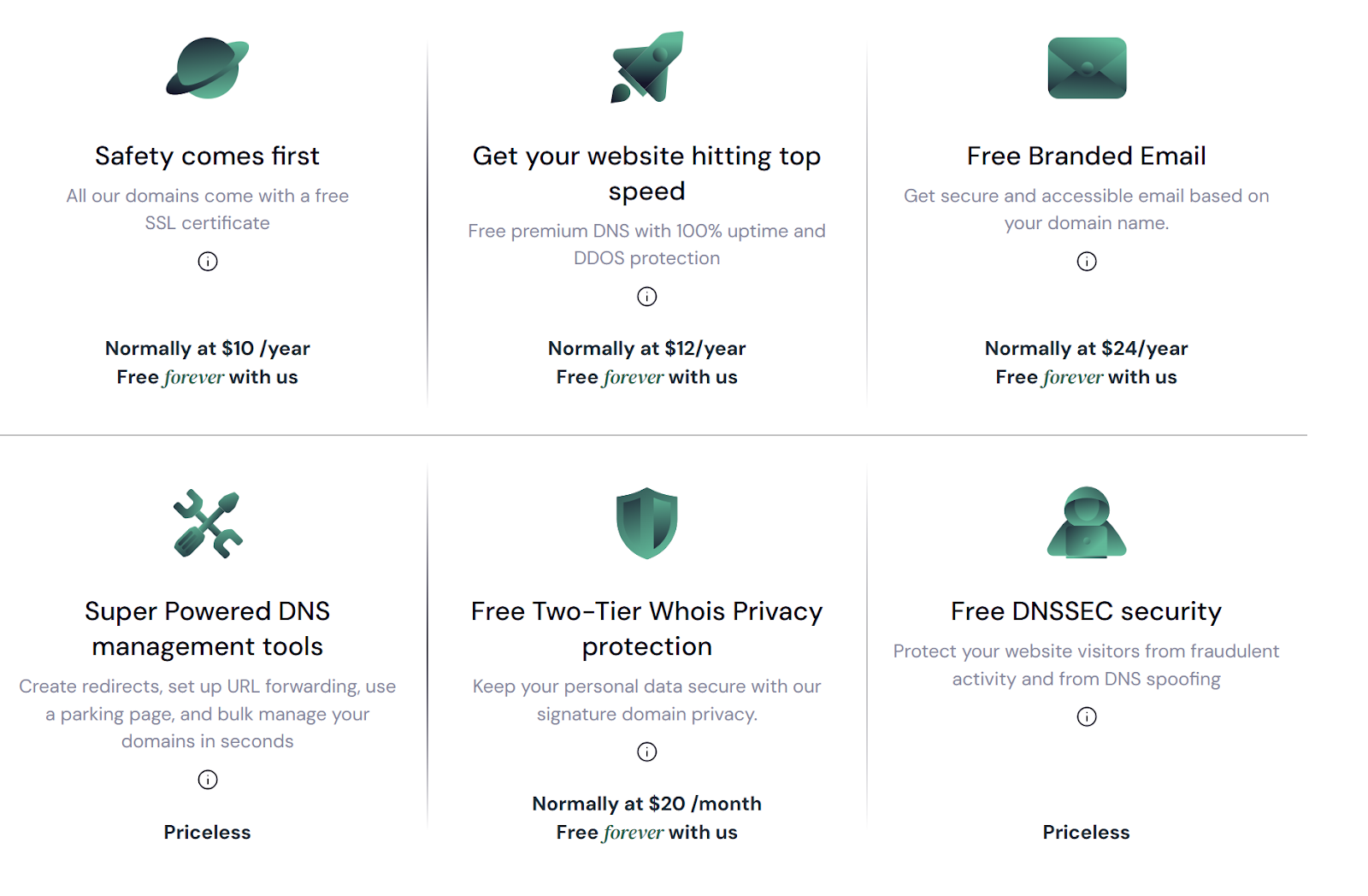
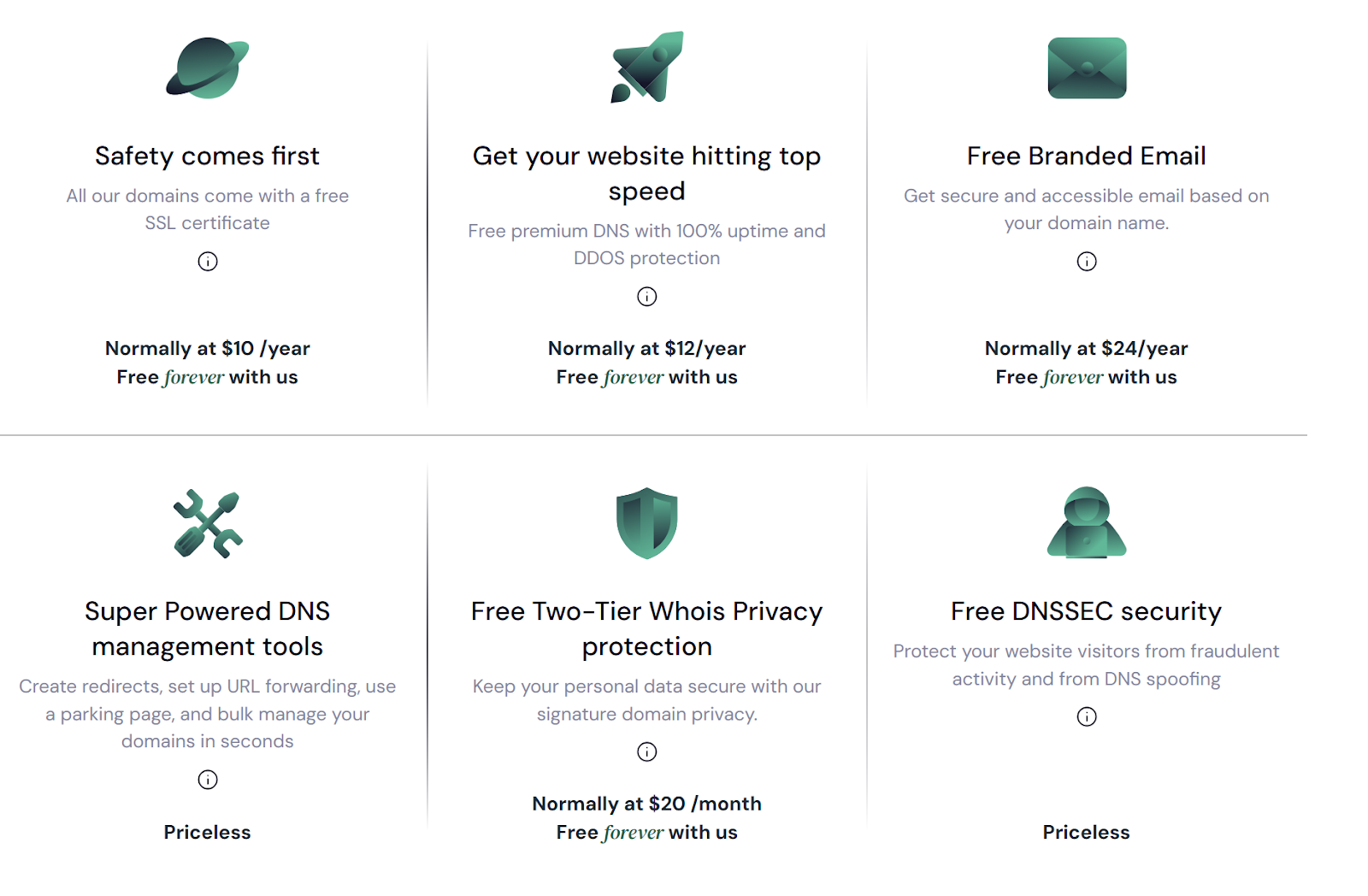
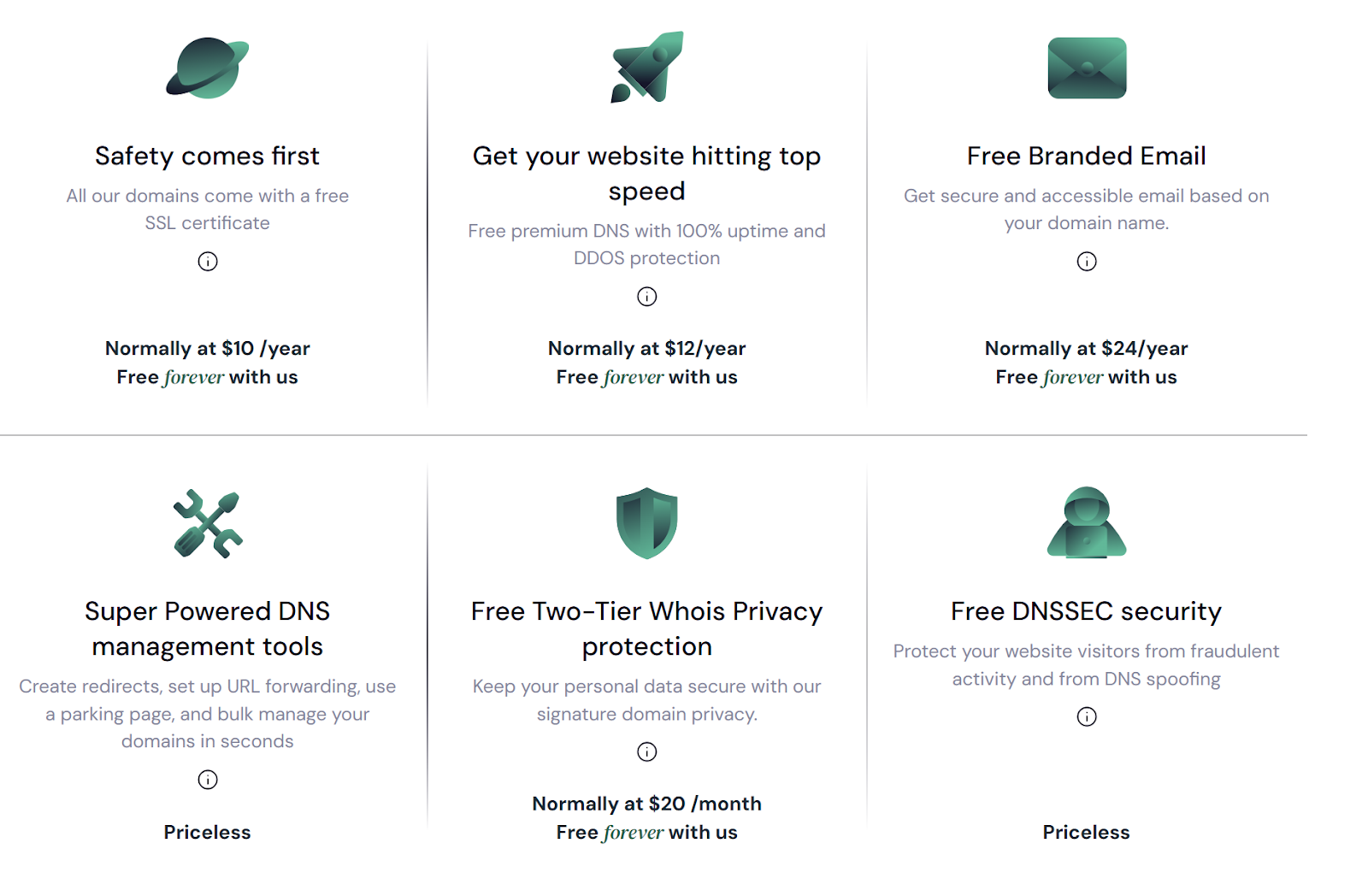
When you transfer a domain to Trustname, you'll receive a free SSL certificate for the first year, and all other features, free forever! Trustname also provides additional perks at no extra cost, including access to our Premium DNS, a branded email using your domain name, and our signature Two-Tier Domain Privacy.
Compared to what Domain.com offers, you save over $150 every year using Trustname. In five years, you will save about $750! That's a sizeable amount of money that could yield better results in other business areas. Now breathe.
We're not even done yet. Let's talk about domain privacy.
2. Unbeatable Two-Tier Privacy
Domain.com charges users $8.99 for a Domain Privacy + Protection service. Like you needed an extra charge on top of $164.87. Plus VAT, now you're up $176.28 a year.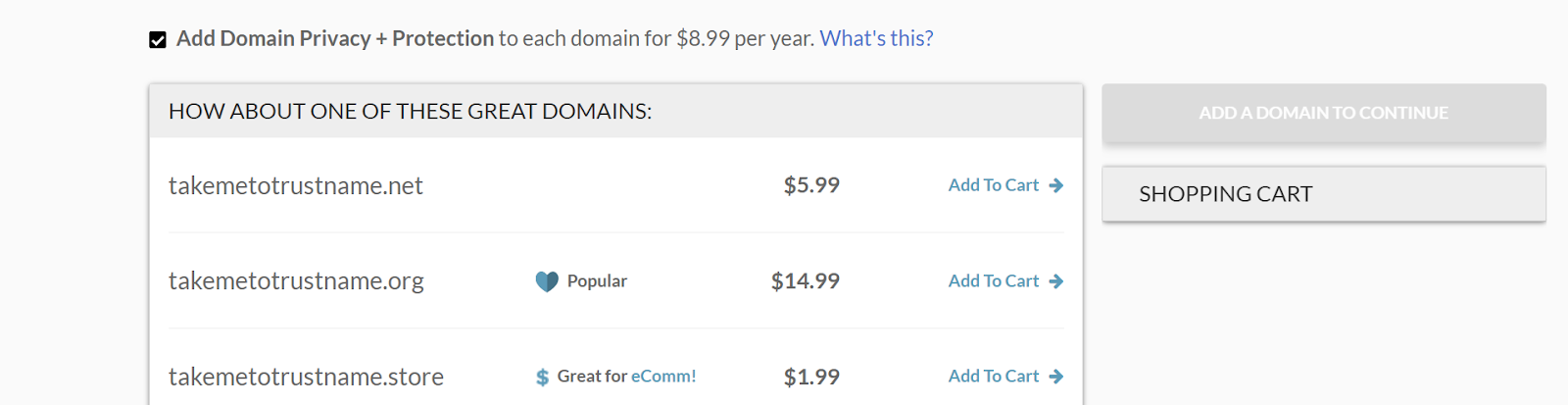
Trustname does privacy much better than every other registrar in the world, even more so at no extra cost. We use a unique two-tier domain privacy method that secures your Whois details from even the most persistent hackers. The unparalleled privacy we offer is far beyond the basic protection Domain.com provides. How does it work?
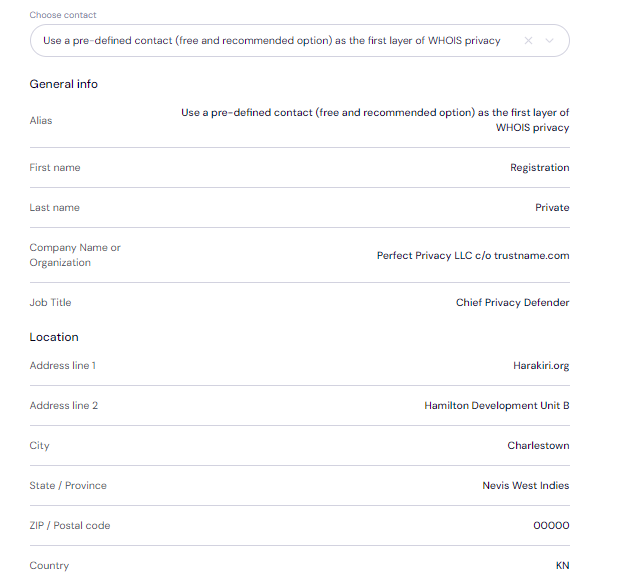
When registering a domain with Trustname, you can use your contact details or opt for our third-party registration, where Perfect Privacy LLC is listed as the registrant. You retain full control of your domain and can update the contact information to your details whenever. This is the first layer of our Two-Tier Privacy Protection.
In the second tier, we shield the domain's contact details your information or Perfect Privacy LLC's from the Whois database, using proxy details provided by another trusted partner.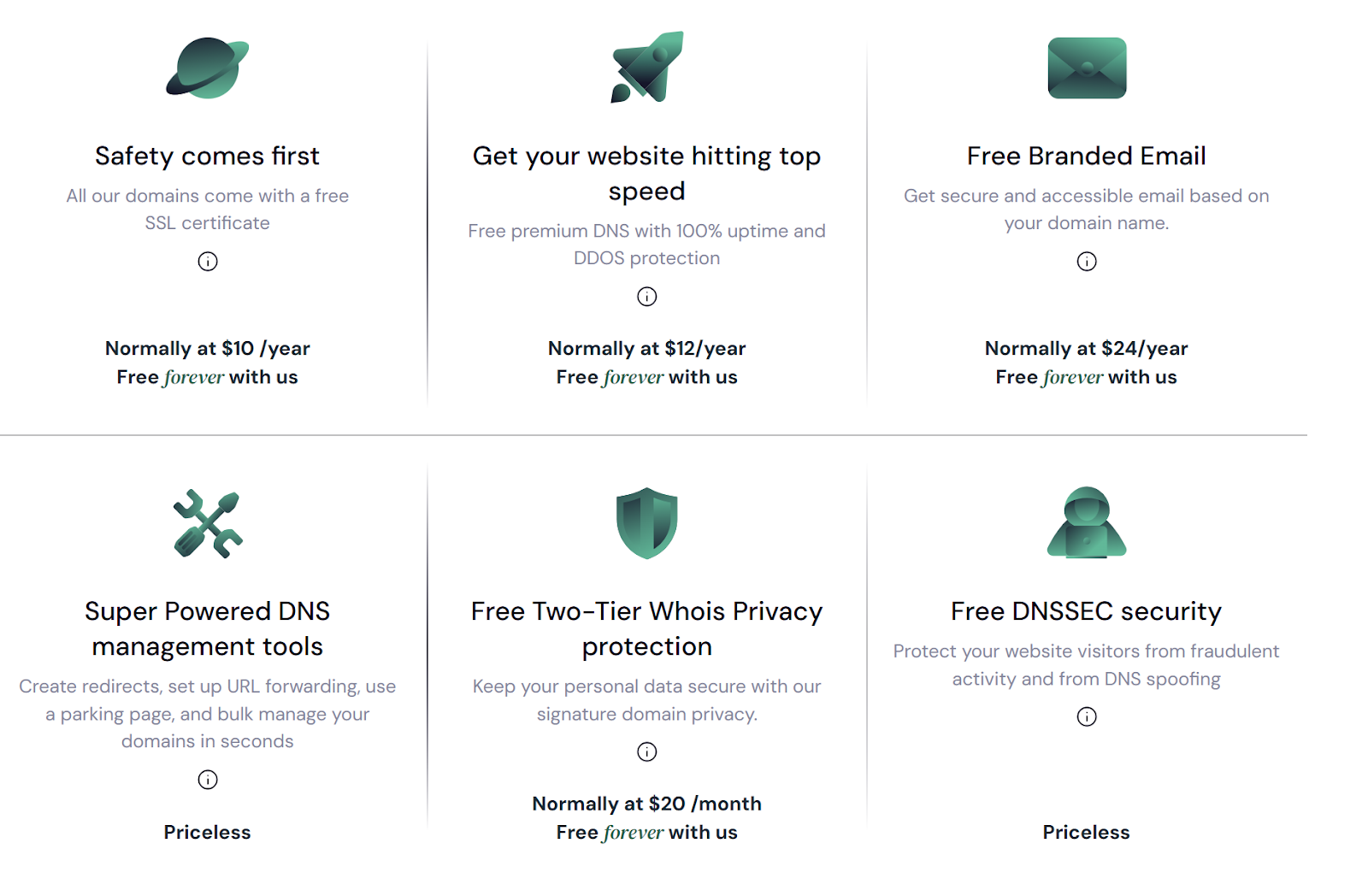
Why choose Trustname's Two-Tier Privacy? Your contact information is never directly tied to your domain, ensuring the highest level of privacy. Perfect Privacy LLC becomes the first point of contact for any legal matters concerning your domain.
Additionally, if legal action is required, we would need three simultaneous court orders from the U.S., St. Kitts and Nevis, and Estonia where our companies are headquartered before any action is taken against your domain. All for a total of $0 a year forever!
3. Unrivalled Customer Support
The bigger a domain registrar gets, the more customer support reps they should hire and train better. So it should be, but that's not the case with Domain.com.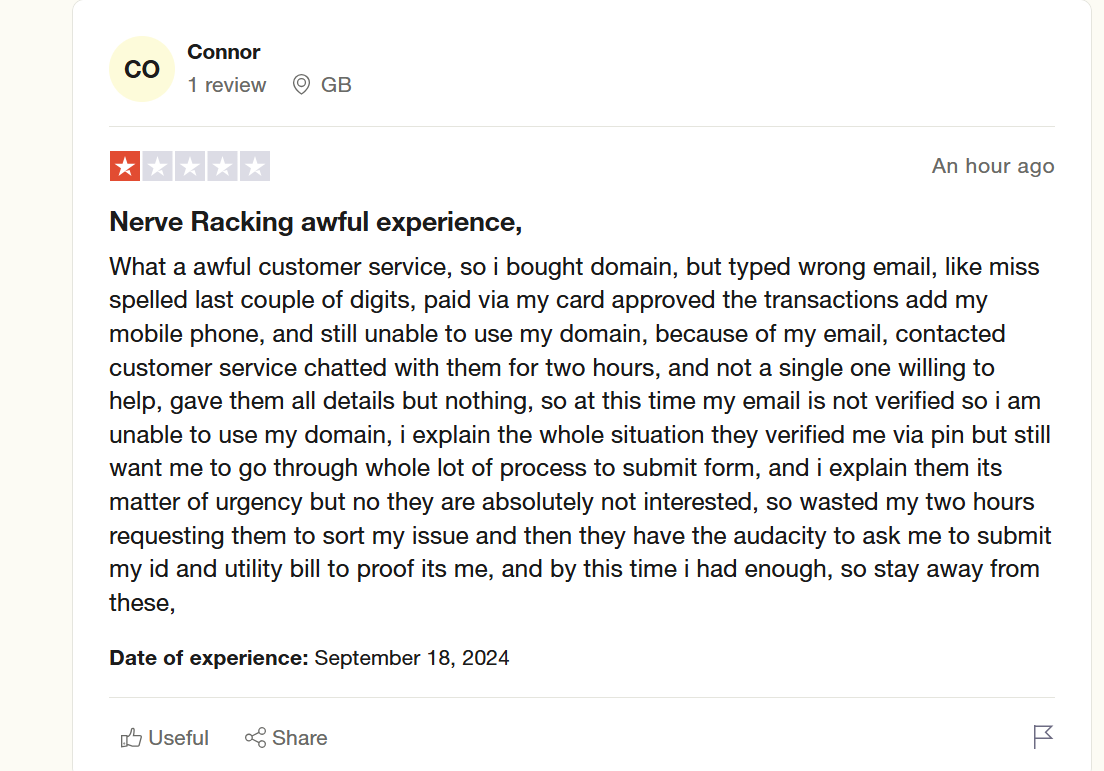
Many users have experienced "awful customer service", citing delayed responses of up to several hours and sometimes days, unhelpful and unknowledgeable support staff, inactive support channels.
Including phone call channels, sometimes users even have up to four customer support agents attend to them without getting the help they need!
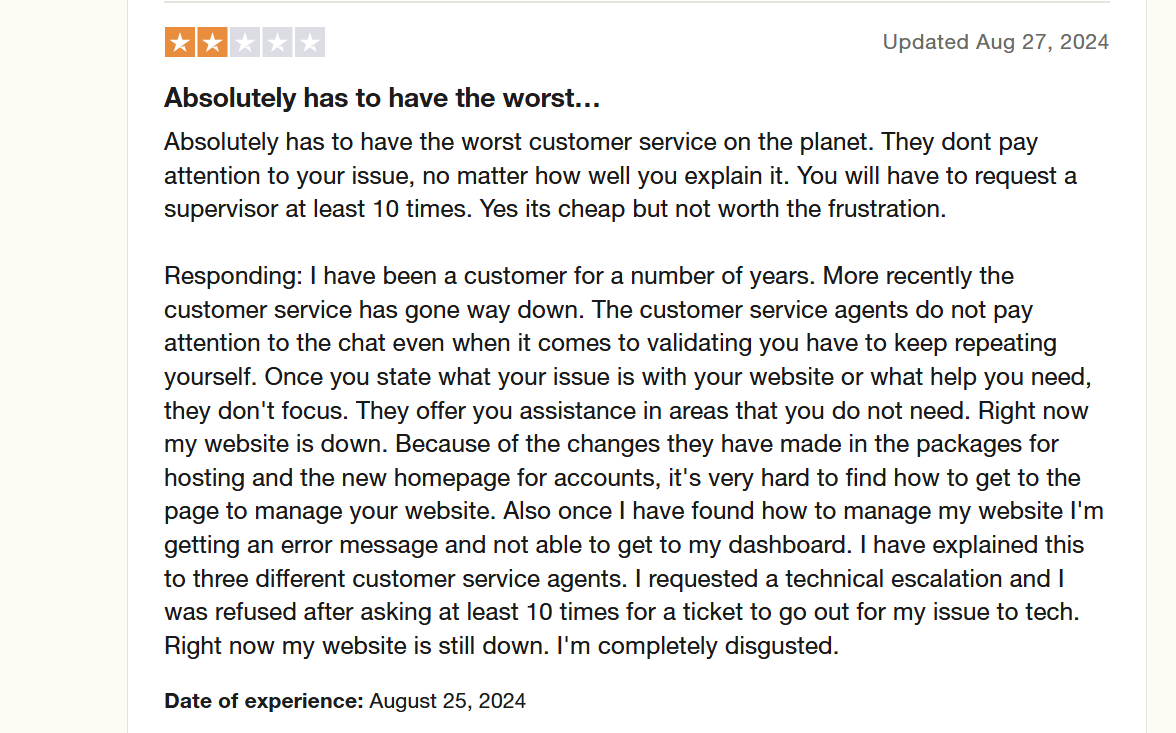
In reality, it looks like popular domain registrars like Domain.com want to cut costs and shortchange users by outsourcing customer service to bots and unqualified staff instead of doing the hard work of employee training.
At Trustname, we won't leave you feeling like we're doing you a favour. You paid for a service and should be treated with the respect you deserve.
We pride ourselves on offering world-class support from a growing team of human agents, many of whom are webmasters with first hand experience in domain management, web hosting, and email services.
Our experts are ready to help you troubleshoot domain-related issues via live chat because we believe real-time solutions lead to the best customer experience.
Prefer email? You can also reach us through our fast-response ticketing system. We do not limit you to just one channel of support. If you enjoy troubleshooting independently, our comprehensive knowledge base is packed with resources to help you solve any issue independently.
4. No Out Of The Blues Suspension
Unlike Domain.com, Trustname will not suspend your domain under the guise of some spurious "suspicious activities" without first notifying you or doing a thorough investigation.
As a platform that especially caters to businesses in grey areas or sensitive niches, we know that your domain becomes a potential target for malicious actors seeking to exploit vulnerabilities.
They might attempt to crash your website, hijack your domain, or even steal your customer data to send fraudulent emails from a look alike account, putting your reputation at risk.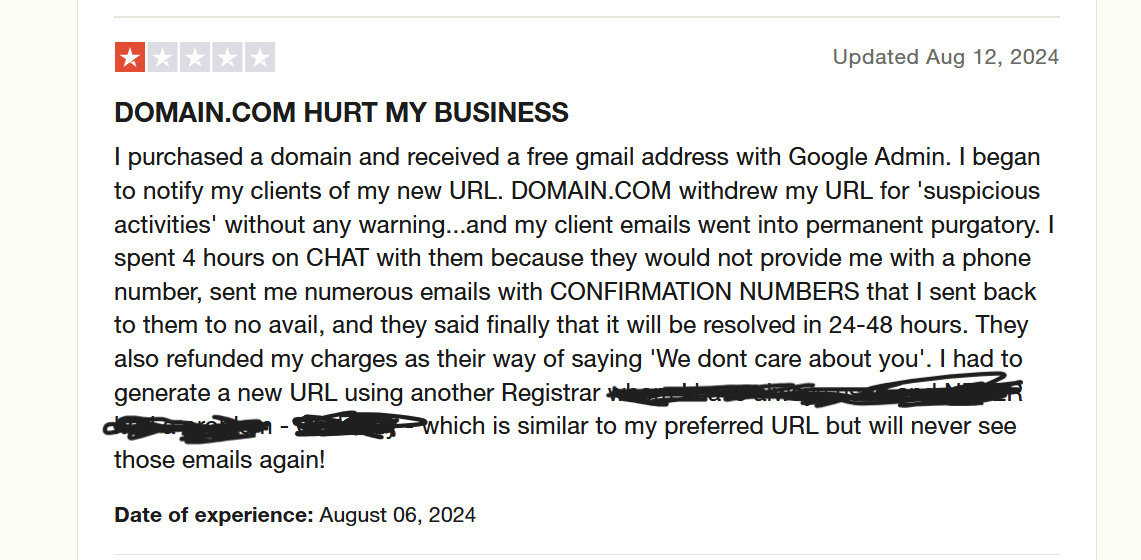
Trustname's Position Is Simple
we only facilitate domain registrations and have NO authority over determining the legality of a website's content that responsibility lies with the judiciary. If you operate a business in a grey area or businesses prone to abuse reports, Trustname offers a secure environment for your domain.
Unless it involves extreme illegal content, such as child pornography, arms trafficking, or opioid sales, we maintain a neutral stance regardless of the number of complaints.
When we receive an abuse report, we notify the domain owner first and encourage the complainant to contact you directly. We prioritise our customers and, even when illegal activity is confirmed, we allow the registrant the option to transfer their domain before any further action is taken.
Our approach to a free and open internet, coupled with rigid privacy protection standards, has earned us a nickname among our clients bulletproof.
5. Intuitive User Interface
When trying to buy a domain at domain.com, the domain plus Domain Privacy + Protection fee is added by default, and is even set to two years. No doubt to get you to quickly pay for it, especially if you do not read carefully.
Yes, you want your domain to be protected, and that's why it's a good idea to use a platform that doesn't charge you extra for basic protection in the first place.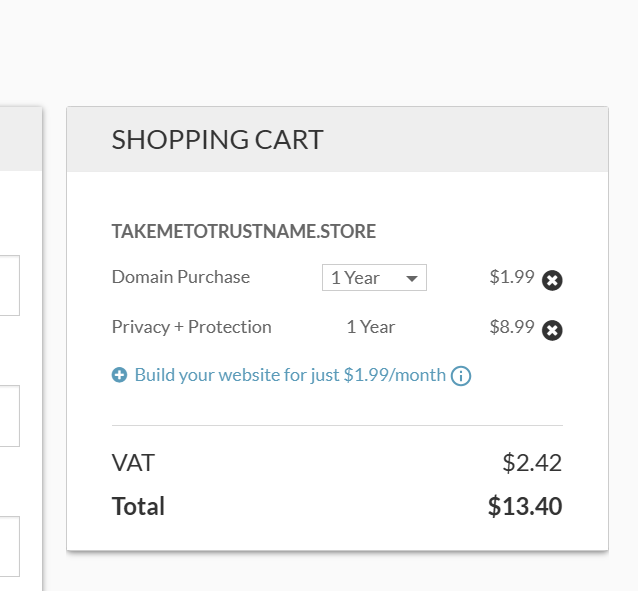
Additionally, you get other random messages after purchasing your domain, prompting you to upgrade this and that to enjoy full protection.

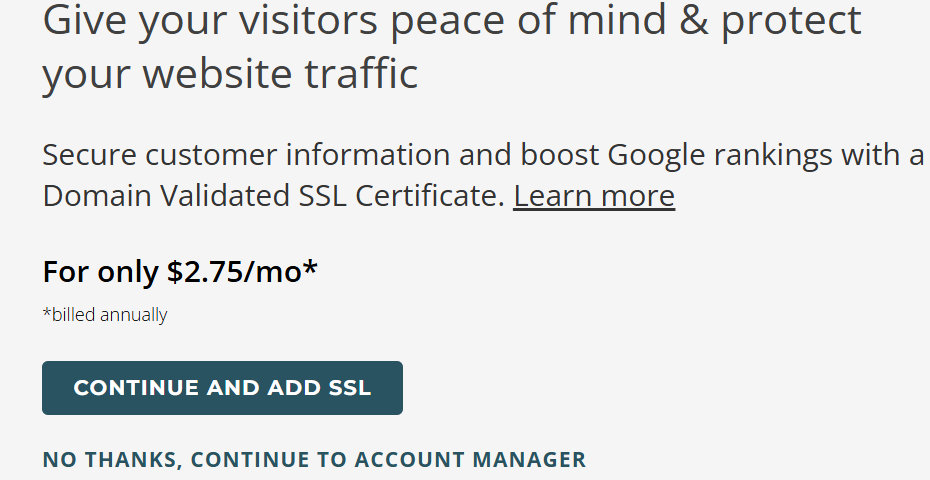
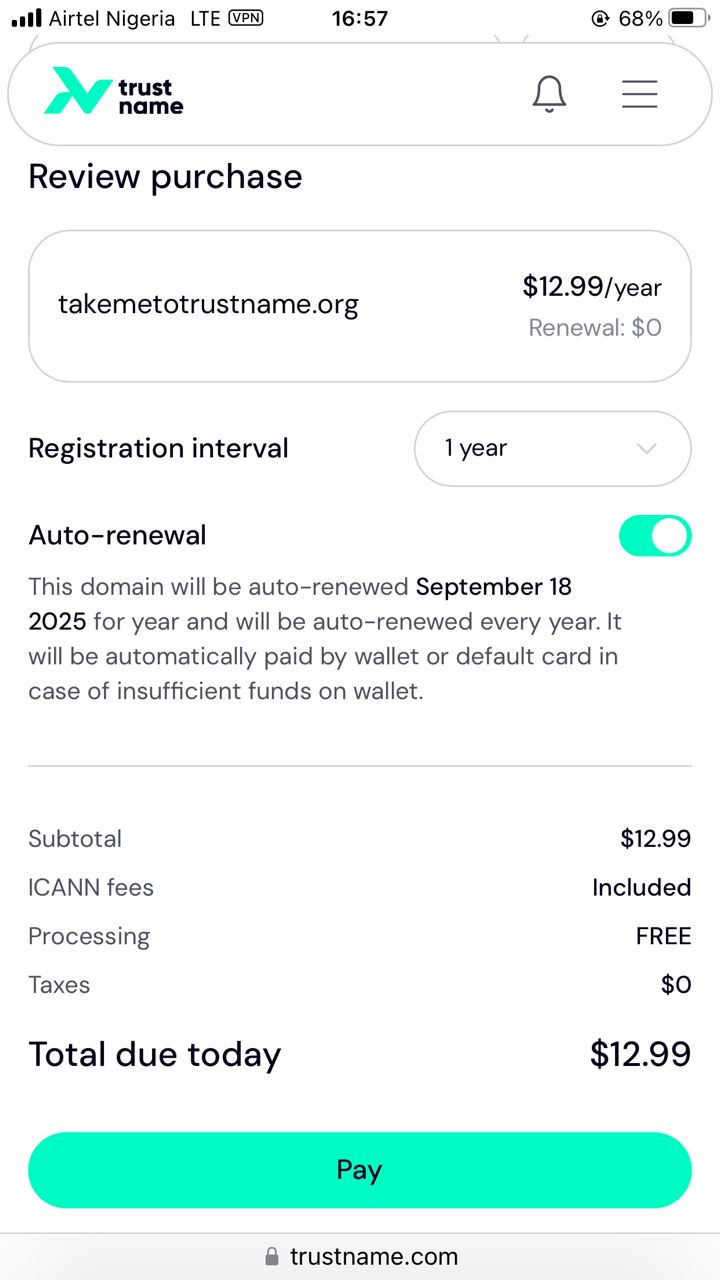
Trustname doesn't stress you out by forcing you to pick between the protection and security packages you can't afford. Everything is included, and in a few clicks, you have your fully secured domain with no annoying upsells.
What To Know Before Transferring Your Domain Out
Before starting your domain transfer, here are some essentials to keep in mind:
- Nameservers And Your Domain
In your domain settings, you can set up custom nameservers, or they'll default to Domain.com's servers. Nameservers direct web browsers to the correct IP address of the server where your website is hosted. During the transfer process, you won't be able to modify nameservers or other DNS settings.
Suppose your domain is linked to a website hosted by Domain.com. In that case, it's a good idea to point your nameservers to your new host (i.e., Trustname) before initiating the transfer to avoid downtime.
- Difference Between Domain Transfer And Website Migration
It's important to note that transferring your domain doesn't move your website. Domain names and web hosting are separate services. To move your website to Trustname or another host, you have to buy a hosting plan. We're happy to help with the migration process, including creating backups, exporting files, and transferring databases.
- Transfer Costs And Policies
Trustname charges a discounted fee of $7.77 (with our promo code) to transfer your domain, which adds a year to its expiration date. This transfer fee provides an excellent value, considering that a standard one-year registration costs $14.99.
- Domain Expiration And Transfer Eligibility
Most registrars, including Domain.com, allow transfers only while the domain is active or in the Grace Period after expiration. If your domain has entered the Redemption Period, you must renew it for an extra fee before transferring.
Domain.com's Transfer Precheck List
To successfully transfer your domain from Domain.com to Trustname, you should meet these important requirements:
1. Disable Domain Privacy
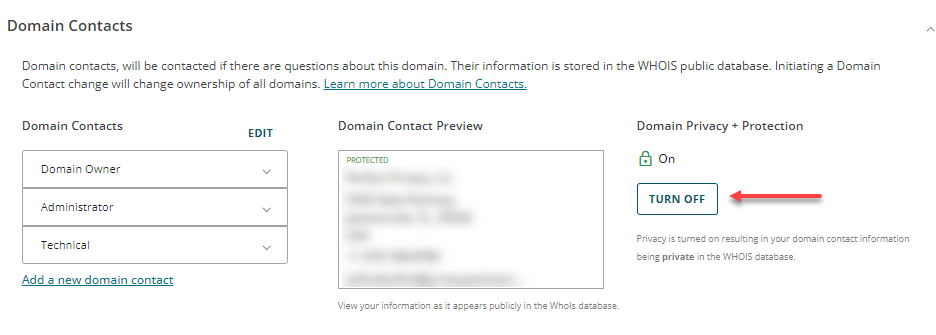
Ensure that the Domain Privacy service is turned off, allowing your contact details to be visible in the Whois database during the transfer process.
To do this:
- Log in to your Account Manager.
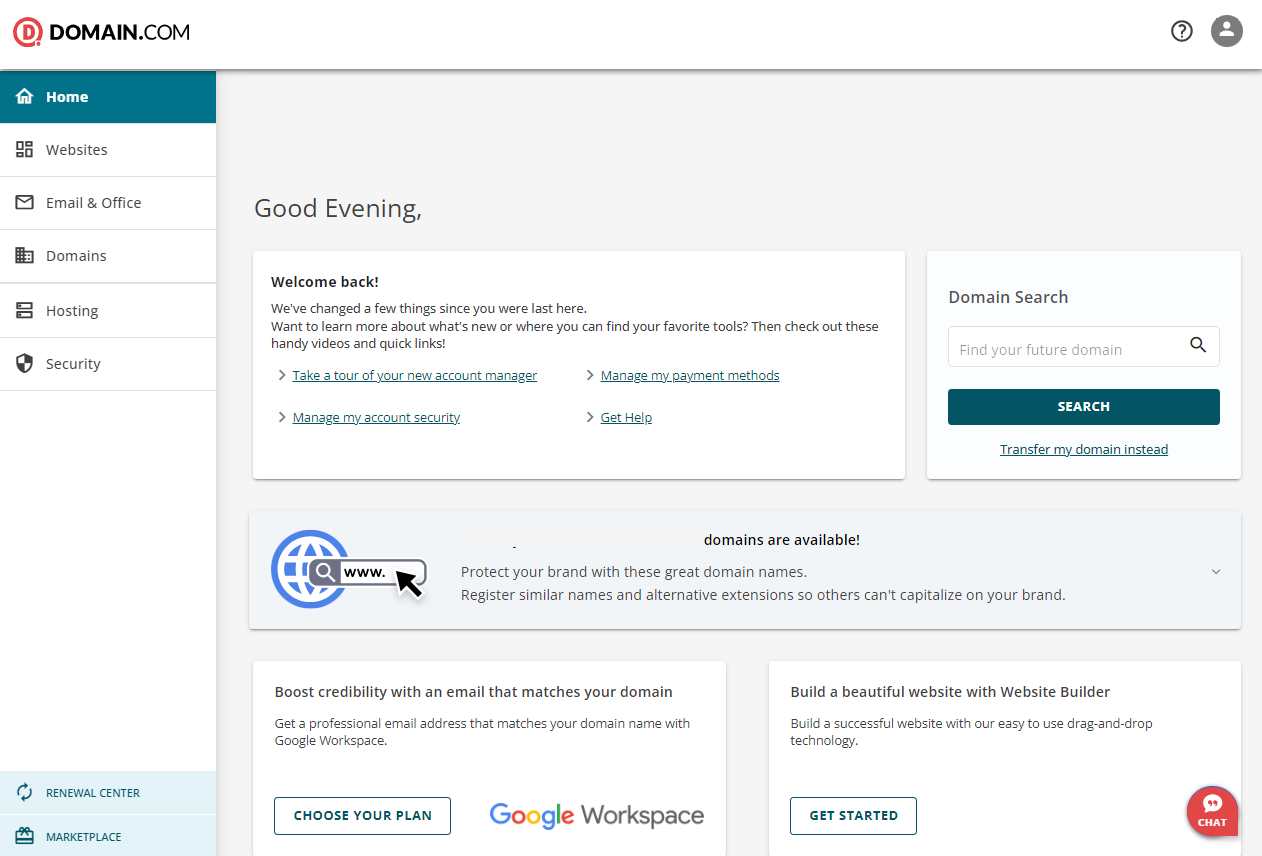
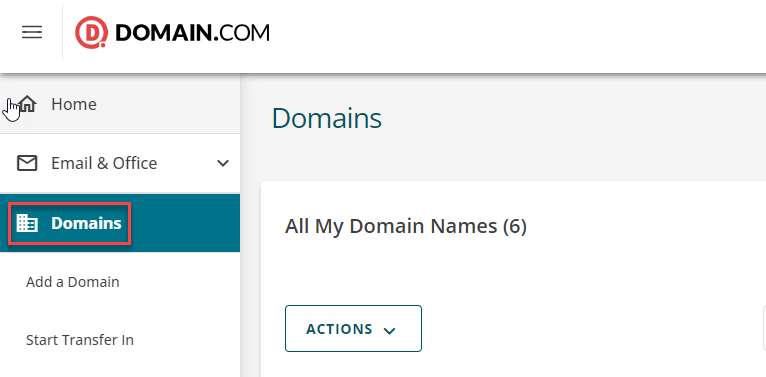
- In the left-hand menu, click on the 'Domains' button.
- Locate Domain Contacts and click the dropdown arrow on the right.
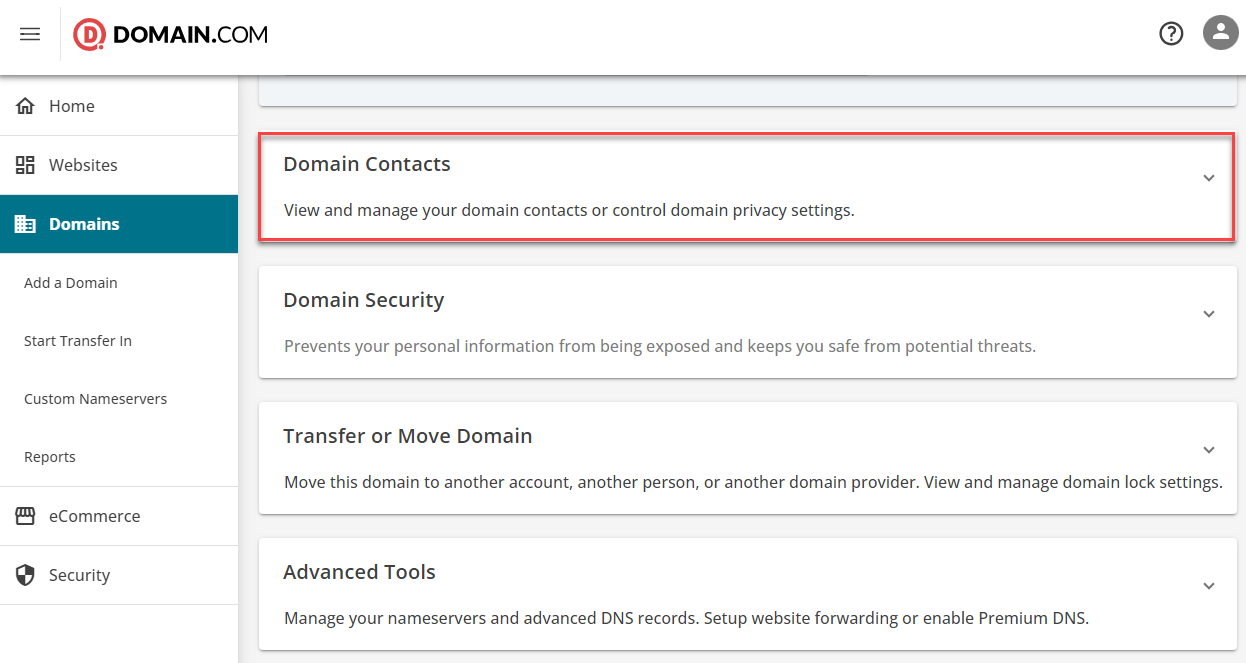
- In this section, toggle the ON/OFF button to enable or disable your Domain Privacy and Protection.
2. Unlock Your Domain
The Registrar Lock must be disabled, and your domain should be at least 60 days old, as per ICANN's transfer policies. Domains cannot be transferred within 60 days of registration or a previous transfer.
Steps:
- Account Manager >>> Domains >>>Domain Overview then find the Domain Locked status.
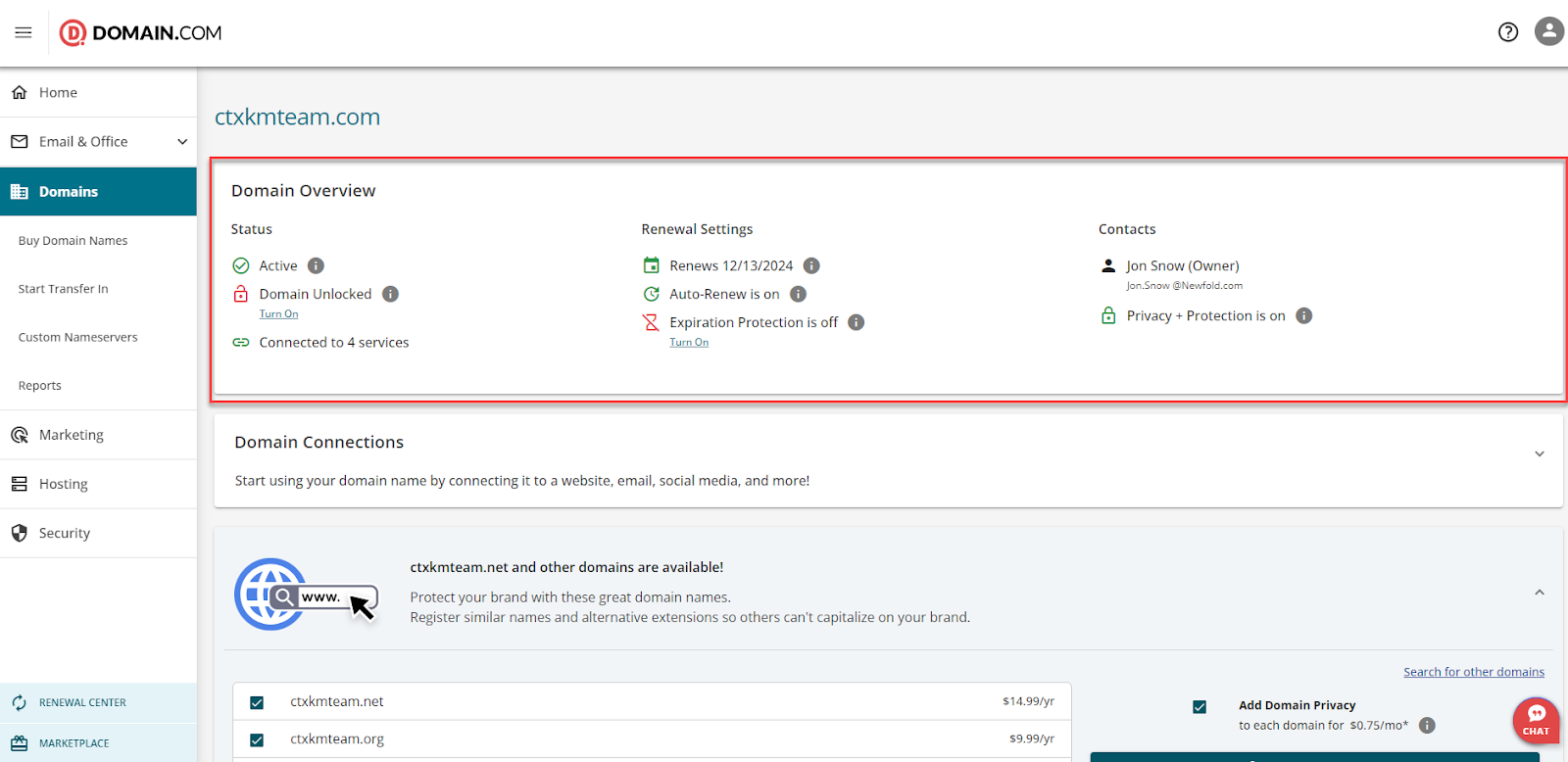
- Click 'Unlock'. A confirmation pop-up will appear on your screen.
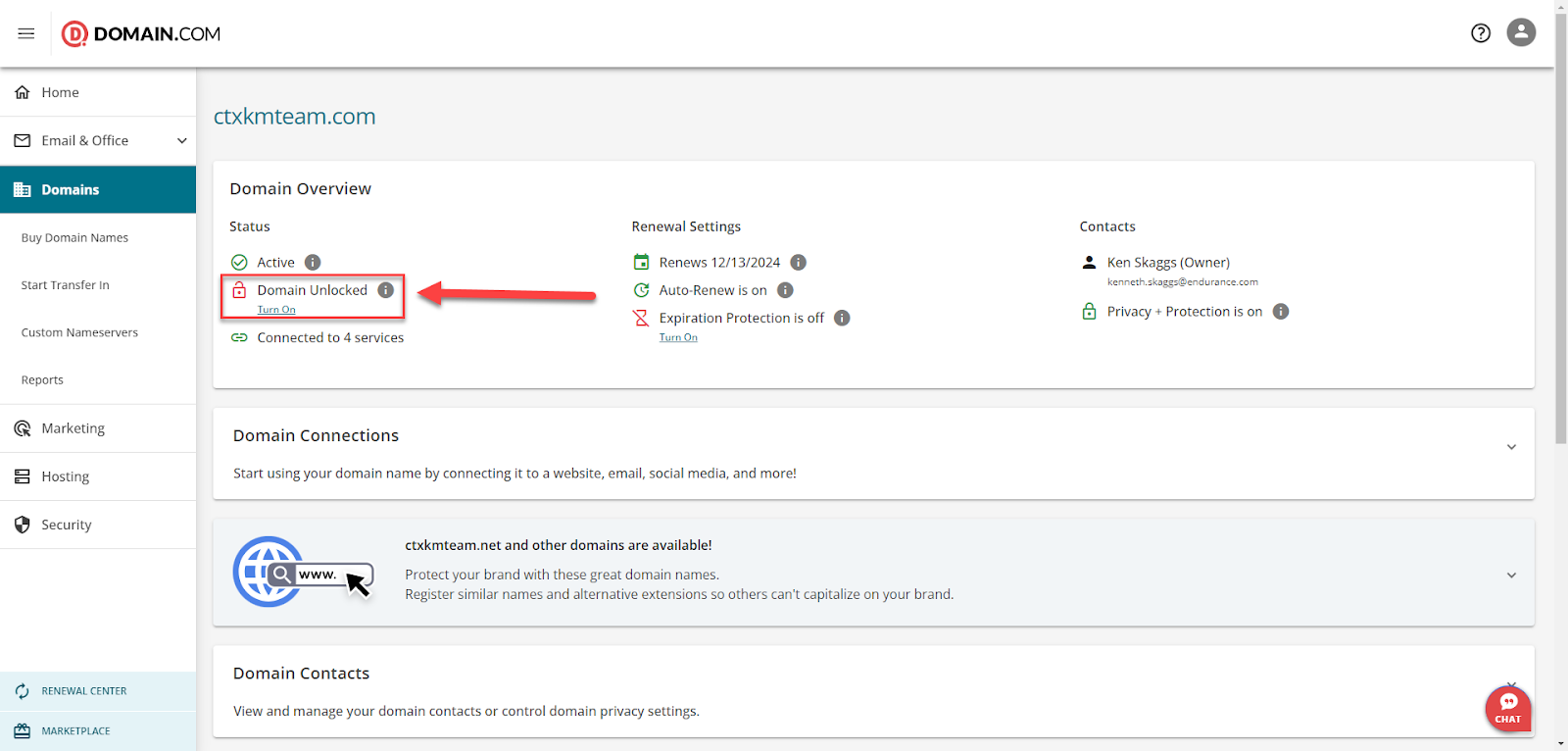
- After unlocking the domain, you'll receive another confirmation pop-up. When the Domain Lock toggle turns grey, it means your domain is now successfully unlocked.
3. Update Domain Contact Information (Whois)
Your Whois contact details, including your name, email, and address, should be accurate and up-to-date before initiating the transfer.
Steps:
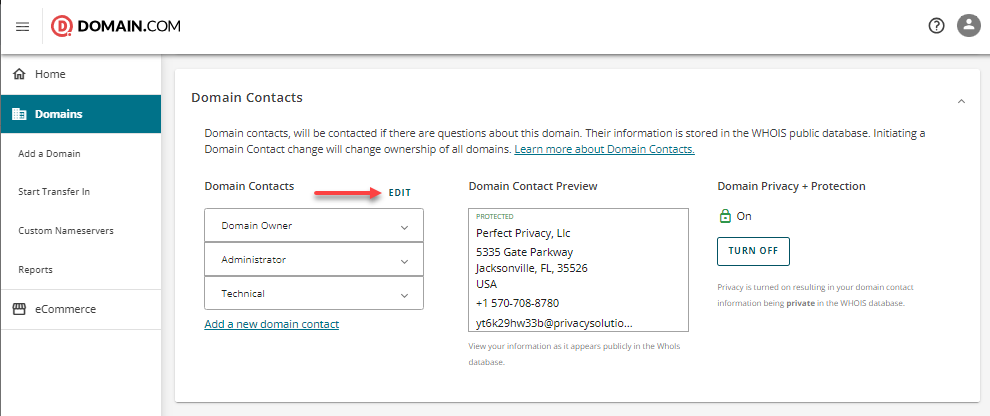
- Account Manager >>>Domains. On the domain management page, scroll down to Domain Contacts.
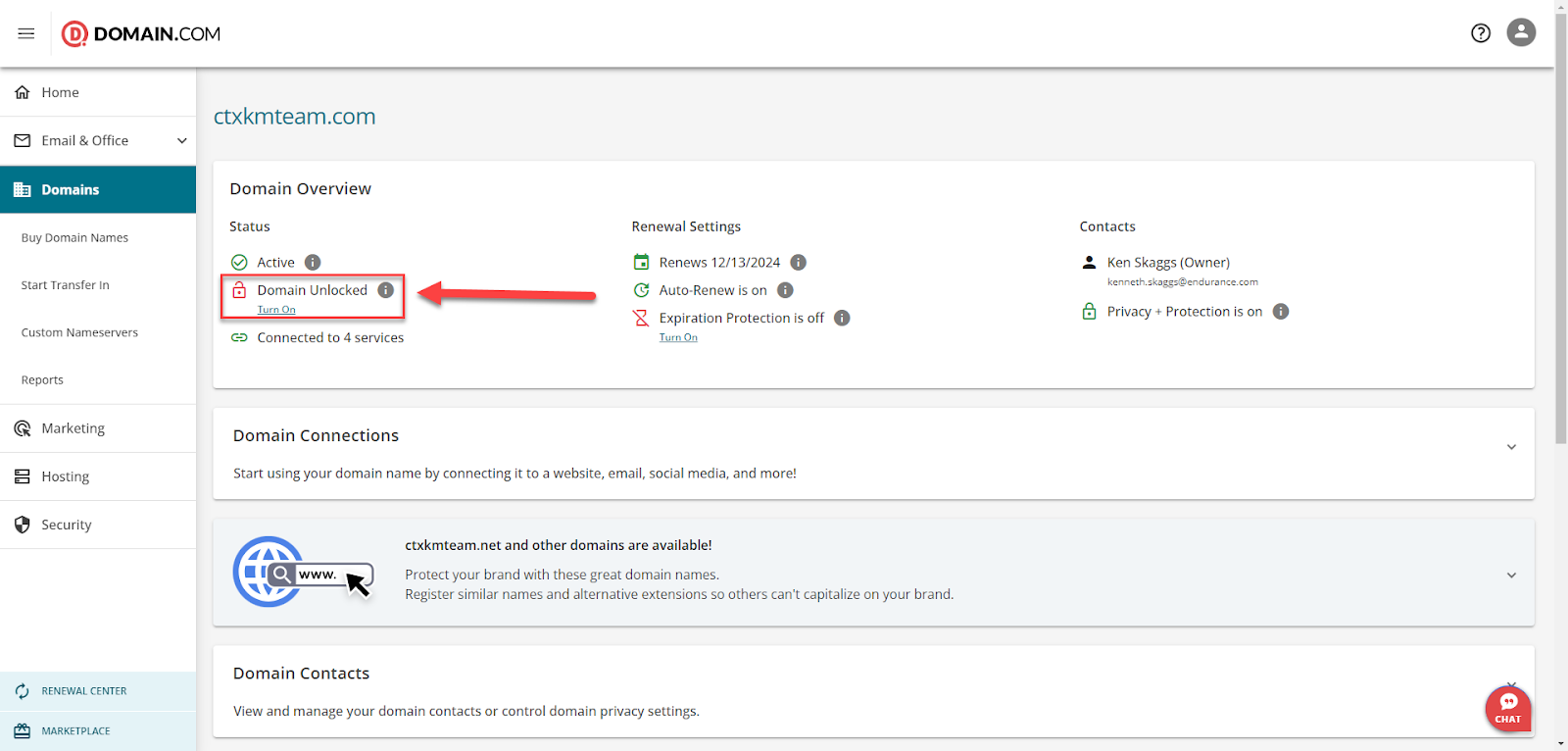
- Click 'Edit' next to the contact information.
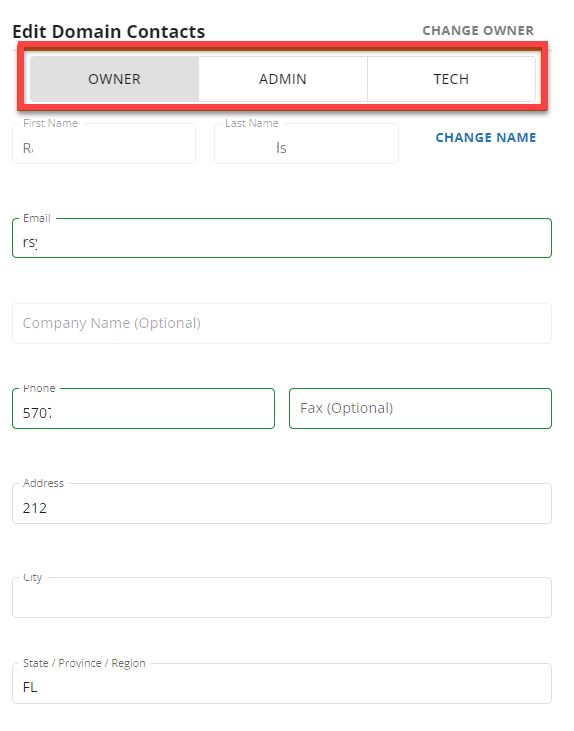
- Select the user type you need to update Owner, Admin, or Tech.
- You'll be asked to verify updates through a series of pop-up windows. If you're changing the email address, in the Edit Domain Contacts pop-up, make the necessary updates, and ensure all information is correct.
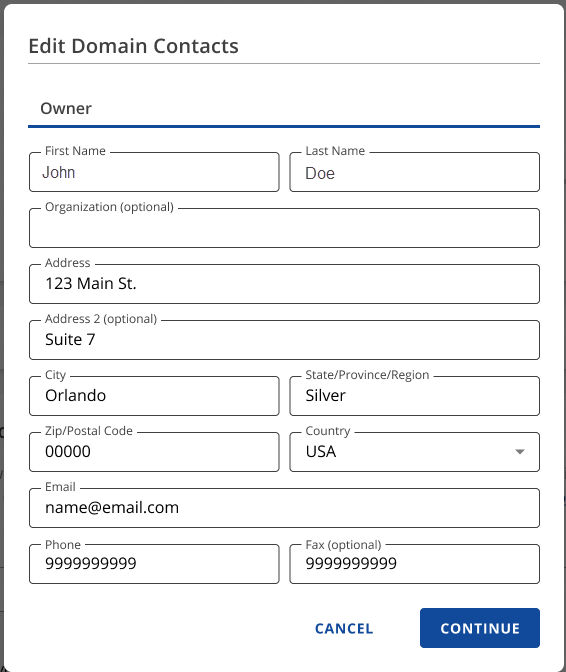
Click 'Continue'. - A new pop-up will prompt you to verify your access to the new email address. Click 'Continue Again'.
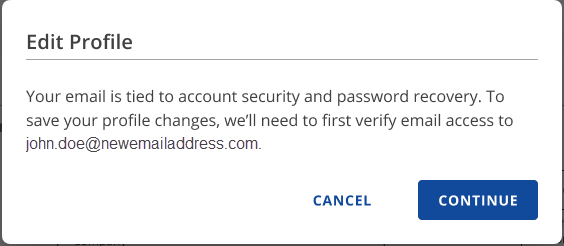
Click 'Continue'. - Check your new email inbox for a verification code and enter it in the Verify Your Email pop-up window.
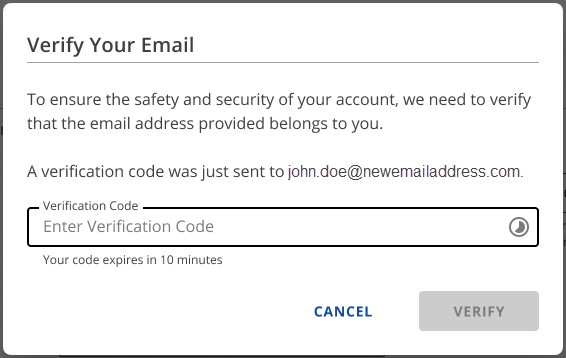
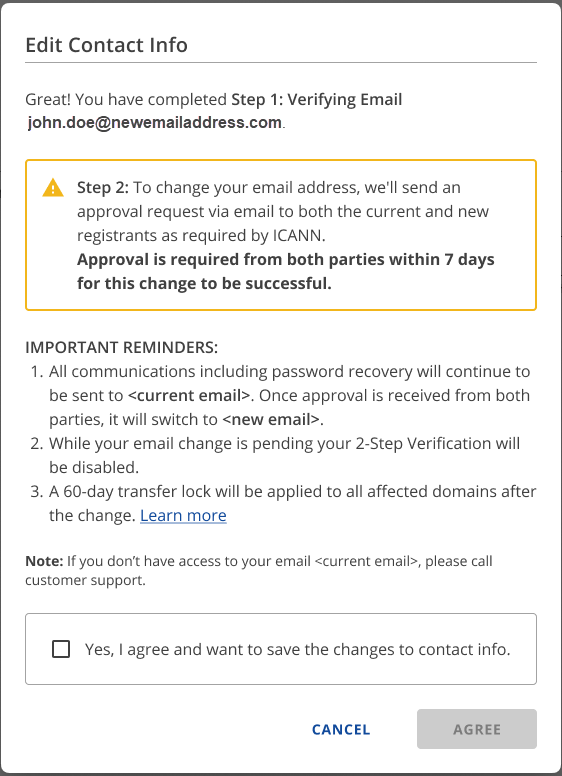
Click 'Verify Again'. - An approval request will be sent to both the current and new email addresses, per ICANN's requirements. Review the important reminders, select the checkbox confirming, and click 'Agree To Proceed'.
- A notification banner will appear informing you of the initiated email change. Both email addresses must approve the changes within 7 days.
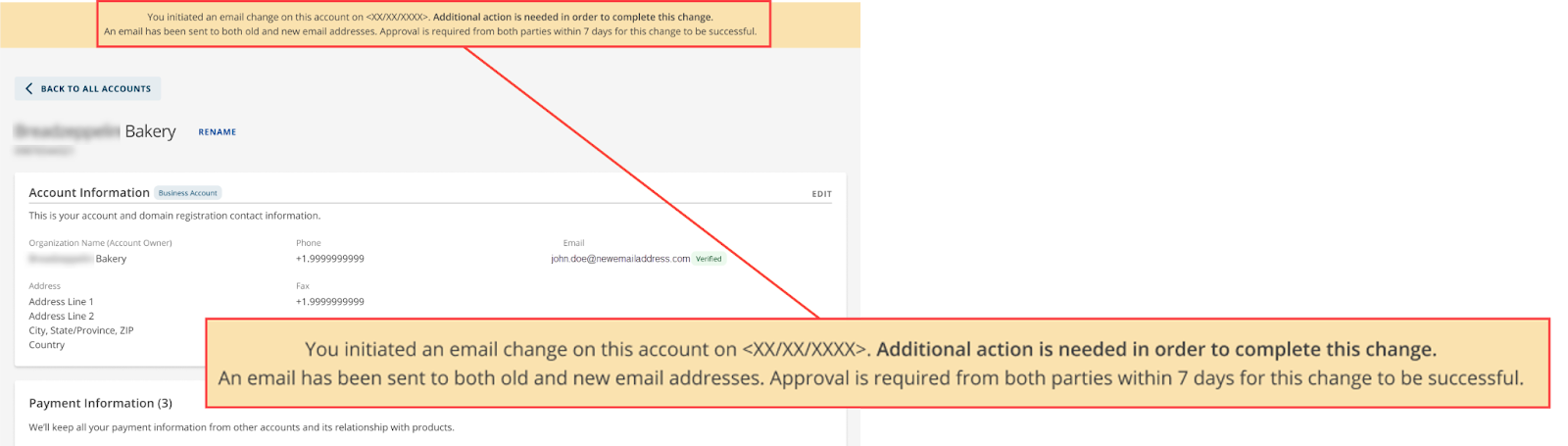
Once both parties approve, updates will be reflected in the Account Manager within a few minutes. - If you're changing the name or organisation. In the Edit Domain Contacts pop-up window, make your changes, and double-check the accuracy.
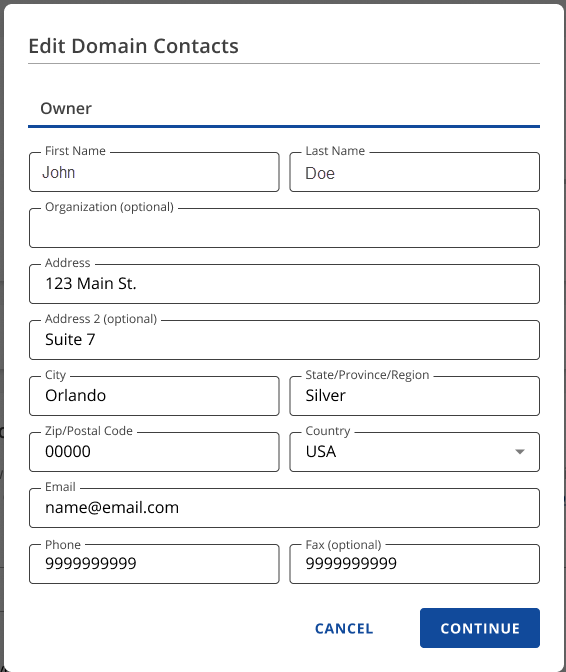
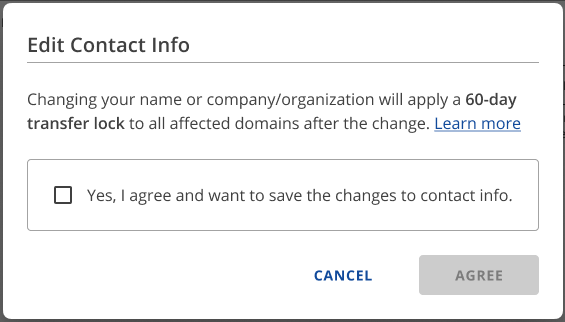
Click 'Continue'. - A pop-up will inform you of a 60 days transfer lock on the domain. Confirm by selecting the checkbox and clicking 'Agree'.
If you're changing the address, phone, or fax number: In the Edit Domain Contacts pop-up window, make your changes and verify their accuracy.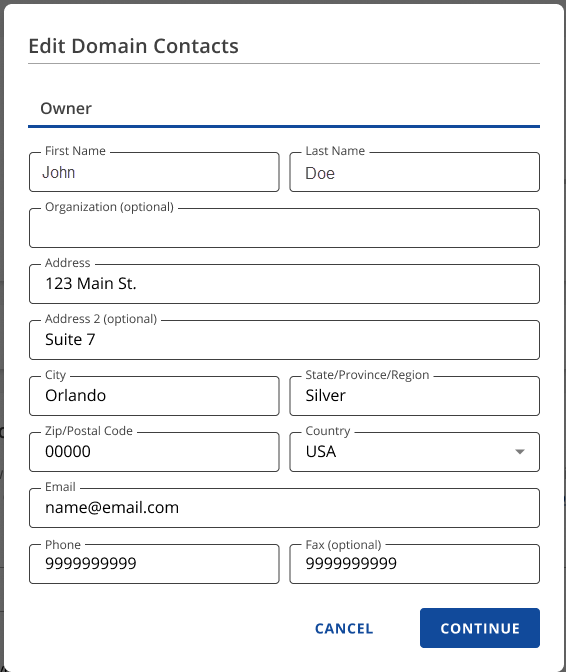
Click 'Continue'.
You'll be notified that a 60 days transfer lock will apply. Confirm by selecting the checkbox and clicking 'Agree'.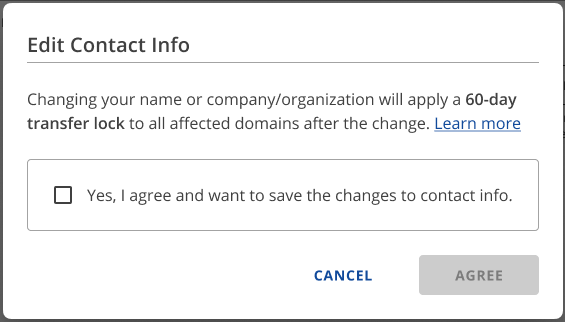
4. Update Nameservers
Ensure your domain's nameservers are correctly set. If you want to maintain your hosting service with Domain.com, then you can skip this step. However, you may want to consolidate your domain registrar and web hosting platform for simplicity and easy problem resolution.
If you also want to change your nameservers, here are the steps:
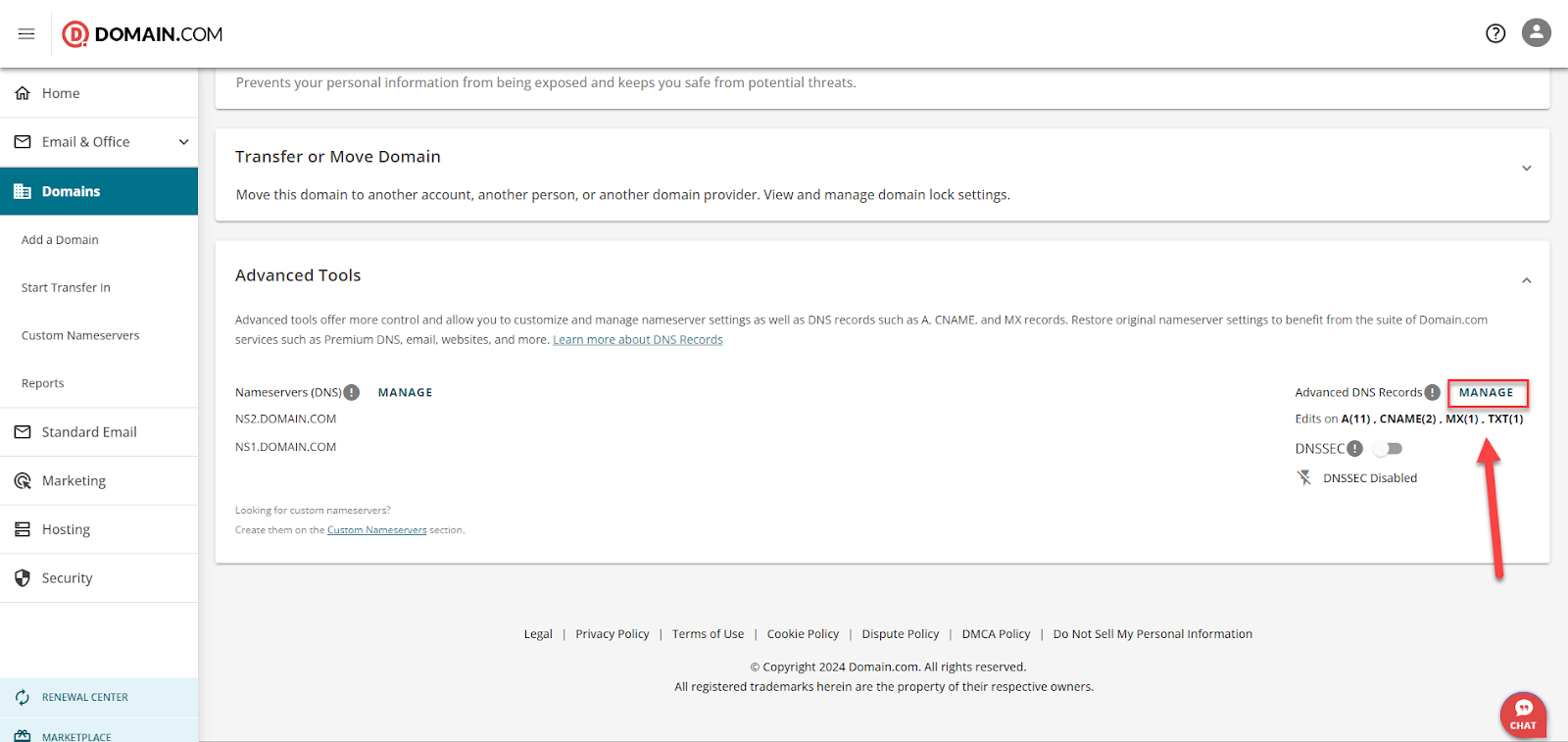
- Account Manager >>>Domains. Ensure the correct domain is selected, then scroll down to the Advanced Tools section and click on it.
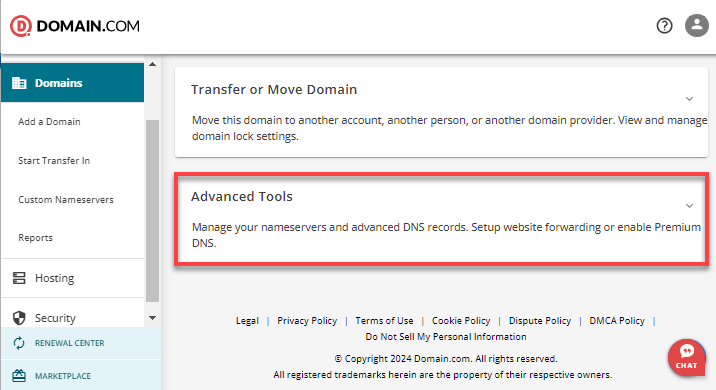
- Locate the Nameservers (DNS) option and click 'Manage'.
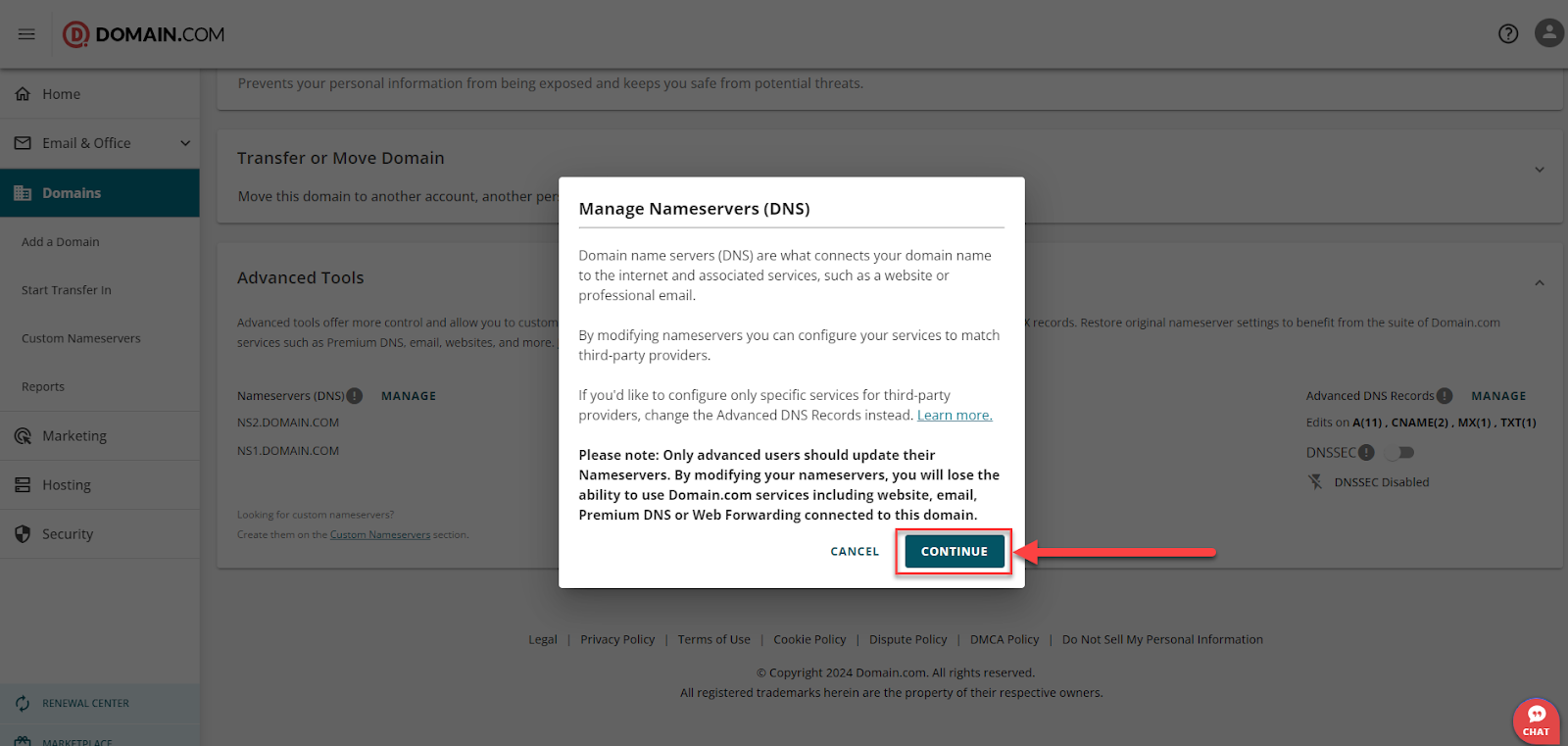
- In the pop-up window titled Manage Nameservers (DNS), click 'Continue'.
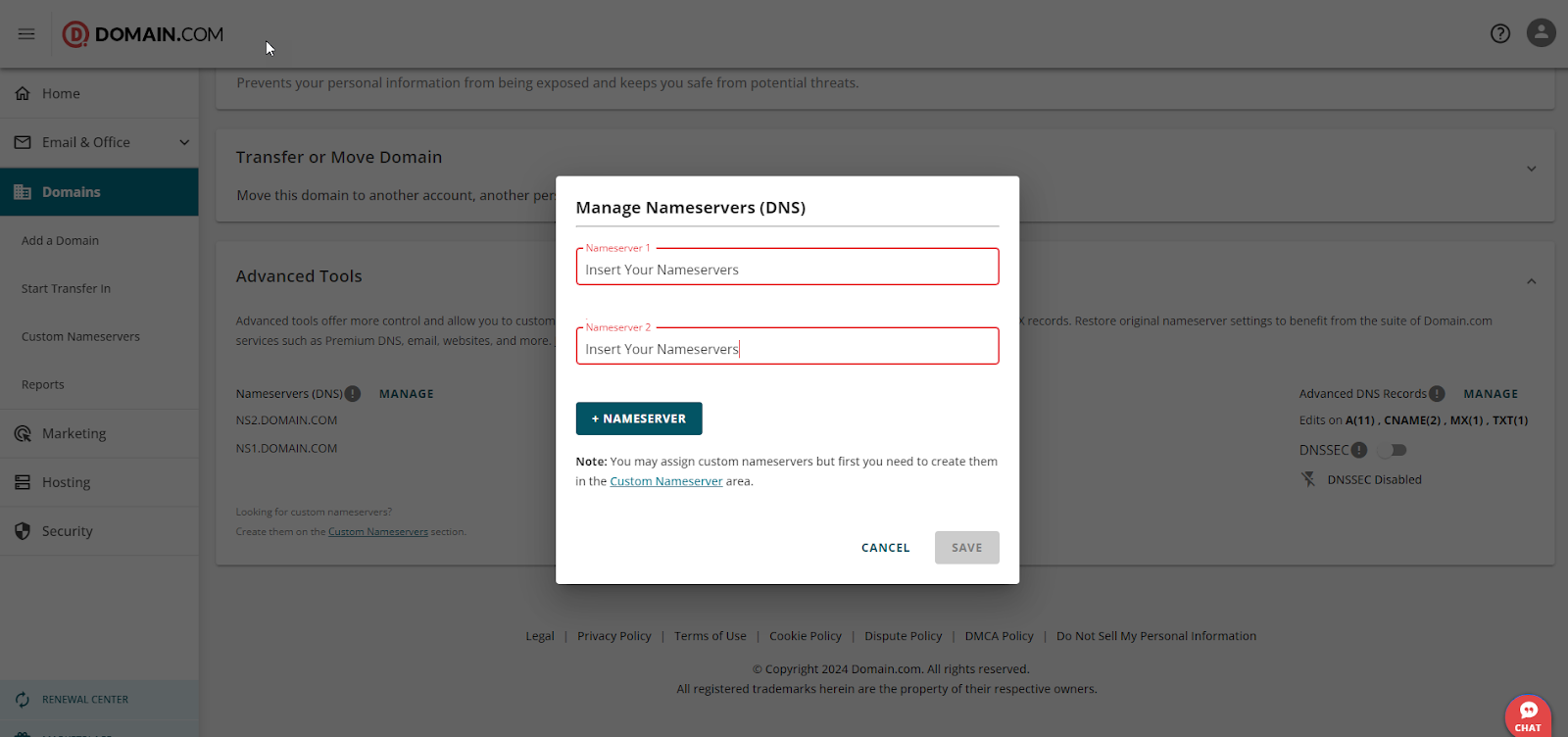
- Input your new nameserver settings.
[+] [Notice] Info Insert title here [+] [Notice] Title -> The default Domain.com nameservers are:
1. ns1.Domain.com
2. ns2.Domain.com
Click 'Save' to apply the changes.
Tips: After Changing Nameservers:
- Check your website regularly to confirm it's functioning as expected.
- Adjust and add DNS settings if needed to improve performance or security.
- Ensure your email continues to function well.
- Keep a backup of your DNS settings for future reference.
- Inform relevant parties about the nameserver change and any potential downtime.
- Monitor your website's performance after the nameserver transition.
- Keep an eye on security and take steps to protect your website and domain.
Also, keep in mind that after changing your nameservers at Domain.com, it may take 24-48 hours for DNS propagation to complete, during which your website and email services may experience temporary downtime.
5. Obtain The Auth Code
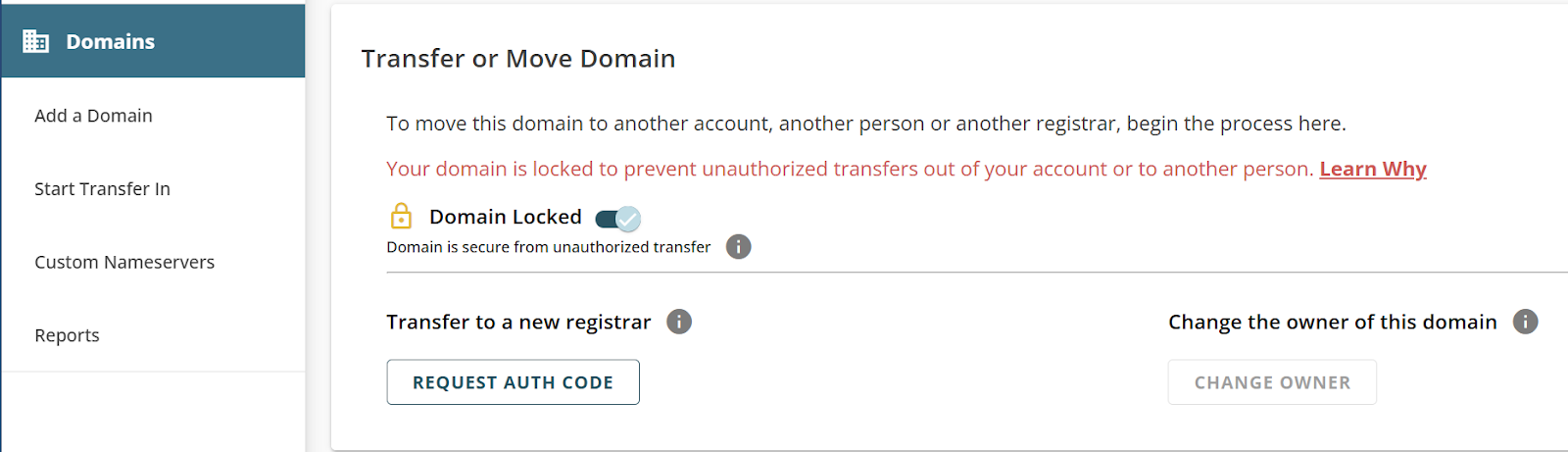
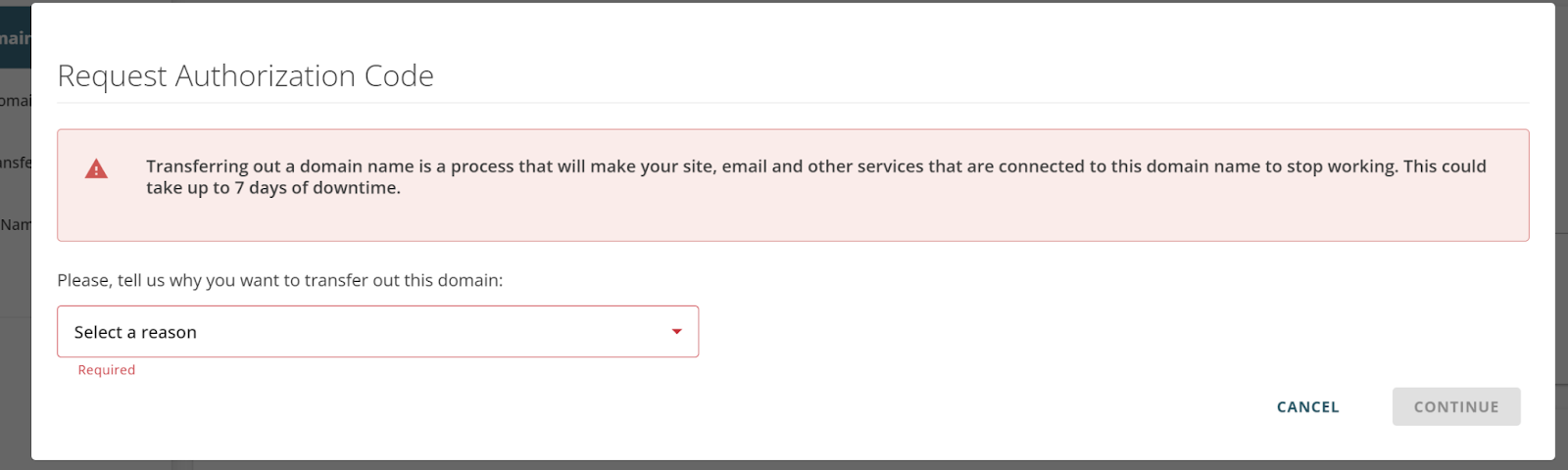
Secure the Auth Code (EPP code) for your domain from Domain.com, as Trustname requires this code to authorise the transfer. You should confirm your domain email address before proceeding to ensure you get the email without any problems.
However, Domain.com doesn't make its transfer process as smooth as it can be, even when you do everything right. A simple transition can cost you up to 7 days of downtime, so you should prepare adequately for the loss.
Transferring From Domain.com To Trustname
Hear, hear, you're finally here! We're buzzing. Welcome to Trustname. These are a few simple steps you need to follow to settle in nicely with us.
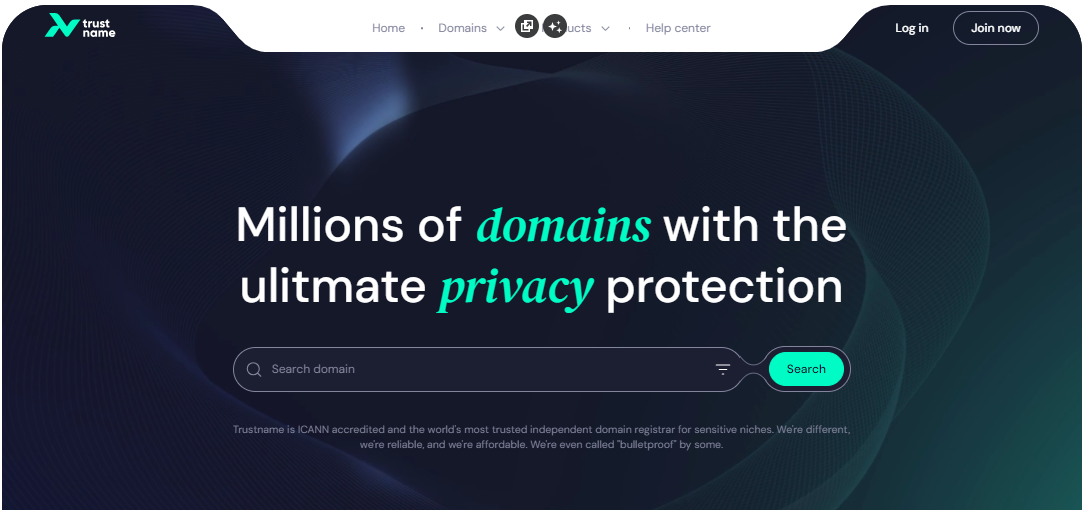
- Log In To Your Trustname Account
Go to Trustname.com and click 'Login' in the top-right corner to access your account.
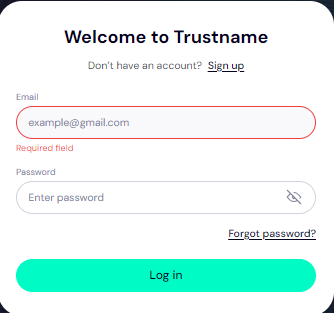
- Enter Your Credentials
Fill in your username and password to log in to your customer portal, then click 'Login'.
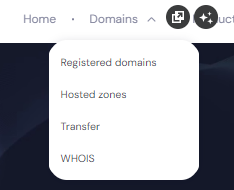
- Access Domain Transfer Settings
Navigate to the Domains dropdown menu in the header, then select Transfer to open the domain transfer portal.
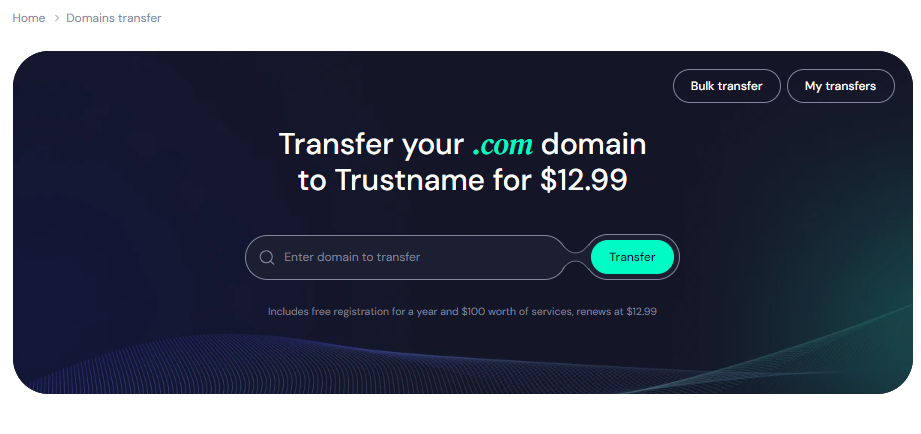
- Enter Your Domain
In the Trustname domain transfer portal, type your domain name (including the extension) and click 'Transfer'.
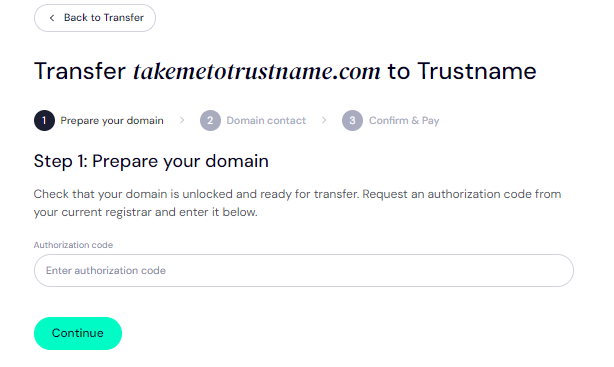
Provide the Auth Code (EPP)
Enter the Auth Code (EPP) you received from Namesilo and click 'Continue'
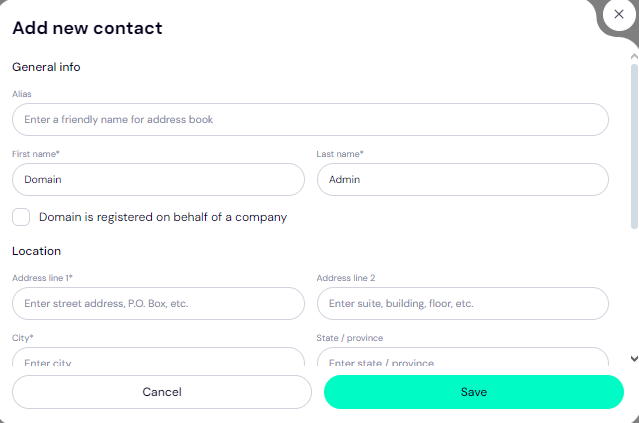
Enter Domain Contact Details
Next, choose your domain contact details.
You can either:
[+] [List] Green Unordered - Use your contact details by selecting Add New Contact from the Choose Contact dropdown.
- Use Trustname's Two-Tier Privacy Protection for maximum privacy. This option uses predefined contact information verified by Trustname.
[+] [Notice] Info Insert title here [+] [Notice] Title -> Choosing the pre-defined contact option keeps your contact information private while giving you full control over your domain.
Once you've filled in the contact details, click 'Continue'.
- Pay For The Domain Transfer.
After entering your domain details, it's time to pay for your transfer. You'll get an extra year added to your domain's current expiration date.
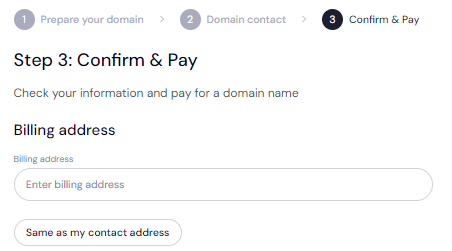
[+] [List] Green Ordered - Enter your billing address or select Same as My Contact Address to auto-fill the details.
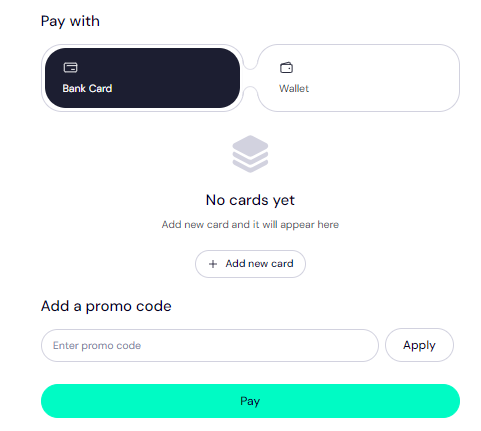
- Choose a payment method. Trustname accepts bank cards, existing Trustname wallet funds, and even cryptocurrency. If you need to add a new card, click 'Add New Card' and fill in your details.
- Enter your billing address or select Same as My Contact Address to auto-fill the details.
Promo Code: WELCOME777
- Trustname's regular domain transfer fee is $14.99 per year, and this price includes all taxes and ICANN fees.
- By applying the promo code WELCOME777, you receive a 50% discount, reducing the transfer cost to $7.77.
- The discounted transfer adds one extra year to your domain's current expiration date.
- To redeem the offer, enter WELCOME777 in the "Add a Promo Code" section during checkout.
Specify Registration Duration
Select the number of years (1-10) you want your domain registered for. We recommend enabling the auto-renewal option always, to ensure your domain never expires unexpectedly.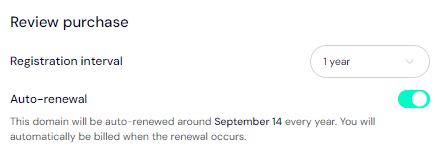
Complete Payment
Click 'Pay' and follow the prompts to finalise your transfer. Your domain will then be on its way from Domain.com to Trustname.
How To Secure Your Domain At Trustname
Once your domain is transferred to Trustname, there are a few additional steps you can take to further secure both your account and your domain(s):
- Enable Trustname's Signature Two-Tier Privacy
By default, the second tier of our Two-Tier Privacy is activated once you transfer your domain, hiding your domain's contact details from public view. If you opted to use a pre-defined contact during the transfer, you're benefiting from our Two-Tier Domain Privacy already.
To review or update your domain contact details, navigate to:
Domains >>>Registered Domains >>>Domain Contacts
You can enable the complete Two-Tier Privacy package at any time.
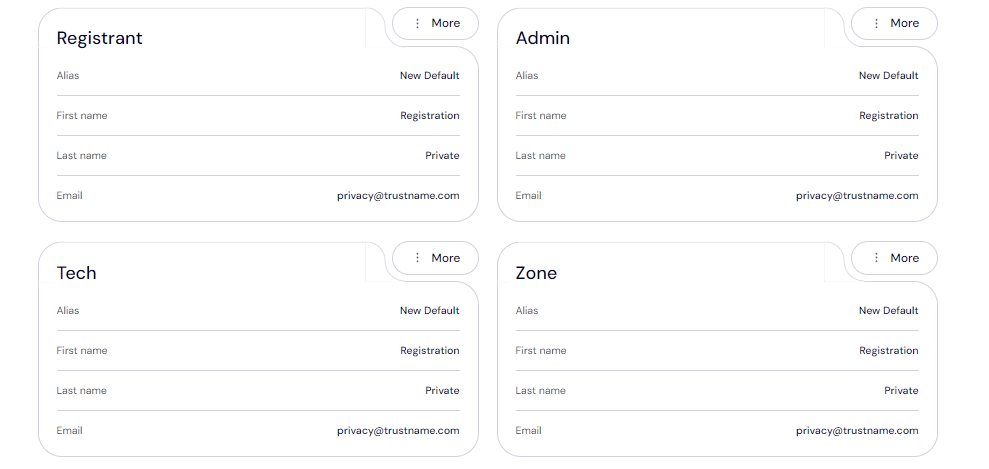
Learn more about why Trustname registers domains under Perfect Privacy LLC for enhanced Whois protection.
- Review Domain Lock
Your domain is automatically locked upon transfer, preventing unauthorised transfers.
To check your domain lock settings, go to:
Domains >>>Registered Domains >>>Select your domain >>>Scroll to the Additional Settings field.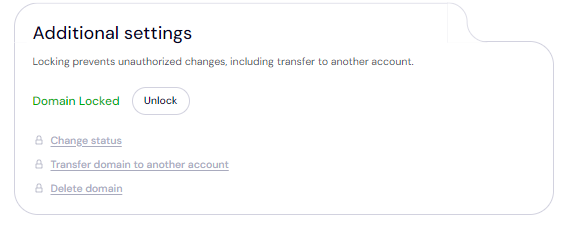
- Verify DNS Settings
Review and confirm your DNS settings after transferring your domain.
[+] [List] Green Ordered - To check your domain nameservers, go to the Domain Nameservers section.

- To review your DNS records, click 'Hosted Zone' under the General Info tab and select View.
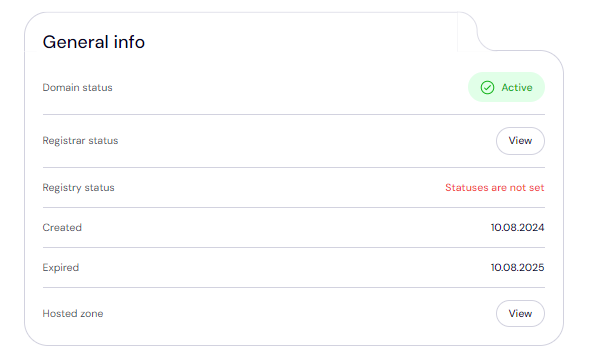 From here, you can update DNS records, modify nameservers, and enable DNSSEC for added security.
- To check your domain nameservers, go to the Domain Nameservers section.
- Set Up Two-Factor Authentication (2FA)
Enabling 2FA ensures that anyone accessing your account must enter a code generated by an authenticator app, including your login credentials.
To enable 2FA on your Trustname account:
[+] [List] Green Ordered - Go to My Profile >>>Account Settings >>>Scroll down to Two-Factor Authentication (2FA) and toggle it on.
- Scan the QR code or enter the secret key from the portal into an authenticator app (e.g., Google Authenticator).
- Enter the six-digit code generated by the app into your Trustname portal and click 'Enable'.
Save the backup codes provided during setup to regain access in case you lose your device.
For more details, read our guide on setting up two-factor authentication on Trustname.
Troubleshooting Failed Domain Transfers
Transferring domains can be long and frustrating if you miss a few things. Here are some common reasons why transfers fail and how to resolve them:
- Incorrect EPP Code
[+] [Callout] Error Insert title here [+] [Callout] Title/Title with Icon -> Entering the wrong Auth or EPP code will prevent the transfer from completing. To avoid errors, copy the code directly from Domain.com and paste it into the required field on Trustname, rather than typing it manually.
- Domain Eligibility Restrictions
Domains can't be transferred within 60 days of the last transfer, registrant change, or updates to the domain's contact details. Ensure your domain is eligible for transfer and not under the 60 days lock before proceeding.
- Transfer Lock Enabled
If the Domain Lock is still active, Domain.com won't release the domain. Double-check your domain settings to confirm the lock is disabled, as outlined earlier.
- Email Approval Requests
If you registered the domain using your own contact details, you'll need to verify them during the transfer process. Keep an eye on your inbox for any emails from us requesting approval to finalise the transfer.
Final Note
You should make the switch from Domain.com to Trustname today for several reasons. At Trustname, privacy is built-in, not an extra. Our Two-Tier Privacy Protection keeps your details hidden by default, unlike Domain.com, where you pay to get protected. Trustname also offers fixed, transparent pricing with low renewal rates and no surprise fees.
We provide seamless payment options worldwide, including crypto, along with superior human support and industry-leading domain privacy. Trustname is known for protecting abuse-prone niches, so you can trust us to safeguard your business without unnecessary shutdowns.
To transfer to us, simply confirm your domain's eligibility, unlock it, get the Auth code, disable Domain Privacy, and review your contact details. Then, visit Trustname's transfer portal, submit the Auth code, select your domain contact, and make your payment.
We offer discounted transfers and add an extra year to your domain's expiry date. Choose Trustname today and join thousands of satisfied customers making the smarter switch!