
This guide explains how to transfer your domain from Bluehost to Trustname, including preparation steps, transfer requirements, and post transfer security. It also highlights why many users choose Trustname for better privacy, pricing, and customer support.
Key Takeaways
- Eligibility – Domain must be unlocked and outside the ICANN 60 days lock.
- Preparation – Unlock the domain and obtain the Auth (EPP) code from Bluehost.
- Value – Transparent pricing, strong privacy, and fair abuse policies.
- Process – Simple step by step transfer through Trustname.
- Security – Enable 2FA, domain lock, and review DNS after transfer.
TABLE OF CONTENTS
- Key Takeaways
- Perks You Should Expect With Trustname
- Things to Note Before Transferring Your Domain Out
- Prepare Your Domain At Bluehost For The Transfer
- Safeguard Your Domain at Trustname
Are you eager to transfer your domain from Bluehost to Trustname? We're excited to welcome you. From accounts being suspended due to unverified abuse reports to unhelpful customer support that worsens existing issues, it's understandable why many users want to leave a registrar that doesn't prioritize their interests.
To move your domain from Bluehost to Trustname, you must unlock your domain, obtain the authorization (EPP) code from your Bluehost cPanel account, and initiate the transfer from Trustname. Before we dive into the steps, let's take a look at what you can expect after switching.
Perks You Should Expect With Trustname
Bulletproof Abuse Report Policy
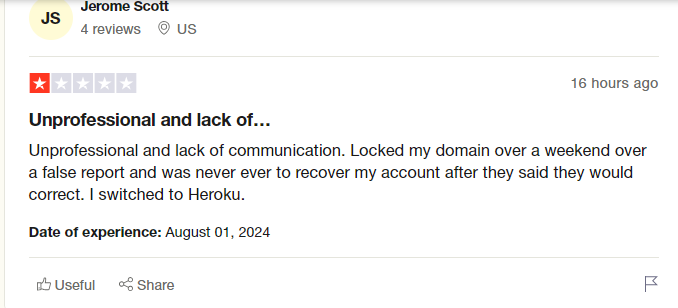
Some registrars may suspend domains without proper investigation when abuse reports are filed.
Many Bluehost customers report that the registrar takes immediate action on abuse complaints without adequate investigation. Recovering access often requires multiple interactions with support, which can be time consuming and frustrating. At Trustname, our position is clear we facilitate domain registrations only.
We do not judge the legality or illegality of website content that responsibility lies with judicial authorities. If you operate a grey area or abuse prone business, Trustname provides a stable environment for your domain. Except in cases involving severe illegal activity such as child exploitation, arms trafficking, or opioid sales.
we maintain a neutral stance regardless of the number of abuse reports received. Our customers come first. Even if a domain is later found to be associated with illegal content, we still allow the registrant to transfer the domain to another provider.
Transparent And Affordable Pricing
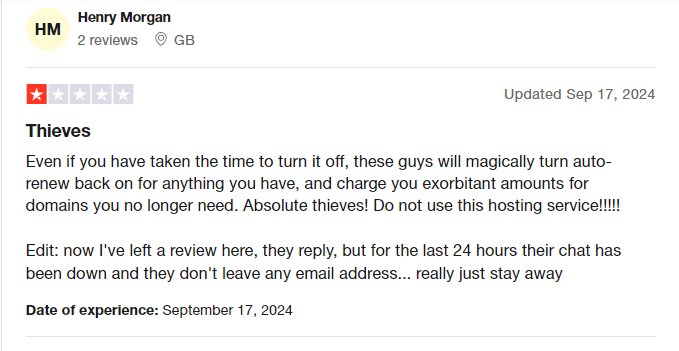
Unexpected renewal charges are one of the most common complaints among domain owners.
Another frequent complaint from Bluehost customers is the high cost of renewals. While a .com domain may initially cost $12.99, the renewal price increases to $19.99. In addition, Bluehost charges $11.99 for Whois privacy and SSL certificates. Some users also report being charged automatically even after disabling auto renewal, leaving them with expensive domains they no longer need.
At Trustname, we pride ourselves on transparent pricing. What you see is what you pay. We charge a flat $12.99 for most domains in the first year and $14.99 for renewals, with no hidden fees.
Professional Support
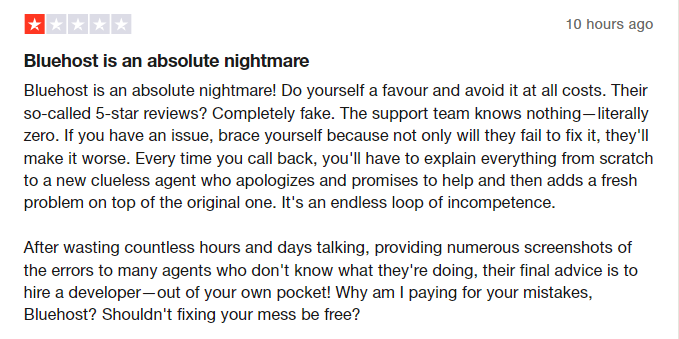
Responsive and knowledgeable support is critical when managing domains.
One of Bluehost's major shortcomings is unprofessional customer support. Users frequently report inexperienced representatives who fail to resolve issues, leading to wasted time and resources.
At Trustname, you receive assistance from experienced human agents who are also webmasters. We encourage customers to reach out via live chat so issues can be resolved quickly and efficiently.
World Class Privacy
Basic Whois privacy only masks public records and does not fully protect ownership details.
If paying extra for privacy isn't frustrating enough, Bluehost offers only basic Whois privacy that replaces contact information with proxy data or "Redacted for Privacy" (for EU customers).
Trustname goes further with our Two-Tier Domain Privacy. This allows you to register domains anonymously and apply an additional privacy layer that hides domain contact information completely. Your personal data is never linked to your domain unless you choose otherwise.
As an added benefit, our partner proxy company is contacted first in the event of legal inquiries.
Read more: Why Trustname registers domains in the name of Perfect Privacy LLC to learn more about our Two-Tier Privacy.
Things To Note Before Transferring Your Domain Out
Review Domain Nameservers
DNS and nameserver settings cannot be changed during an active transfer.
Domain nameservers direct web browsers to the servers hosting your website. If your domain is connected to a website hosted by Bluehost, we recommend updating your nameservers to your new hosting provider before starting the transfer to avoid downtime.
You can update nameservers from your Bluehost cPanel account. Once the transfer begins, you won't be able to modify nameservers or DNS settings until it completes.
Transferring Your Domain Doesn't Take Your Website Along
Domain registration and web hosting are separate services.
Transferring your domain to Trustname does not automatically move your website. To migrate your website, you'll need to purchase a hosting plan from your new provider.
Contact us if you'd like assistance with a smooth website migration.
Transfer Pricing And Policy
Domain transfers include a free one-year extension.
We charge a base transfer fee of $7.77 (with our promo code). This adds one extra year to your domain's current expiration date.
Transferring Expired Domains
You can only transfer your domain name when it is active or during the grace period after it expires. If you don't renew your domain during the Grace Period and it enters into the Redemption Period, you are going to have to renew it first for an extra fee and wait for ICANN's 60 days lock to elapse. We advise you to transfer domains at least two weeks before their expiration date.
Prepare Your Domain At Bluehost For The Transfer
Confirm The Domain's Transfer Eligibility
ICANN regulations state that you won't be able to transfer a domain name until 60 days have passed since the last registrar transfer, registrant change, or change to the domain's contact details. Make sure that your domain is at least 60 days old and hasn't had any registrant or registrar changes made in the last 60 days before proceeding with the transfer.
Unlock The Domain
Before you initiate a transfer from Bluehost, the first step is to disable the transfer lock. This extra security feature ensures you're the only one who can transfer your domain.
Follow these steps:
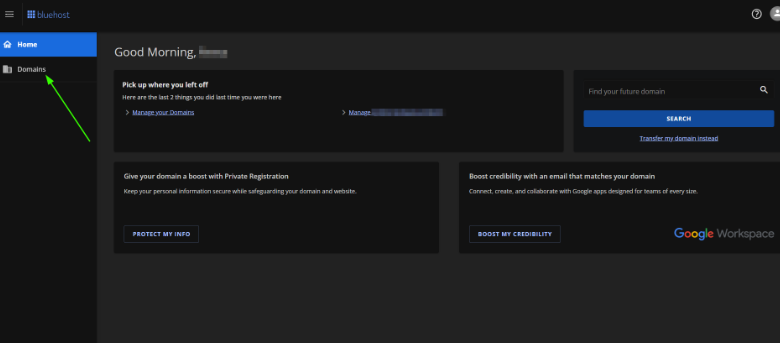
- Log in to your Bluehost cPanel account, click 'Domains' on the left side of the page, and select the domain you want to transfer.
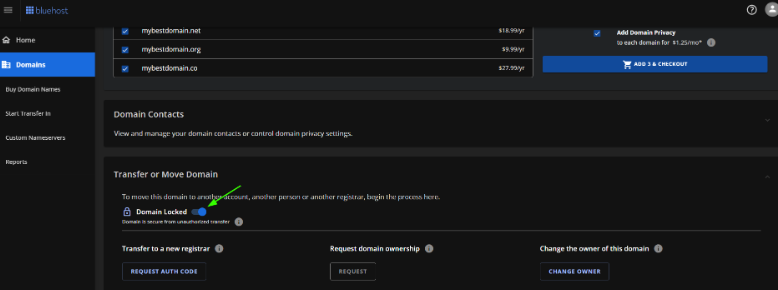
- Click on the 'Transfer or Move Domain', then click on the 'Domain Locked' toggle to unlock the domain for transfer.
Obtain The Auth (EPP) Code
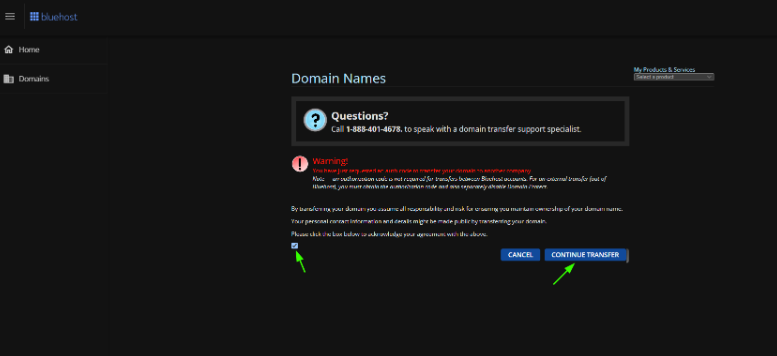
Once the transfer lock is disabled, click on 'Request Auth code' to get to the access code request submission tab. Click the checkbox to agree with the conditions, then click 'Continue' transfer to request the Auth code.
Initiate The Transfer At Trustname
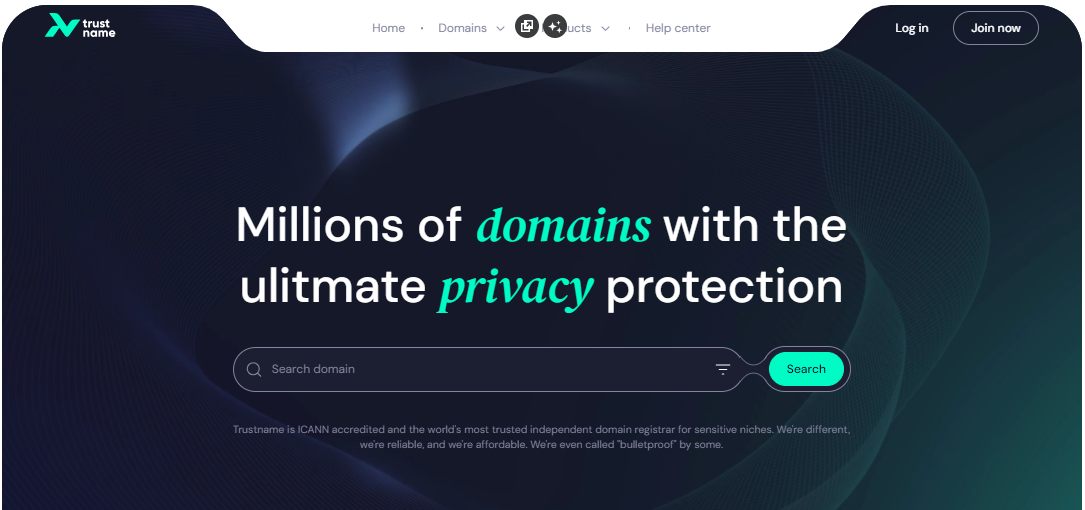
- Head to the Trustname.com website and click 'Log In' at the top right corner to access your Trustname account.
- Fill in your account username and password to gain access to your customer portal.
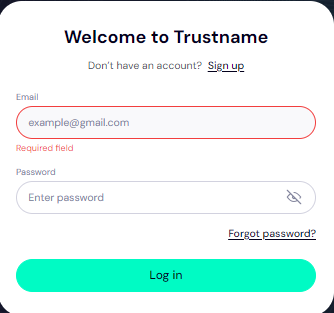
Click 'Log in'.
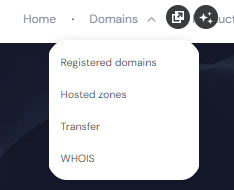
- Under the 'Domains' dropdown in the header, click on 'Transfer'.
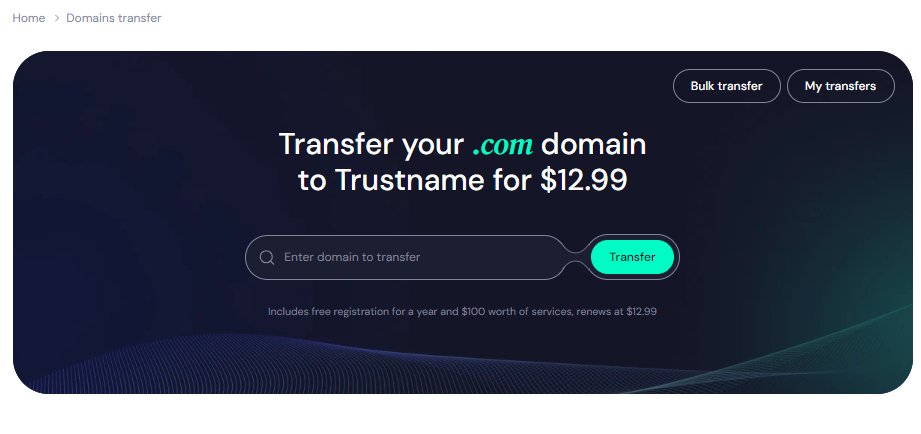
- Type in your domain, including the domain extension, and click on 'Transfer'.
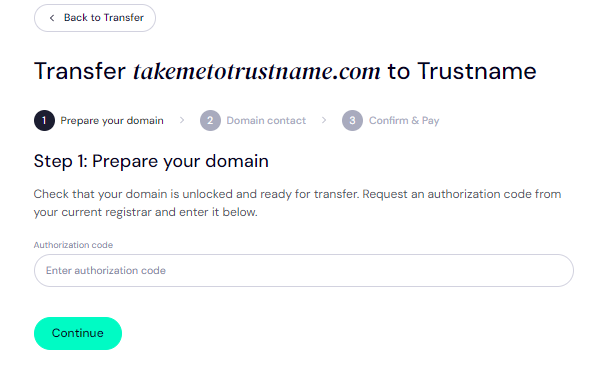
- Enter the Auth Code (EPP code) Bluehost emailed you and click on 'Continue'.
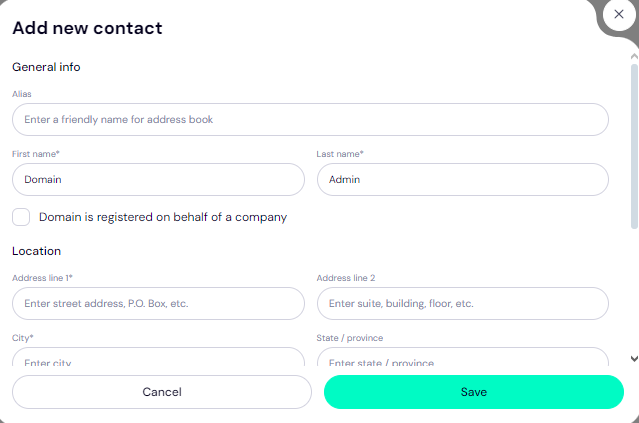
- Fill in your domain contact details. You can choose to use your details by clicking on the 'Choose Contact' dropdown and selecting 'Add new contact'.
Or you can click 'Use a pre-defined contact' to enable Trustname's Two-Tier Privacy Protection.
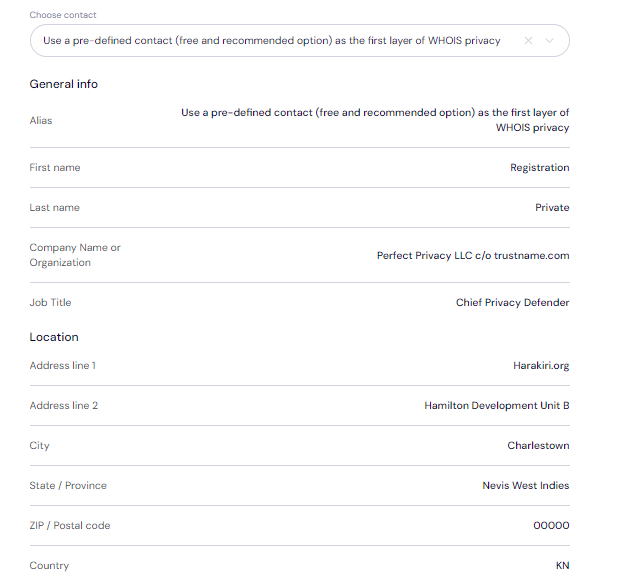
[+] [Notice] Info Insert title here [+] [Notice] Title -> You retain full control of your domain even if you choose 'Use a pre-defined contact' we only offer this service to give you the most privacy and minimize your digital footprint.
Click 'Continue'.
- Pay for your domain transfer and get 1 extra year on your domain's current expiry date.
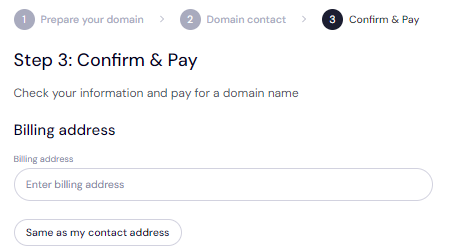
Enter your billing address or select 'Same as my contact address' so you don't need to fill it in manually.
- Choose your payment method. You can use a bank card or existing funds in your Trustname wallet to make a payment.
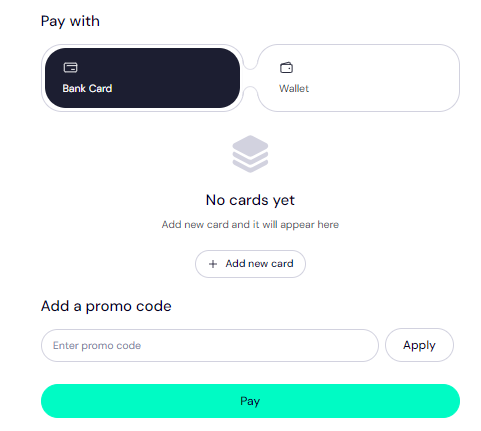
If you don't have a bank card set up yet, click on 'Add new card' and fill in your card details to have it set up.
Trustname also accepts cryptocurrencies for payment!
Trustname's Domain Transfer Promo Code - WELCOME777
- Using the promo code WELCOME777 reduces your transfer fee to $7.77 and adds one free year to your domain's expiration date.
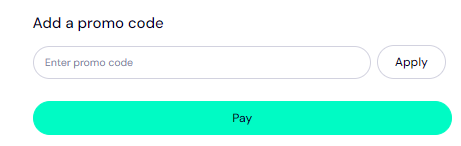
- Enter WELCOME777 in the "Add a promo code" field.
- Select your domain registration period (between 1 and 10 years).
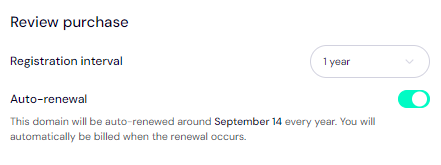
- Leave the auto-renewal option ON so your domain renews well before it expires. Click Pay and follow the on-screen prompts to complete the process. That’s it!
Safeguard Your Domain At Trustname
When your domain gets to us, we advise you to turn on two-factor authentication (2FA), review your domain lock, review our Two-Tier privacy to see your domain Whois info, and check your nameservers.
Troubleshoot A Failed Domain Transfer
When you follow the steps we've outlined, your domain transfer should run smoothly. However, if you are experiencing any issues, you may need to recheck the Auth Code, ensure your domain is eligible, check that your domain is unlocked, and disable Whois privacy on [Registrar].
Read Troubleshooting Failed Domain Transfers to Trustname for more help.