
This guide explains how to transfer your domain from OVHcloud to Trustname, including eligibility checks, preparation steps, and the complete transfer process. It also highlights why many users choose Trustname for transparent pricing, reliable support, and enhanced domain privacy.
Key Takeaways
- Eligibility – Domain must be outside the ICANN 60 days lock.
- Preparation – Disable the transfer lock and obtain the Auth (EPP) code.
- Value – Transparent pricing, no cancellations, and strong privacy.
- Process – Step-by-step transfer through the Trustname portal.
- Security – Enable 2FA, review DNS, and confirm domain lock after transfer.
TABLE OF CONTENTS
- Key Takeaways
- Perks You Should Expect With Trustname
- Before Initiating Your Transfer Here's What You Should Know
- Prepare Your Domain At OVHcloud For The Transfer
- Safeguard Your Domain At Trustname
With OVHcloud known for sudden cancellations, unprofessional customer support, and high renewal fees, it's understandable why many users choose to move their domains elsewhere.
To transfer your domain from OVHcloud to Trustname, you must confirm that your domain is outside the ICANN 60 days lock, disable the domain transfer lock, and obtain the authorization (EPP) code from your OVHcloud control panel.
Before we begin, let's look at what you gain by switching to Trustname.
Perks You Should Expect With Trustname
Transparent And Affordable Pricing
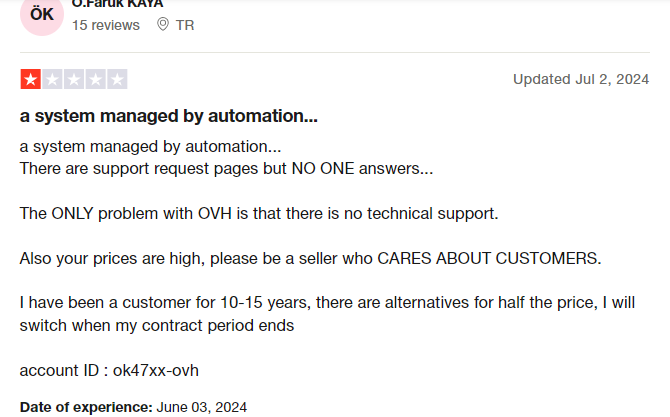
High registration prices do not always translate to better service or features.
For a registrar with a poor reputation among many customers, OVHcloud's domain prices are relatively high. A .com domain starts at $14.99, and some domain prices can reach hundreds of dollars.
At Trustname, pricing is simple and transparent. We charge a flat $12.99 for most domains in the first year and $14.99 for renewals. You also receive a free SSL certificate and world class privacy protection at no additional cost.
Zero Cancellations
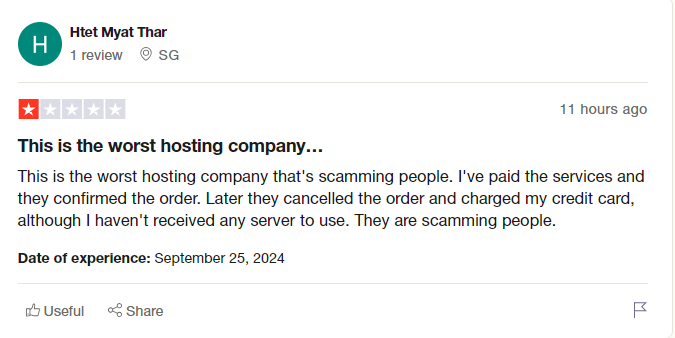
Unexpected service cancellations after payment can result in business disruption.
Many OVHcloud reviews mention orders being canceled after payment, followed by denied refund requests due to strict no refund policies.
At Trustname, we do not cancel paid services. Once you place an order, we ensure you receive exactly what you paid for. If you change your mind, we are happy to process a refund in line with our refund policy.
Professional Support
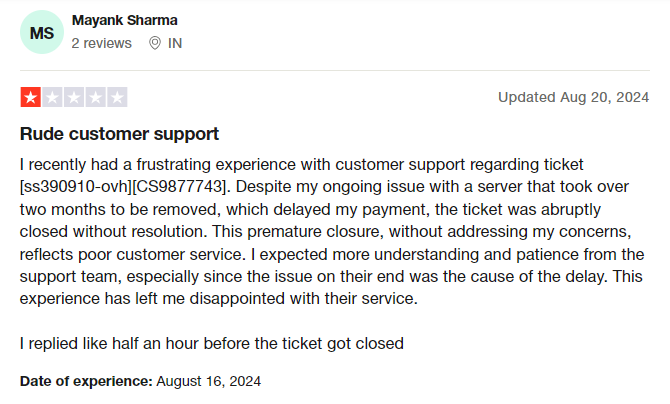
Responsive, respectful support is critical when managing domains.
OVHcloud's support is often described as unprofessional, impatient, and prone to closing tickets without resolving the reported issue.
At Trustname, you receive support from experienced human agents who are skilled webmasters with extensive experience resolving domain related issues. We also encourage customers to contact us via live chat to ensure faster resolution.
World Class Privacy
Basic Whois privacy only masks public records and does not fully protect ownership details.
While OVHcloud provides free privacy protection, it is limited to basic Whois masking, replacing contact information with proxy data or "Redacted for Privacy" (for EU users).
Trustname offers advanced Two-Tier Domain Privacy. This allows you to register domains anonymously and apply an additional layer of protection that completely separates your personal information from your domain. If legal inquiries arise, our partner proxy company is contacted first.
Read more: Why Trustname registers domains in the name of Perfect Privacy LLC to learn how Two-Tier Privacy works.
Before Initiating Your Transfer Here's What You Should Know
Review Domain Nameservers
Domain nameservers point web browsers to the IP address of the web servers hosting your website. Should your nameservers still be set to OVHcloud, they will stop resolving queries once your domain is moved, and your website will experience downtime. We advise you to change your nameservers to your new web host before initiating the transfer.
Transferring your domain doesn't take your website along
Domain registration and web hosting are separate services.
Although domains and websites work together, transferring your domain to Trustname does not automatically move your website. If you want to migrate your website, you must purchase a hosting plan and contact us for migration assistance.
Transfer Pricing And Policy
Every domain transfer includes a free one year extension.
Trustname charges a base transfer fee of $7.77 when you use our promo code. This fee adds one extra year to your domain's current expiration date.
Transferring Expired Domains
Domains in Redemption or Pending Delete cannot be transferred.
Domains can only be transferred while active or during the grace period after expiration. If a domain enters the redemption period, it must be renewed first and then remain locked for 60 days under ICANN rules.
We recommend transferring domains at least two weeks before their expiration date.
Prepare Your Domain At OVHcloud For The Transfer
Check The Domain's Transfer Eligibility
The Internet Corporation for Assigned Names and Numbers (ICANN) enforces a 60 days registrar lock on domains that were recently transferred or modified. Ensure that your domain is at least 60 days old and hasn't had any registrant or registrar changes made in the last 60 days before proceeding with the transfer.
Unlock The Domain At OVHcloud
Once you confirm your domain name is eligible for transfer, the next step is to disable the domain lock. This extra security feature ensures you're the only one who can transfer your domain. Follow these steps to do so.
- Log in to your OVHcloud Control Panel and select 'Web Cloud'. Click 'Domain Names', then choose the domain name you want to transfer.
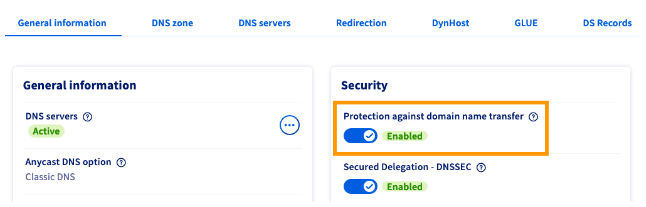
On the General information tab, you can find the Protection against Domain Name transfer slider button under Security, which is set to 'Enabled' by default.
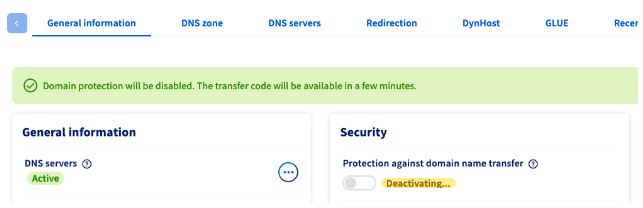
- Click on the slider and confirm in the popup window that you want to remove this protection. Allow a few minutes for the status to change to Disabled.
Obtain The Auth (EPP) code
The next step is to obtain the Auth Code that helps Trustname validate your request with OVHcloud. This is how to get it.
- Once you have removed the transfer protection, you can retrieve your domain name's transfer code in the 'General Information tab'. Refresh the page if necessary.
- Click on AUTH/INFO under Protection against Domain Name Transfer. A window displaying your AUTH/EPP will open. Make sure to copy and paste the code as opposed to typing it by hand, since some characters are easily confused.
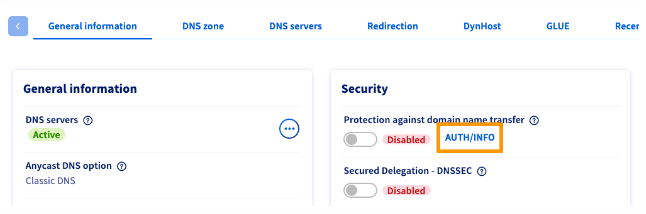
Once the transfer code has been retrieved, do not lock your domain again unless you no longer wish to transfer it.
Initiate The Transfer At Trustname
- Head to the Trustname.com website and click 'Log In' at the top right corner to access your Trustname account.
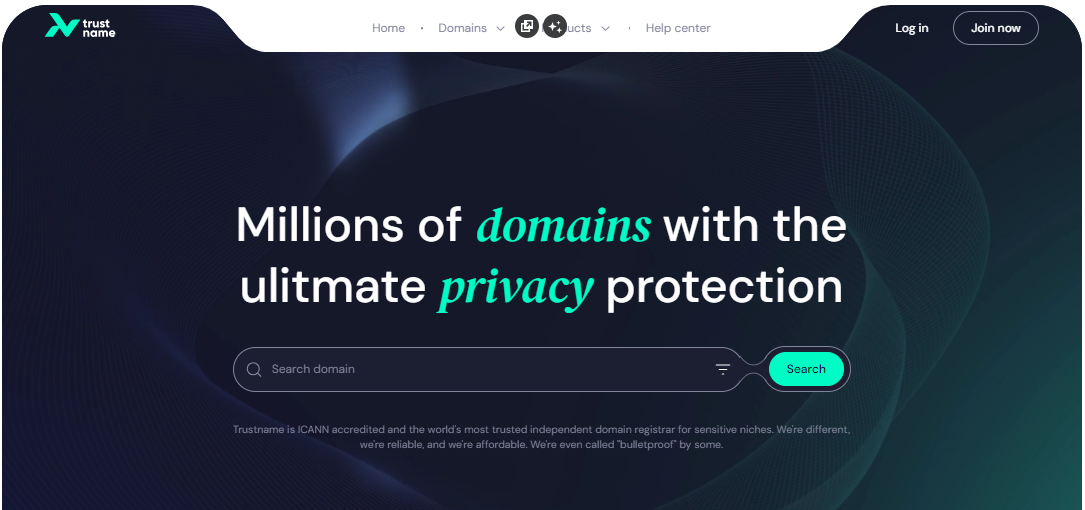
- Fill in your account username and password to gain access to your customer portal.
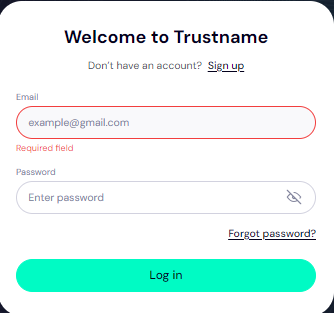
Click 'Log in'.
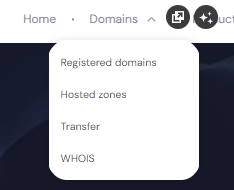
- Under the 'Domains' dropdown in the header, click on 'Transfer'.
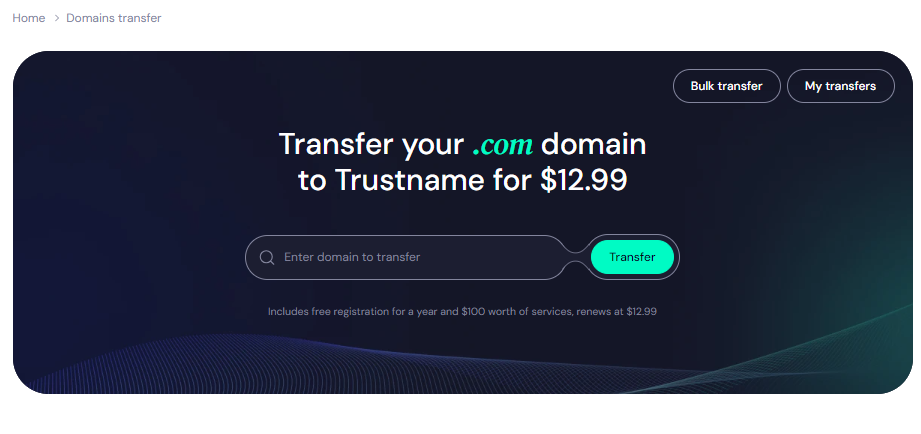
- Type in your domain including the domain extension and click on 'Transfer'.
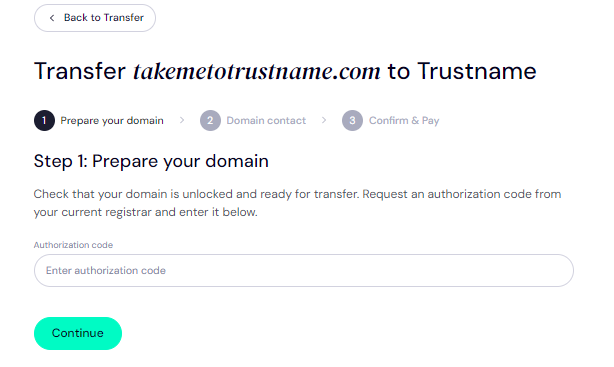
- Enter the Auth Code (EPP code) OVHcloud emailed you and click on 'Continue'.
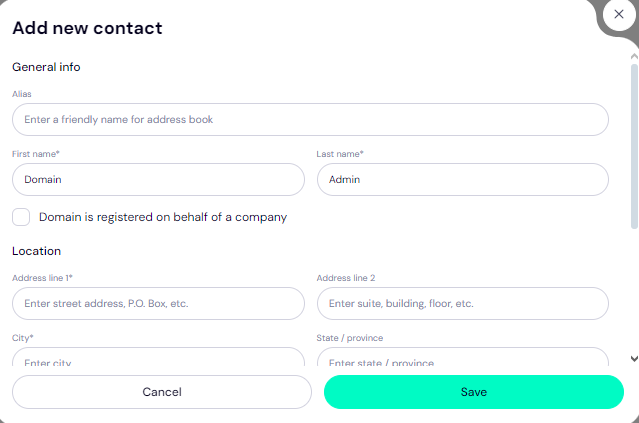
- Fill in your domain contact details. You can choose to use your details by clicking on the 'Choose Contact' dropdown and selecting 'Add new contact'.
Or you can click 'Use a pre-defined contact' to enable Trustname's Two-Tier Privacy Protection.
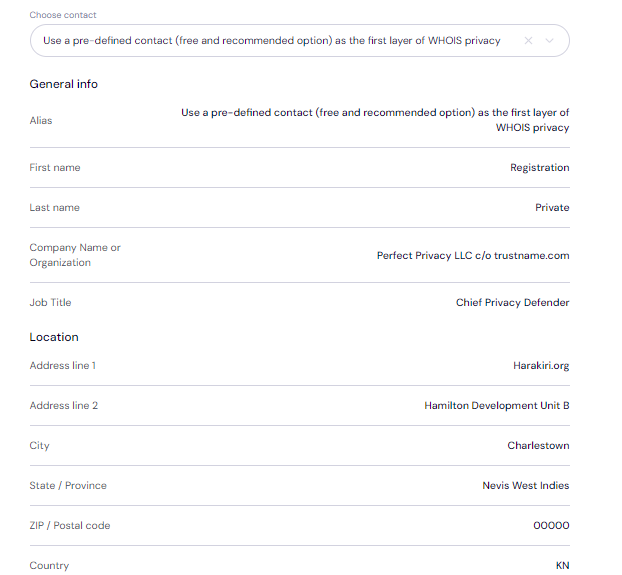
[+] [Notice] Info Insert title here [+] [Notice] Title -> You retain full control of your domain even if you choose 'Use a pre-defined contact' we only offer this service to give you the most privacy and minimize your digital footprint.
Click 'Continue'. - Pay for your domain transfer and get 1 extra year on your domain's current expiry date.
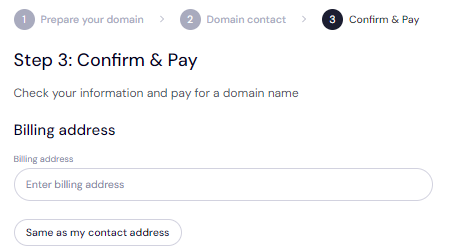
Enter your billing address or select 'Same as my contact address' so you don’t need to fill it in manually.
- Choose your payment method.
You can use a bank card or existing funds in your Trustname wallet to make a payment.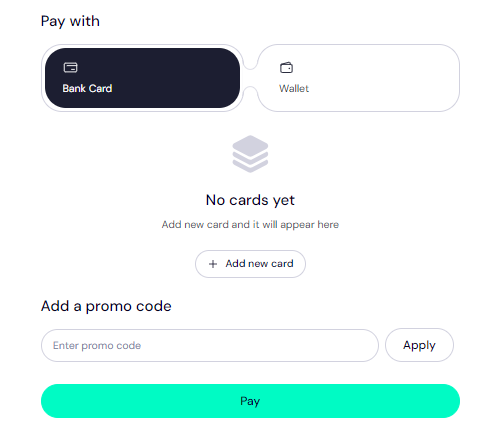
If you don't have a bank card set up yet, click on 'Add new card' and fill in your card details to have it set up.
We also accept cryptocurrencies for payment!
Trustname's Domain Transfer Promo Code - WELCOME777
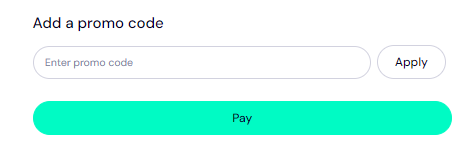
- Use the promo code WELCOME777 to reduce your transfer fee to $7.77 and add one free year to your domain's expiration date.
- Enter WELCOME777 in the "Add a promo code" field.
- Select your domain registration period (between 1 and 10 years).
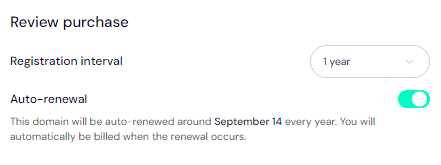
- Leave the auto renewal option ON so your domain renews well before it expires.
- Click the Pay button and follow the on screen prompts to complete the process.
Safeguard Your Domain At Trustname
When your domain gets to us, we advise you to turn on two-factor authentication (2FA), review your domain lock, review our Two-Tier privacy to see your domain Whois info, and check your nameservers.
Troubleshoot A Failed Domain Transfer
When you follow the instructions we've shown you, the domain transfer should run smoothly. However, should it fail, you may need to re check the Auth Code, ensure your domain is eligible, check that your domain is unlocked, and disable Whois privacy on [Registrar].
Read Troubleshooting Failed Domain Transfers to Trustname for more help.